How to Reset Windows 8 and Windows 8.1
This will show you how to use a new feature in Windows 8 and Windows 8.1 to reset your PC to completely start over back to default to remove all personal data, apps, and settings from the PC, and reinstall Windows. This is like doing a factory restore/recovery on a purchased computer or clean install, but a little faster.
Resetting your Windows 8 PC works like this:
- The PC boots into the Windows Recovery Environment (Windows RE).
- Windows RE erases and formats only the hard drive partition on which Windows 8 and your personal data (user folders) reside.
- Windows RE installs a fresh copy of Windows 8.
- The PC restarts into the newly installed copy of Windows 8.
 Note
NoteWhich files will be affected?
When you reset your PC, the drive will be completely reset, and all your apps and files will be removed from it. Windows 8 will be reinstalled, and you'll need to change any settings and reinstall any apps that you want to get back after resetting. If you know if any files that you don't want to lose, then you should back those files up before starting the reset.
What if I have multiple drives?
You can choose whether to reset all hard drives or just the one with Windows 8 installed on it. Any drive that Windows 8 doesn't recognize, such as those with non-Windows operating systems, will not be affected.
 Warning
If you set UAC to Always notify me, then you will not be able to use the refresh and reset Windows 8 features. These features require UAC to be set to the default or lower level to work.
OPTION ONE
How to Reset Windows 8 and Windows 8.1 at Boot
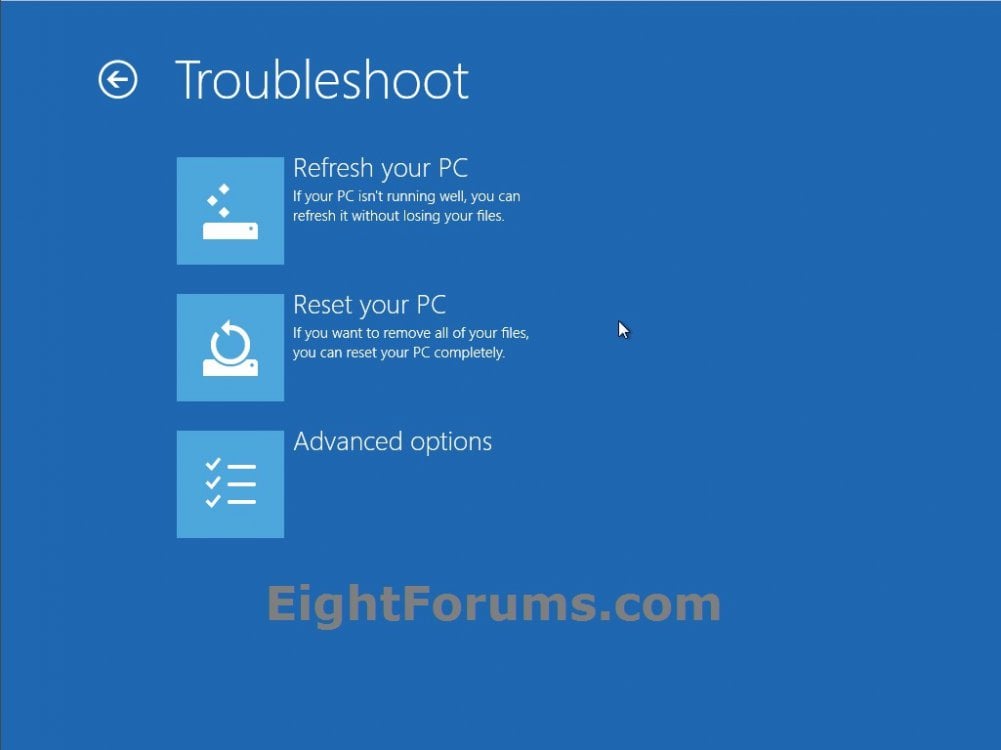
1. Boot to the System Recovery Options using the same type of Windows 8 installation DVD or USB thumb drive, or ISO file if in a virtual machine that you currently have installed, and click/tap on the Reset your PC option. (see screenshot below)
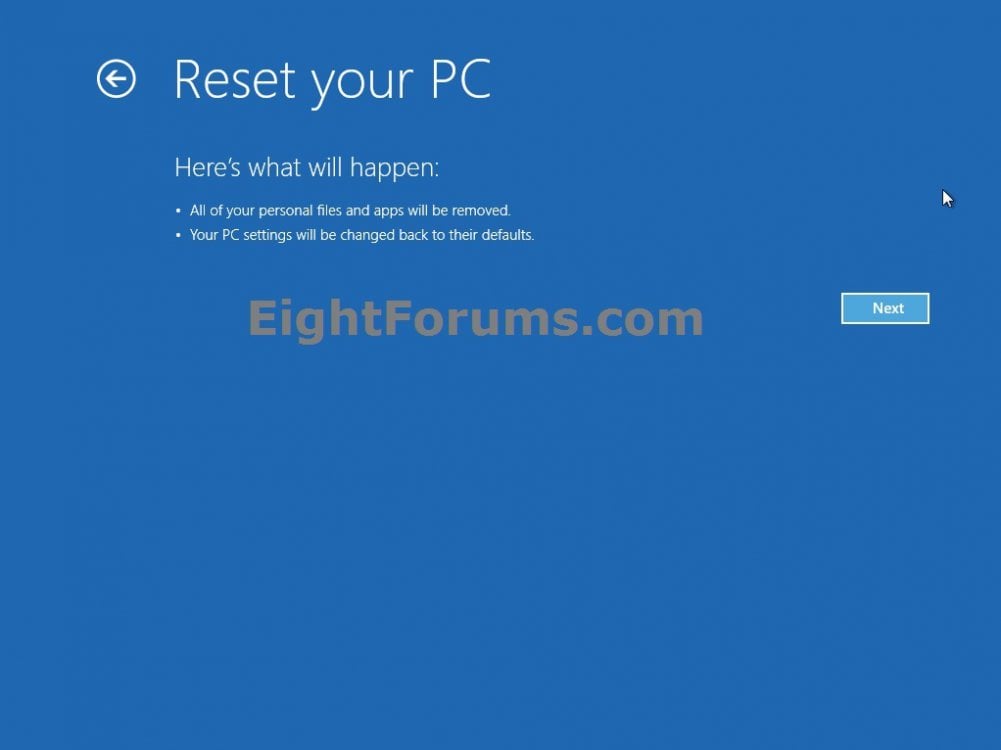
2. Click/tap on Next. (see screenshot below)
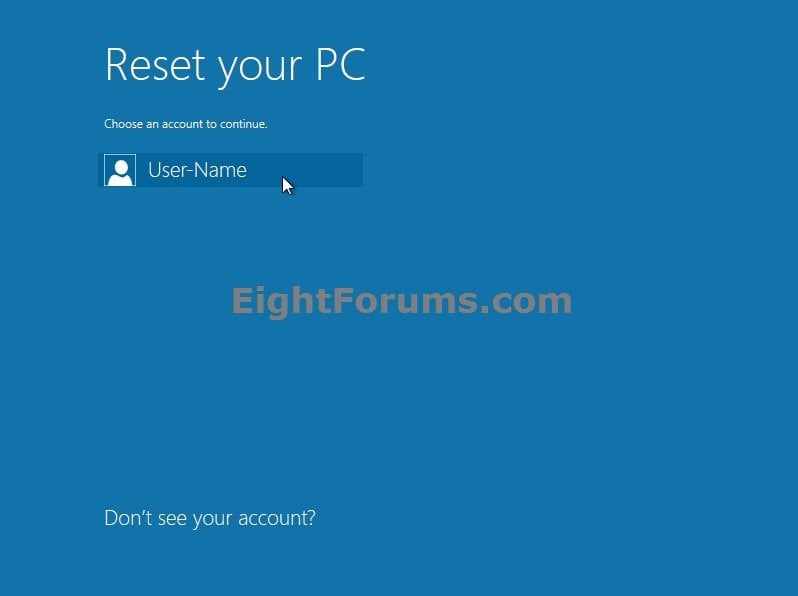
3. If prompted, select and click/tap on a listed administrator account to sign in to it. (see screenshot below)
NOTE: Standard user accounts and domain accounts on the computer will not be listed.
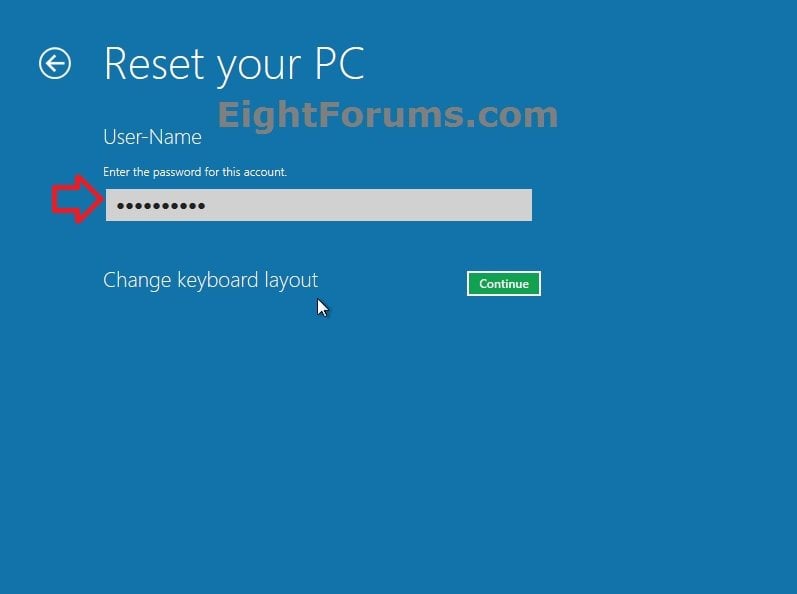
A) Type in the password for the selected administrator account, and click/tap on Continue. (see screenshot below)
NOTE: If you need to change the keyboard layout (language), then do so before entering your password so it will be the same language that the password was set in and match.
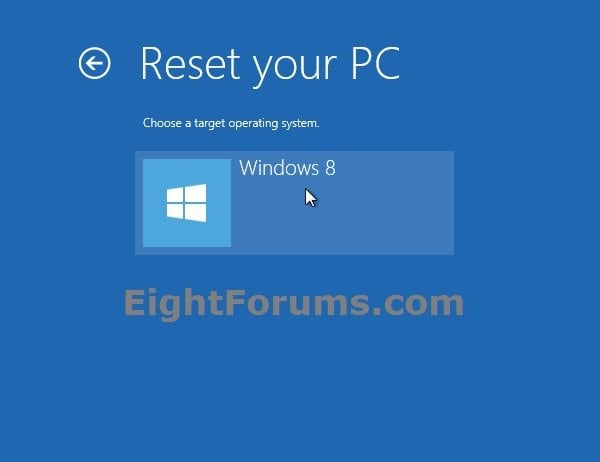
4. If prompted, select the OS (ex: Windows 8) you want to reset. (see screenshot below)
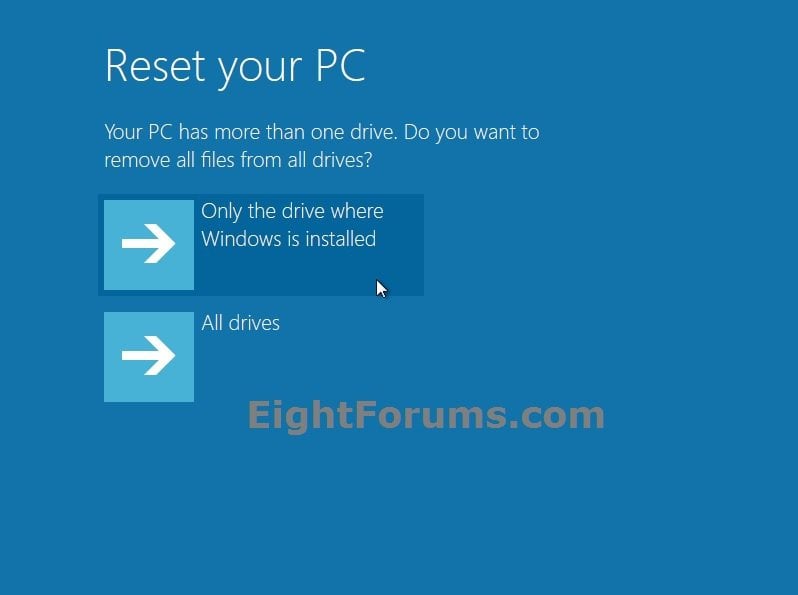
5. If prompted, select if you would like to remove all files from all drives or only the Windows 8 drive. (see screenshot below)
NOTE: You will only see this if you have more than one HDD or partition with a drive letter.
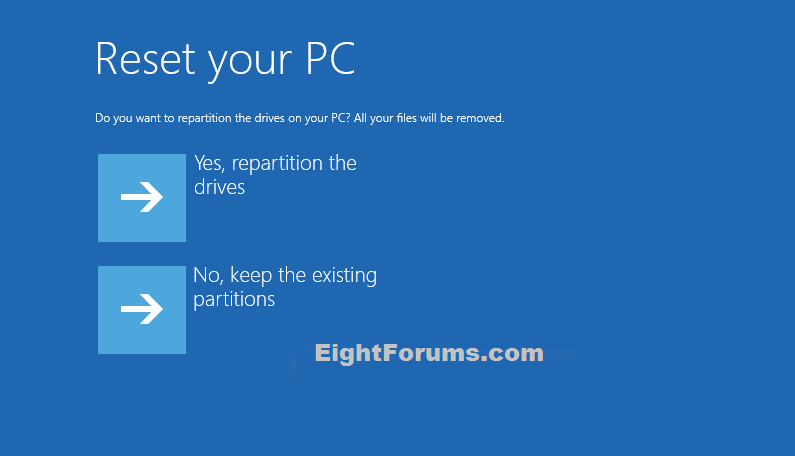
6. If prompted, select if you would like to repartition the drives (remove all files) or keep the existing partitions. (see screenshot below)
NOTE: You will only see this if you have more than one partition on your Surface.
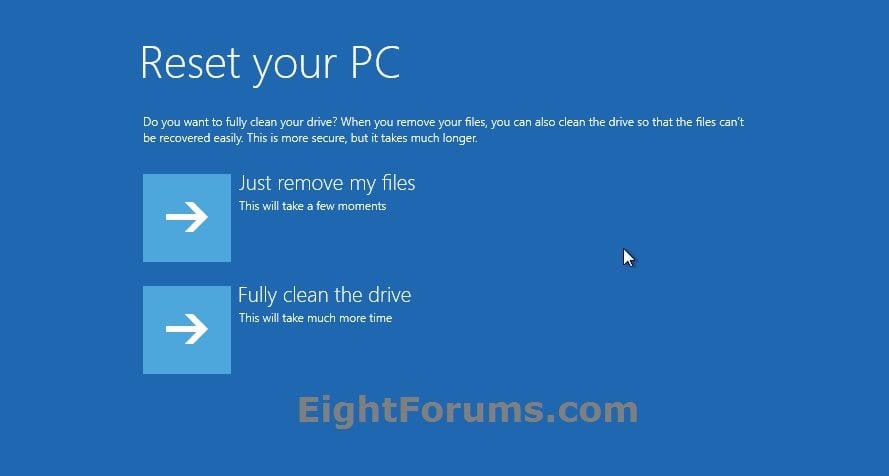
7. Select how you want to have your personal files deleted in this current installation of Windows 8. (see screenshot below)
NoteJust remove my files = Quick, but your files might be recoverable by someone else since they are only marked as deleted.
Fully clean the drive = Thorough, but this can take several hours since it does a secure erase to overwrite your files so that they can't be easily recovered.
Fully clean the drive = Thorough, but this can take several hours since it does a secure erase to overwrite your files so that they can't be easily recovered.
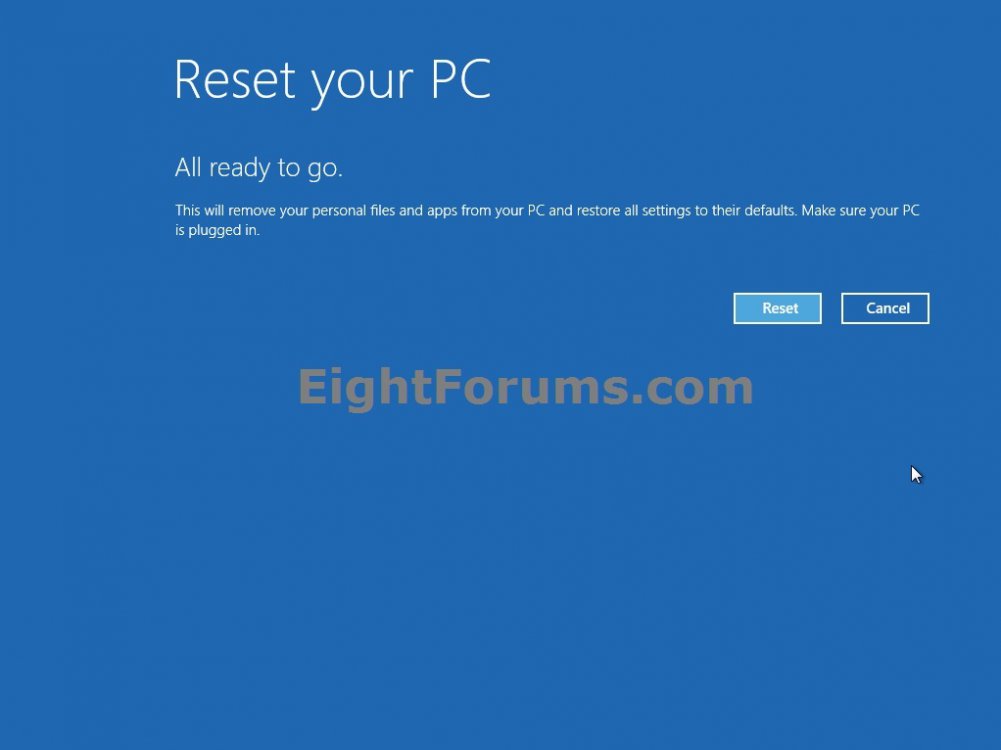
8. Click/tap on Reset. (see screenshot below)
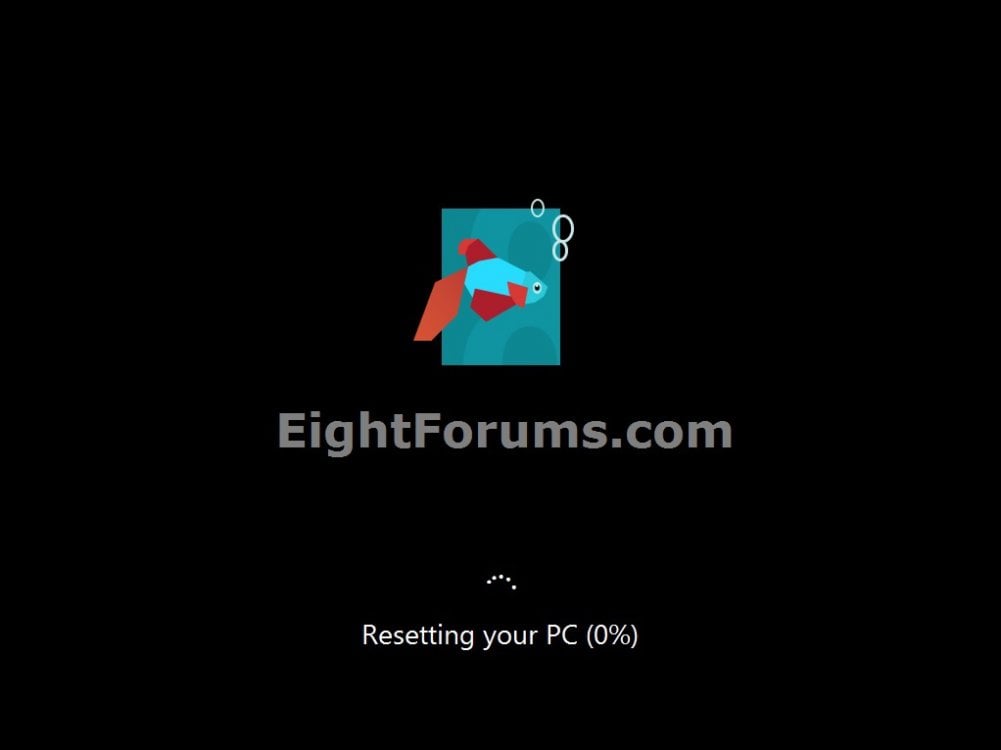
9. Windows 8 will now start resetting. (see screenshot below)
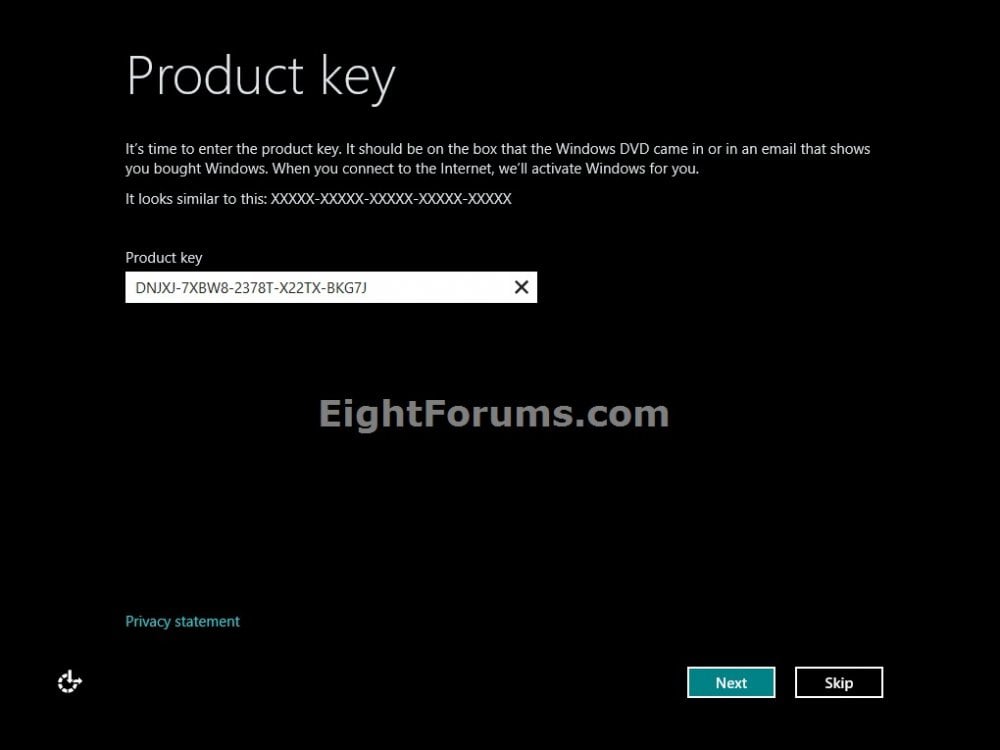
10. Enter your Windows 8 or 8.1 product key number below, and click/tap on Next. (see screenshot below)
11. Check the I accept the license terms for using Windows box, and click/tap on the Accept button. (see screenshot below)
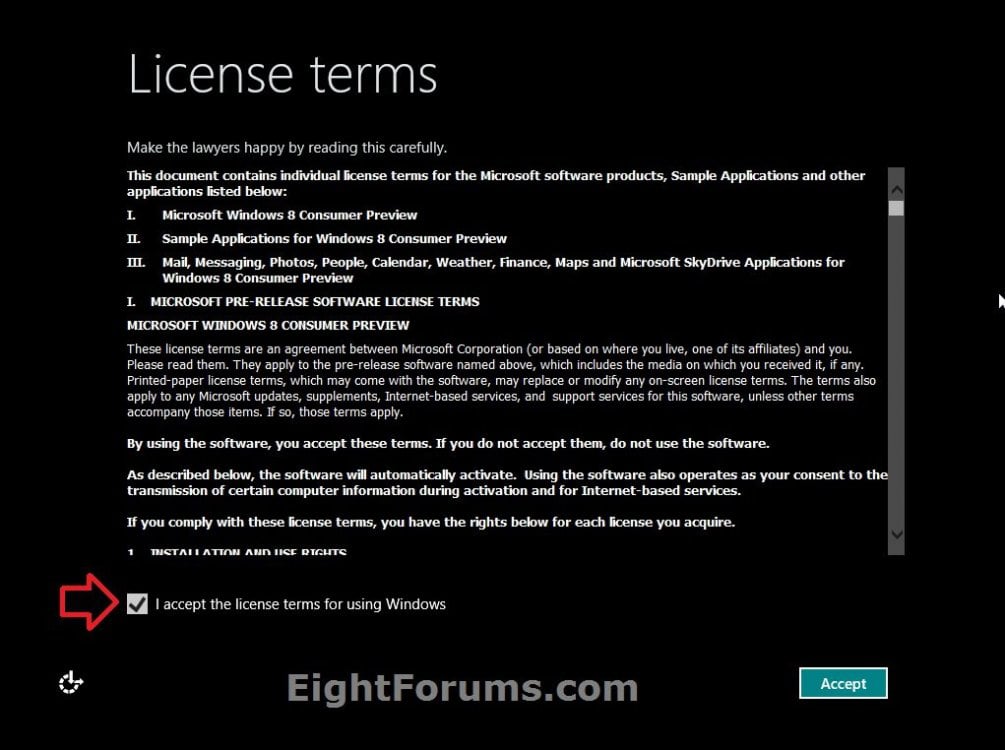
12. From this point on, the steps are the same as doing a clean install. Go to and start at step 10 in the tutorial link below to finish resetting Windows 8.
Clean Install - Windows 8
OPTION TWO
Reset Windows 8 or Windows 8.1 from within Windows 8 and Windows 8.1
1. While logged in to an administrator account in Windows 8, insert or connect the same type of Windows 8 installation DVD or USB thumb drive, or ISO file if in a virtual machine that you currently have installed.
2. Do step 3 or 4 below depending on which option you would prefer to use.
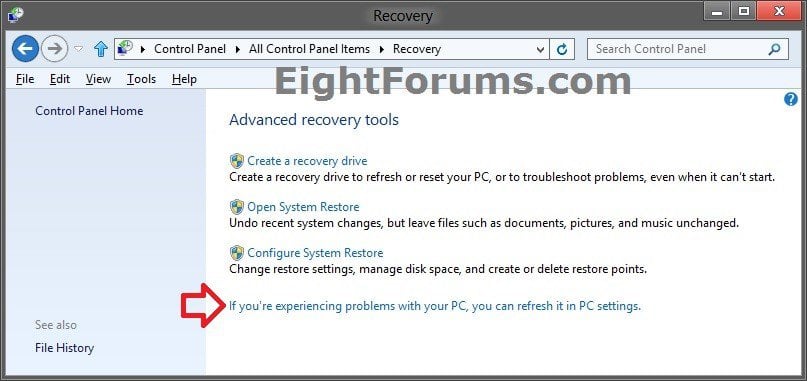
3. Open the Control Panel (icons view), click/tap on the Recovery icon, click/tap on the If you're experiencing problems with your PC, you can refresh it in PC settings link, and go to step 5 or 6 below. (see screenshot below)
4. Open PC settings, and do step 5 or 6 below for the Windows 8 you have installed.
5. If you have Windows 8.1 or Windows RT 8.1
A) On the left side in PC settings, click/tap on Update & Recovery. (see screenshot below)
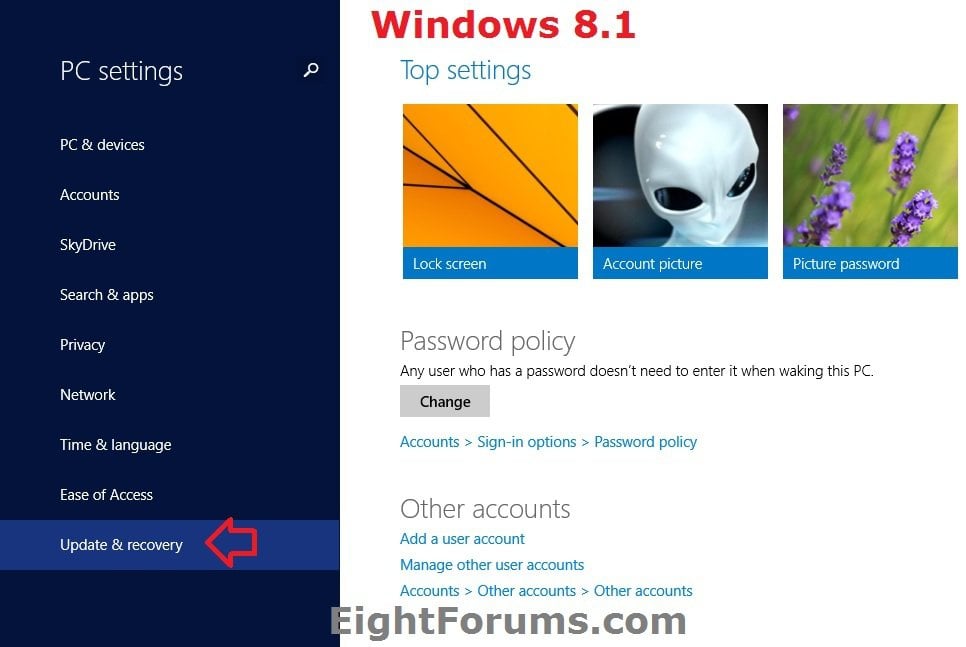
B) On the left side in Update & Recovery, click/tap on Recovery, click/tap on the Get started button under the Remove everything and reinstall Windowssection on the right side, and go to step 7 below. (see screenshot below)

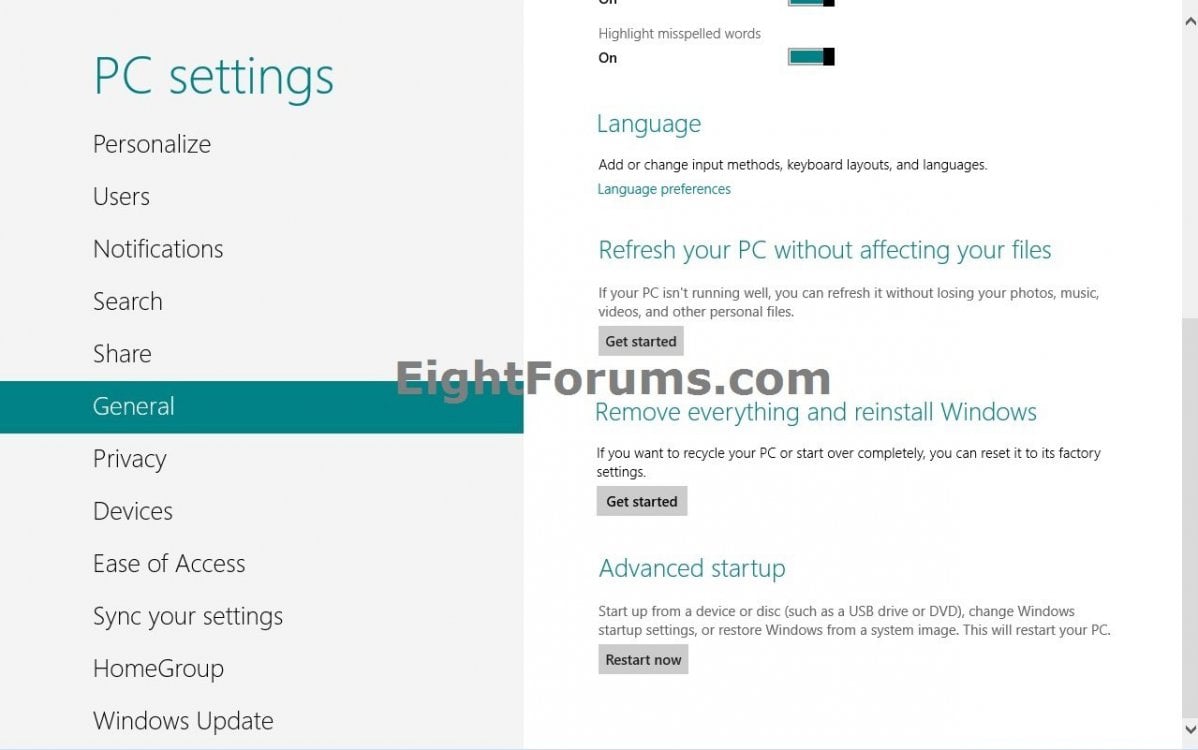
6. If you have Windows 8 or Windows RT
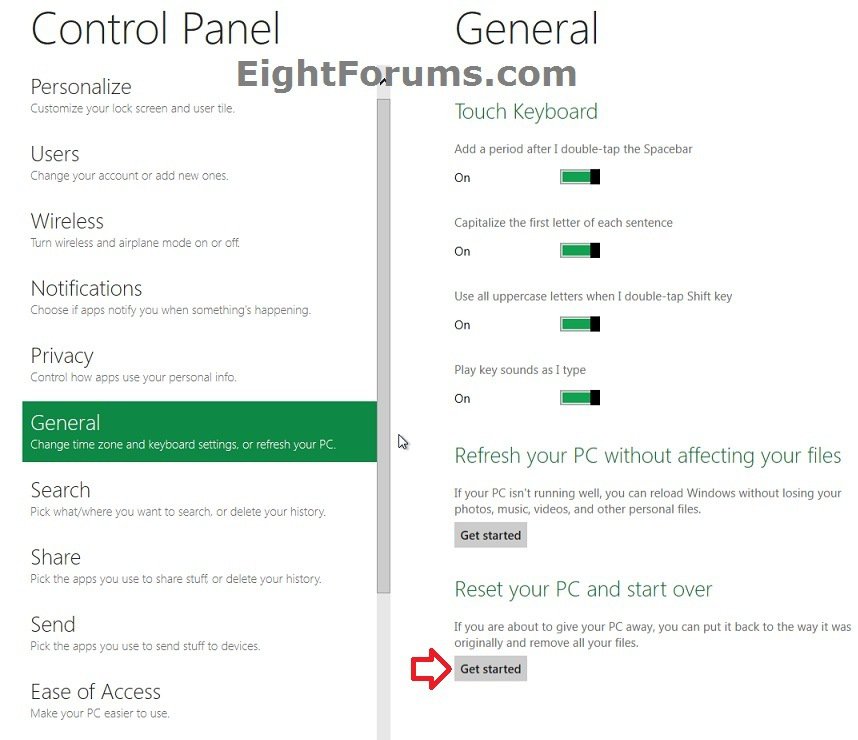
A) Click/tap on General on the left side, click/tap on the Get started button under the Remove everything and reinstall Windows section on the right side, and go to step 7 below. (see screenshot below)
7. If prompted by UAC, then click/tap on Yes.
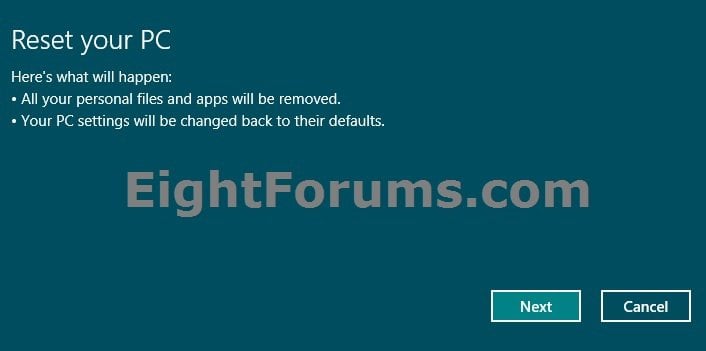
8. Click/tap on Next. (see screenshot below)
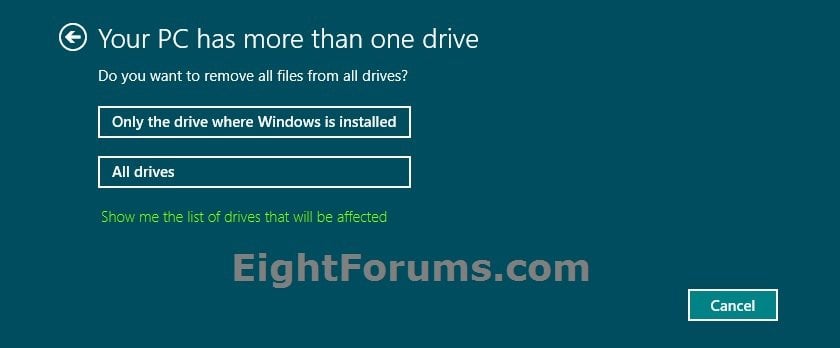
9. If prompted, select if you would like to remove all files from all drives or only the Windows 8 drive. (see screenshot below)
NOTE: You will only see this if you have more than one HDD or partition with a drive letter. If you like, click/tap on the Show me the list of drives that will be affected link to see them.
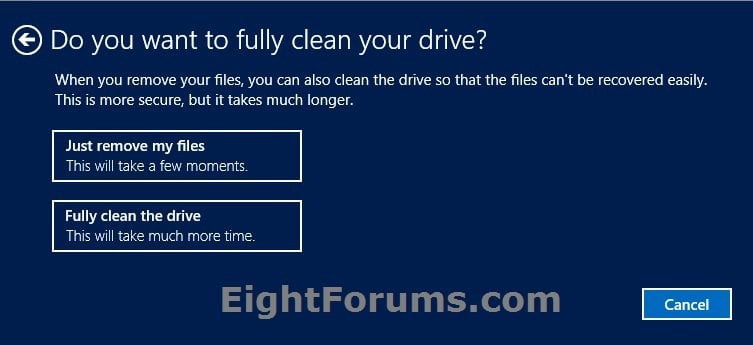
10. Select how you want to have your personal files deleted in this current installation of Windows 8. (see screenshot below)
NoteJust remove my files = Quick, but your files might be recoverable by someone else since they are only marked as deleted.
Fully clean the drive = Thorough, but this can take several hours since it does a secure erase to overwrite your files so that they can't be easily recovered.
Fully clean the drive = Thorough, but this can take several hours since it does a secure erase to overwrite your files so that they can't be easily recovered.
11. Click/tap on Reset. (see screenshot below)
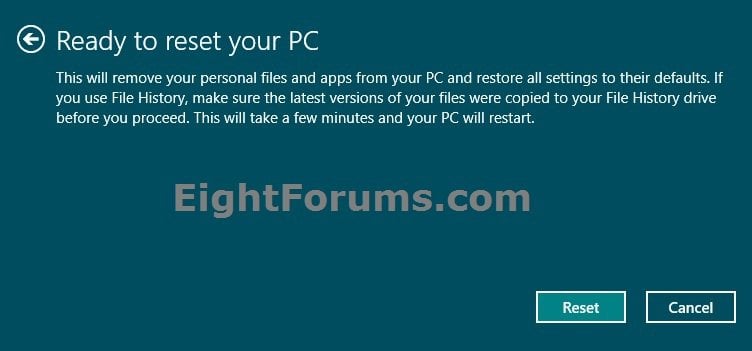
12. Windows 8 or 8.1 will now start resetting. (see screenshot below)
13. Enter your Windows 8 or 8.1 product key number below, and click/tap on Next. (see screenshot below)
14. Check the I accept the license terms for using Windows box, and click/tap on the Accept button. (see screenshot below)
15. From this point on, the steps are the same as doing a clean install. Go to and start at step 10 in the tutorial link below to finish resetting Windows 8 or 8.1.
Clean Install - Windows 8
That's it,
Shawn
Related Tutorials
- How to Create a Recovery Image used to Reset Windows 8 or 8.1
- How to Show Location of Recovery Image used to Reset Windows 8 or 8.1
- How to Boot to the "System Recovery Options" in Windows 8
- How to Create a Recovery PC settings Shortcut in Windows 8.1
- How to Do a Clean Install of Windows 8 or Windows 8.1
- How to Do a Repair Install of Windows 8 without Losing Anything
- How to Refresh Windows 8 and Windows 8.1
- How to Create a Refresh Windows Shortcut in Windows 8 and 8.1
- How to Refresh Windows 8 Using a Custom Recovery Image
- How to Refresh or Reset Windows 8 without Installation Disk
- How to Install Windows 8 on VMware Player
- How to Install Windows 8 on VirtualBox
- How to Run the "SFC /SCANNOW" Command at Boot or in Windows 8
- How to Do a System Image Recovery in Windows 8
- How to Use DISM to Fix Component Store Corruption in Windows 8 and Windows Server 2012
Attachments

Last edited by a moderator: