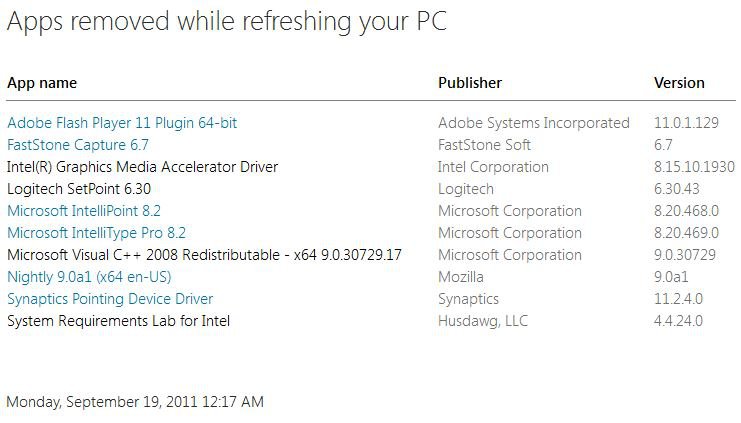
How to Boot to "System Recovery Options" in Windows 8 and 8.1
This will show you how to boot to the System Recovery Options options screen to be able to refresh Windows 8, reset Windows 8, do a system restore, do a system image recovery, do a automatic repair, open a command prompt at boot, or open Advanced Boot Options to help in the recovery of Windows 8.
OPTION ONE
Boot to "System Recovery Options" using "Startup Options"
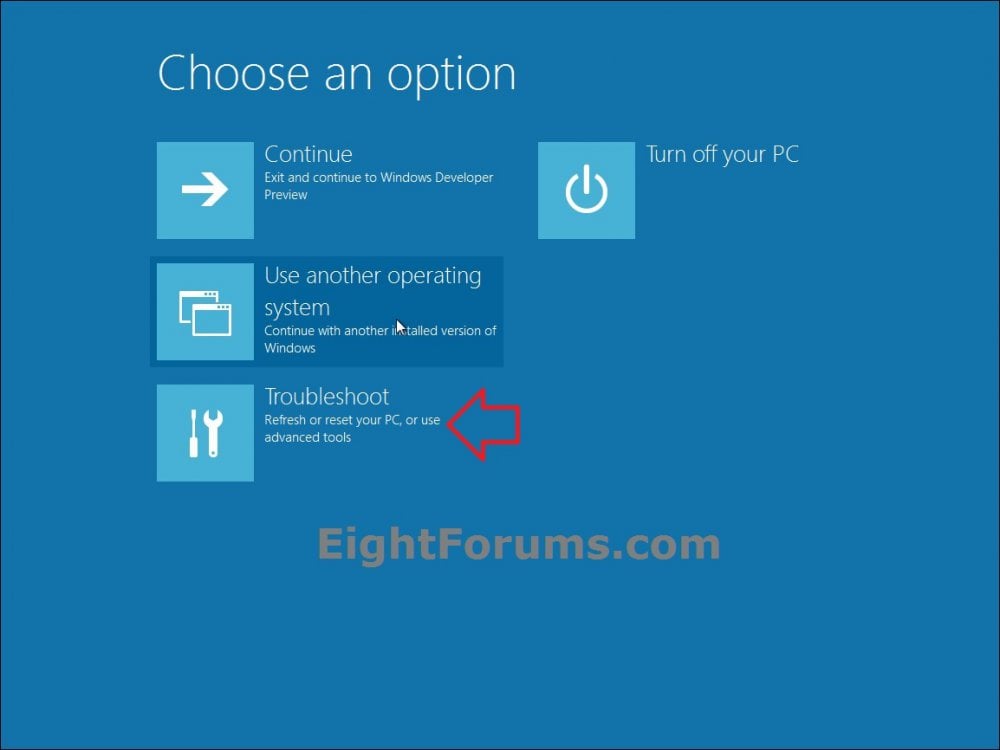
1. Boot to the Startup Options Menu, and click/tap on Troubleshoot. (see screenshot below)
NOTE: You will only see the Use another operating system option if you are mutli booting Windows, or added Safe Mode to the Windows Boot Manager.
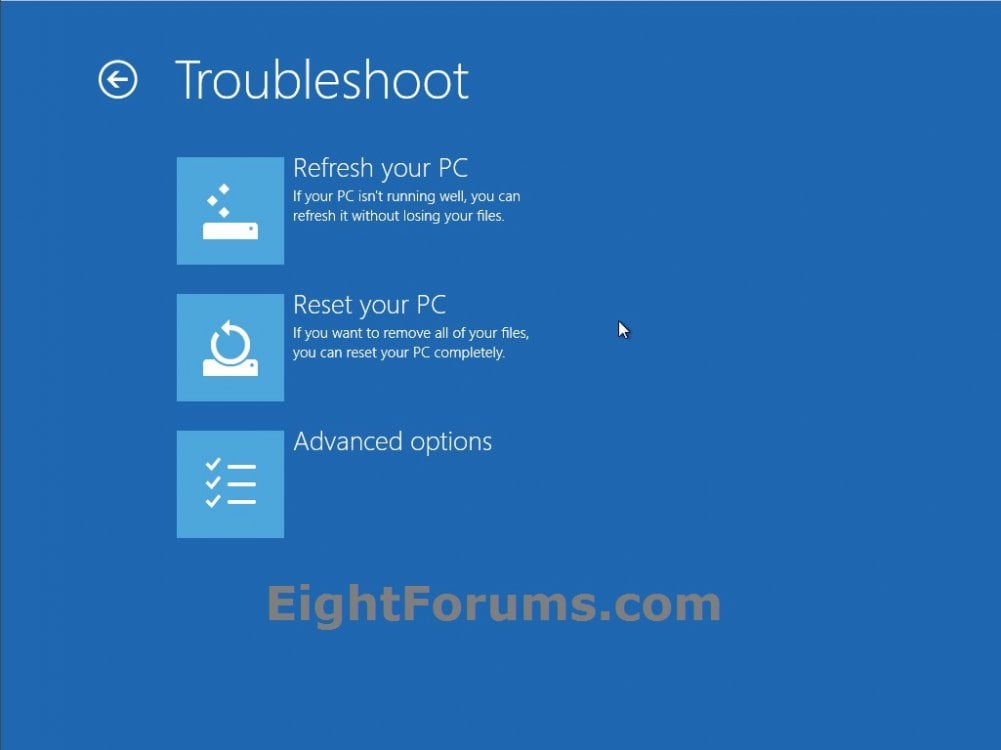
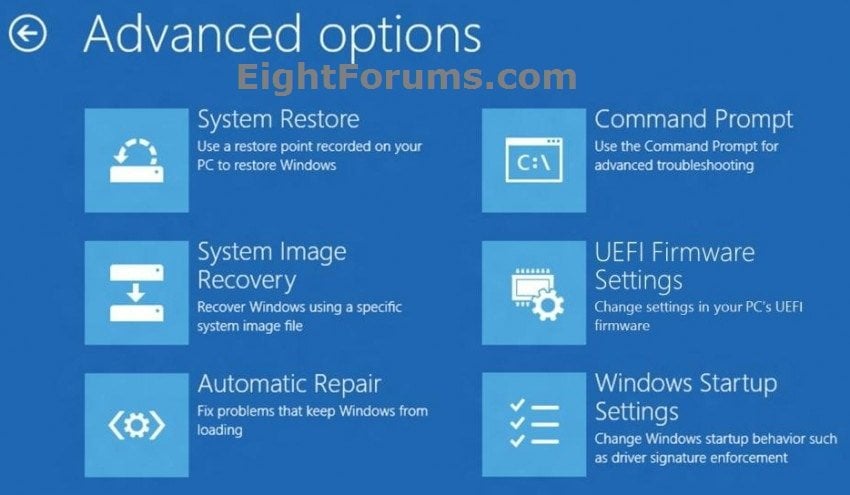
2. From here, select the recovery option in Troubleshoot or Advanced options that you would like to do at boot. (see screenshots below)
Refresh your PC (Troubleshoot)
Reset your PC (Troubleshoot)
System Restore (Advanced options)
System Image Recovery (Advanced options)
Automatic Repair (Advanced options)
Command Prompt (Advanced options)
UEFI Firmware Settings (Advanced options)
NOTE: If your motherboard has UEFI, then you will have also have this option available in Advanced options. Check your manufacturer's uEFI BIOS manual for available settings in it.
Windows Startup Settings (Advanced options)
NOTE: You will not have this option if you booted from a system repair disc or recovery USB flash drive.
OPTION TWO
To Open "Recovery" Options in Control Panel
1. While logged in to an administrator account in Windows 8, insert or connect your Windows 8 installation DVD or USB thumb drive, or ISO file if in a virtual machine.
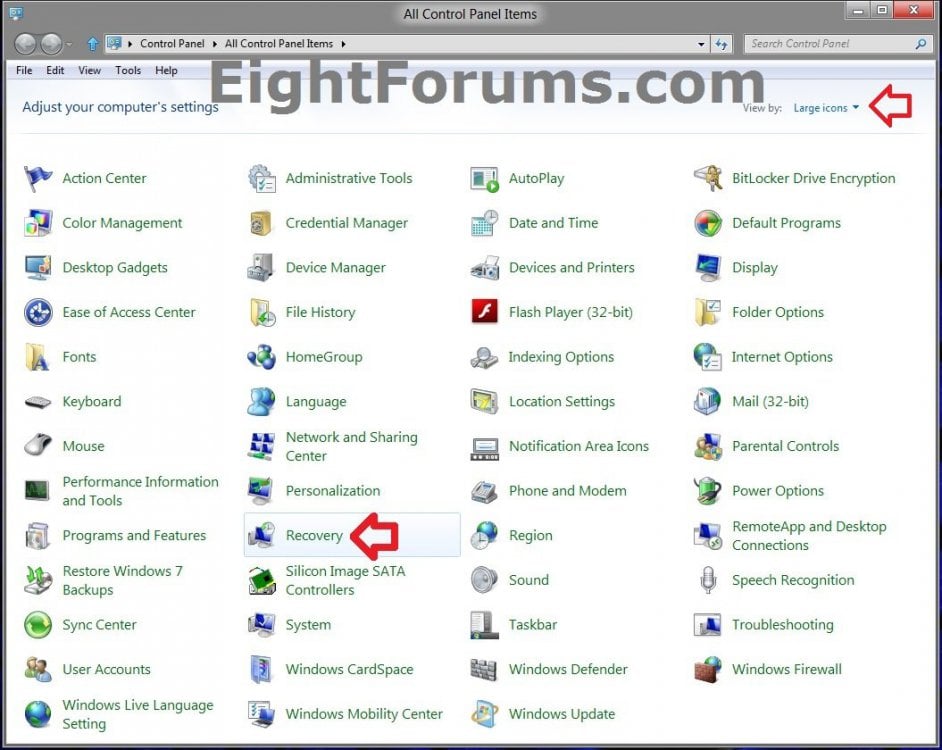
2. Open the Control Panel (icons view), and click/tap on the Recovery icon. (see screenshot below)
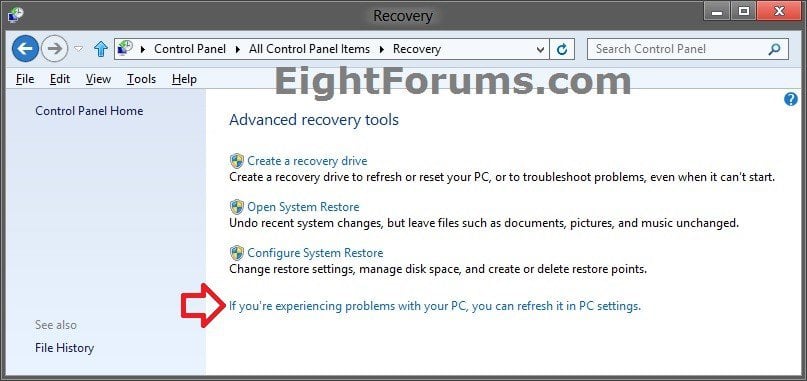
3. From here, select the recovery option that you would like to do. (see screenshot below)
NOTE: If you click/tap on the If you're experiencing problems with your PC, you can refresh in PC settings. link, then you will be taken to step 4 in OPTION THREE below.
Refresh your PC
Reset your PC
Create a recovery drive/Create a System Repair Disc
Open System Restore
Configure System Restore
OPTION THREE
To Open "Recovery" Options in PC settings
1. Open PC settings, and do step 2 or 3 below for the Windows 8 you have installed.
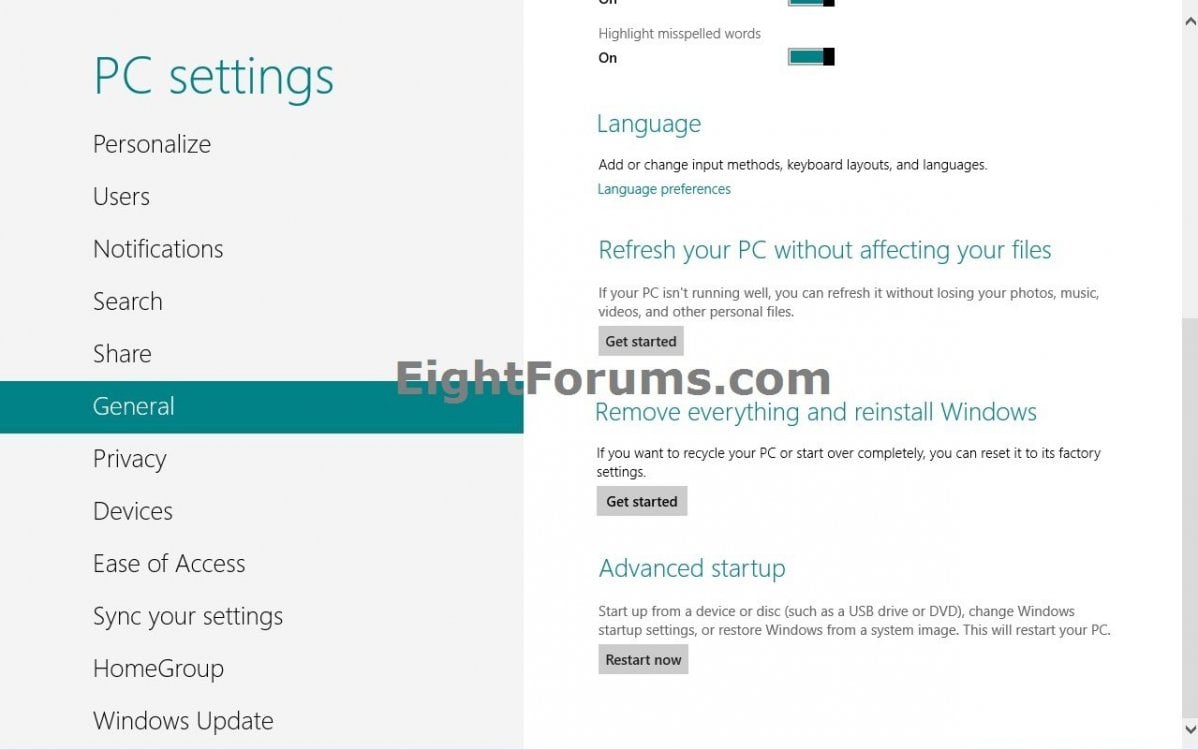
2. If you have Windows 8 or Windows RT, then click/tap on General on the left side, and go to step 4 below. (see screenshot below)
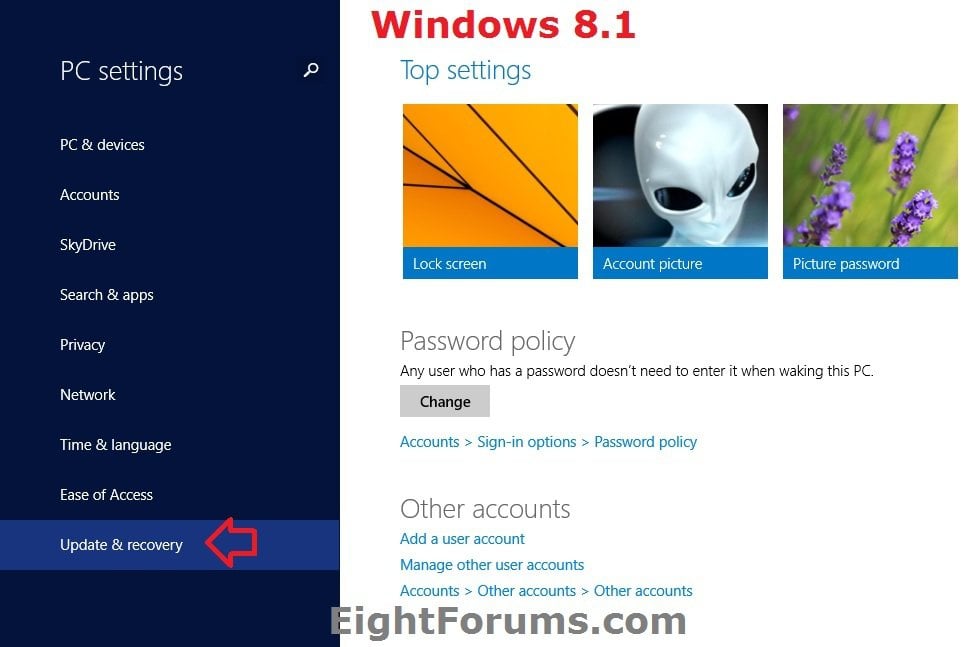
3. If you have Windows 8.1 or Windows RT 8.1, then click/tap on Update & recovery on the left side. (see screenshot below)
A) On the left side, click/tap on Recovery, and go to step 4 below. (see screenshot below)
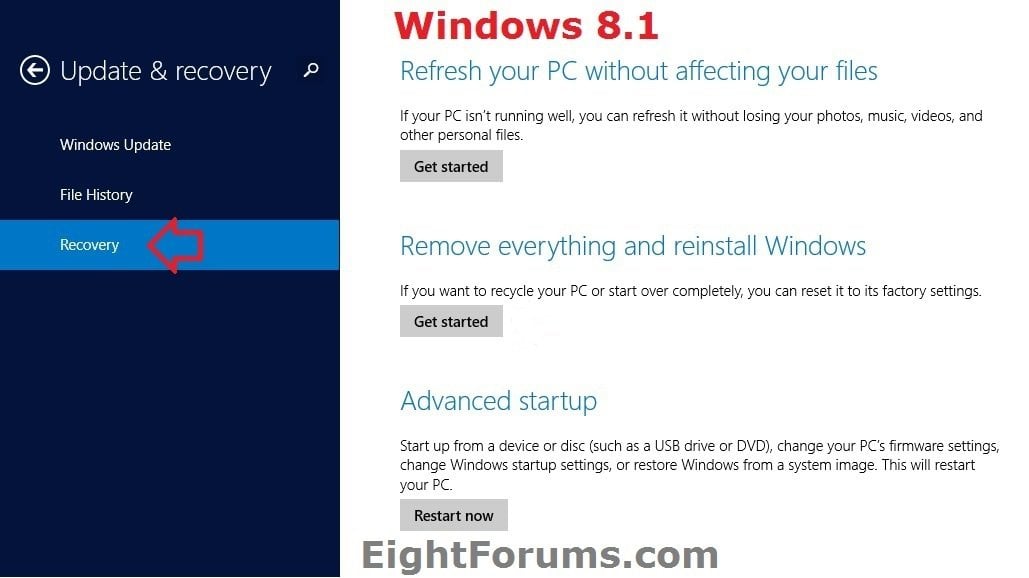
4. On the right side, click/tap on the recovery option that you would like to do. (see screenshots below step 2 and 3A)
Refresh your PC (Refresh your PC without affecting your files)
Reset your PC (Remove everything and reinstall Windows)
Advanced startup
That's it,
Shawn
Related Tutorials
- How to Boot to the Windows 8 Startup Options Menu
- How to Enable or Disable the New Windows 8 Startup Options Boot Menu
- How to Create a "Startup Options Menu" Shortcut in Windows 8
- How to Boot to the Advanced Windows "Startup Settings" in Windows 8
- How to Create a "System Repair Disc" in Windows 8
- How to Create a Recovery USB Flash Drive in Windows 8
- How to Start Windows 8 in Safe Mode
- How to Refresh Windows 8
- How to Refresh Windows 8 Using a Custom Recovery Image
- How to Reset Windows 8
- How to Do a System Restore in Windows 8
- How to Delete the "Windows.old" Folder in Windows 8
- How Run a "Automatic Repair" to Fix Windows 8 Startup Problems
- How to Open a Command Prompt at Boot in Windows 8
- How to Do a System Image Recovery in Windows 8
- How to Boot to UEFI Firmware Settings from inside Windows 8
- How to Boot from a USB Drive within Windows 8 and 8.1
- How to Boot from a USB Drive on Surface
- How to Download and Use Official Recovery Image for your Surface
Attachments
Last edited by a moderator: