
How to Change the Product Key Number in Windows 8 and 8.1
 Information
This tutorial will show you how to change the current product key number to a different key to be used to activate your Windows 8 and 8.1 with instead.
For example, to use to activate "Windows 8 Enterprise" or "Windows 8.1 Enterprise".
You must be signed in as an administrator to be able to do the steps in this tutorial.
For example, to use to activate "Windows 8 Enterprise" or "Windows 8.1 Enterprise".
You must be signed in as an administrator to be able to do the steps in this tutorial.
 Note
NoteYou can only use a product key number for the same Windows 8 edition that you currently have installed. For example, you cannot enter or change the product key number in Windows 8 with a Windows 8 Pro product key number, or vice versa.
Once Media Center is installed (whether turned on or off in Windows Features), only product key numbers for "Windows 8 Pro with Media Center" will work to activate Windows. Microsoft regards this as a different version of the OS to all intents and purposes. In other words only keys obtained for Windows 8 Media Center will work from then on should you wish to change the key.
Once Media Center is installed (whether turned on or off in Windows Features), only product key numbers for "Windows 8 Pro with Media Center" will work to activate Windows. Microsoft regards this as a different version of the OS to all intents and purposes. In other words only keys obtained for Windows 8 Media Center will work from then on should you wish to change the key.
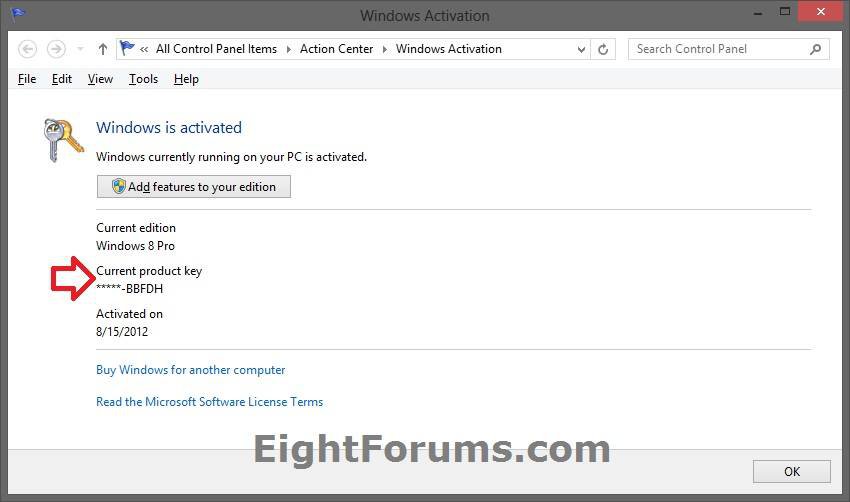
EXAMPLE: Windows 8 Activated
OPTION ONE
To Change Windows 8 and 8.1 Product Key Number using GUI
1. Do step 2, 3, 4, 5, or 6 below for what you would like to do or have available.
2. Press the :winkey: +R keys to open the Run dialog, type slui.exe 3, click/tap OK, and go to step 7 below.
3. Open PC settings, and click/tap on Activate Windows on the left side. (see screenshot below)
NOTE: You will only have the Activate Windows option available if your Windows is not currently activated with a product key. For example, after installing Windows 8/8.1 Enterprise.
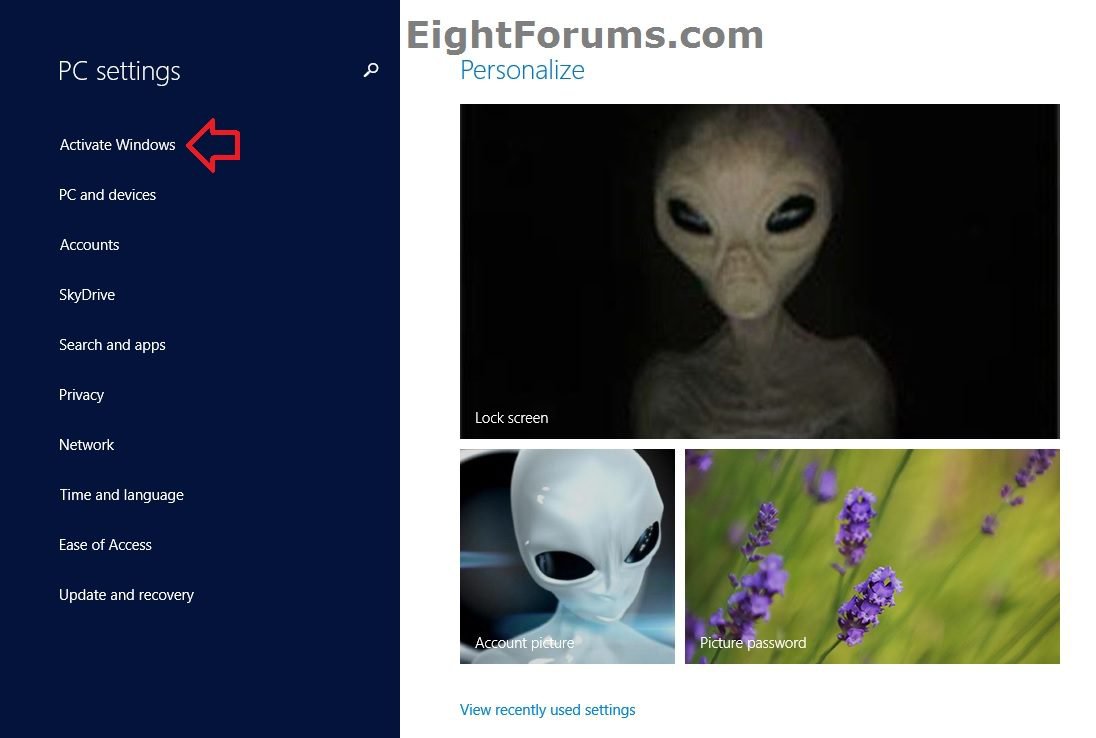
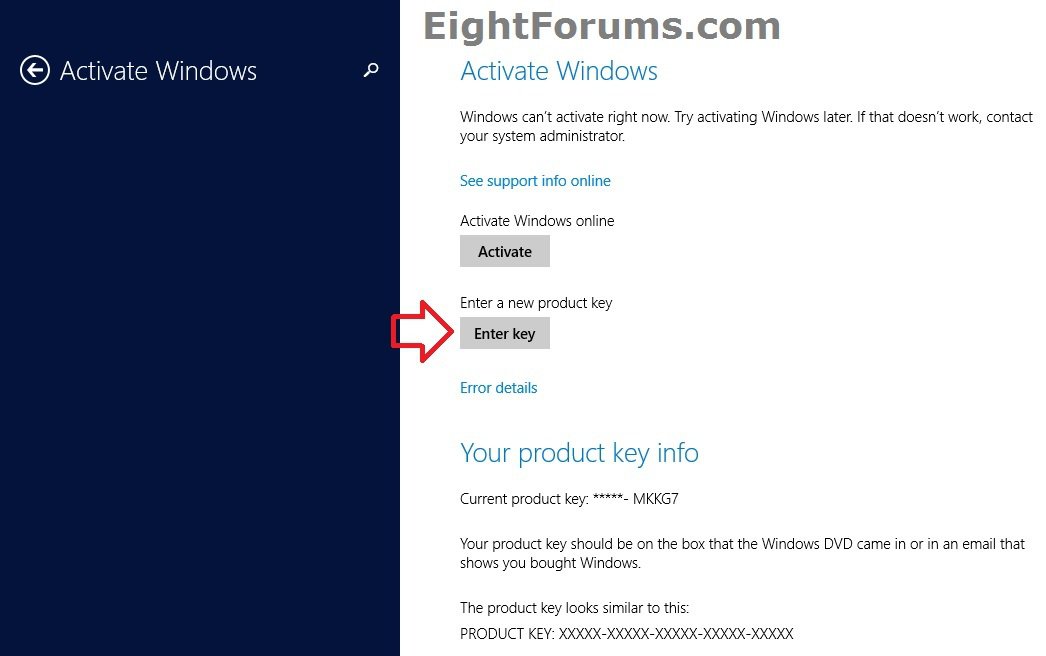
A) Click/tap on the Enter key button on the right side of "Activate Windows", and go to step 9 below. (see screenshot below)
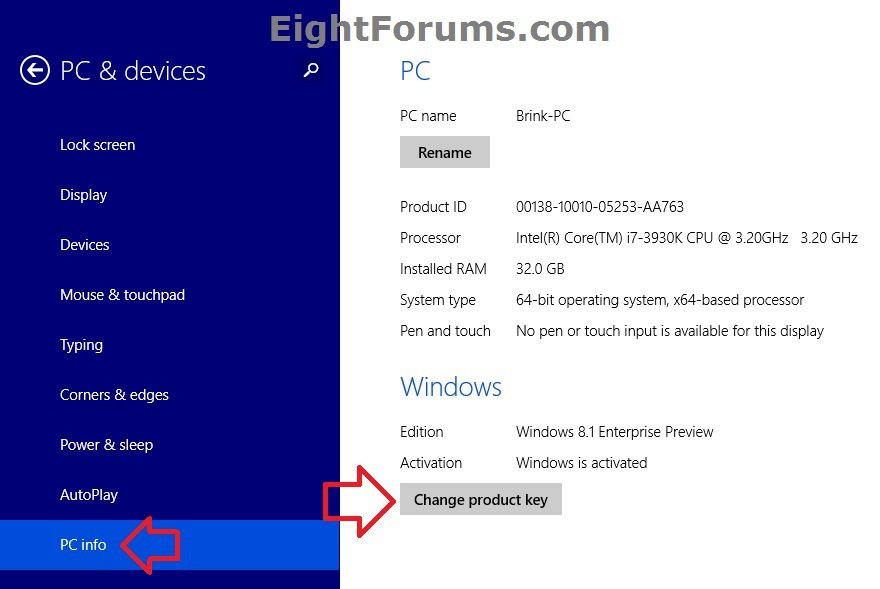
4. In Windows 8.1, open PC settings, and click/tap on PC & devices on the left side. (see screenshot below)
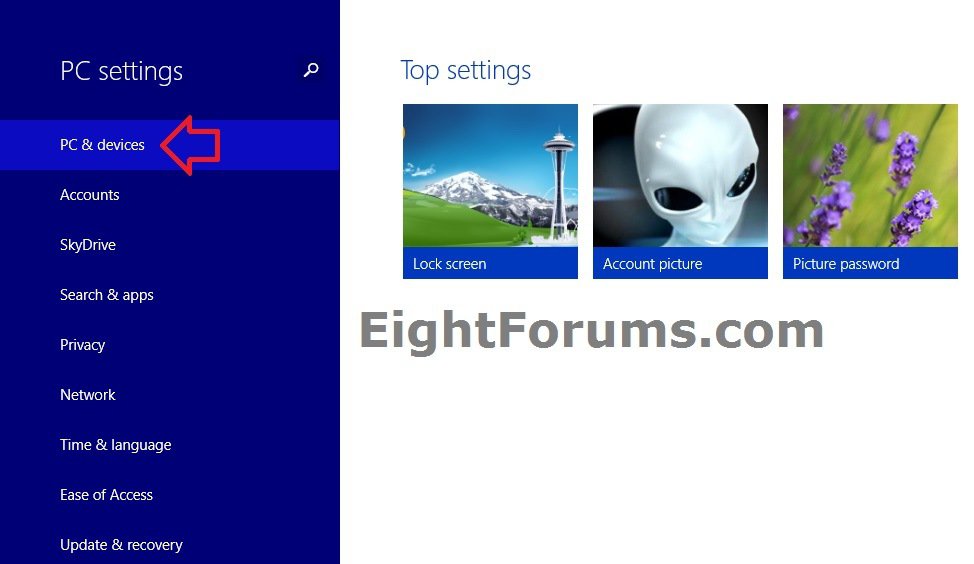
A) Click/tap on PC info on the left side of "PC & devices", click/tap on Change product key under Windows on the right side, and go to step 9 below. (see screenshot below)
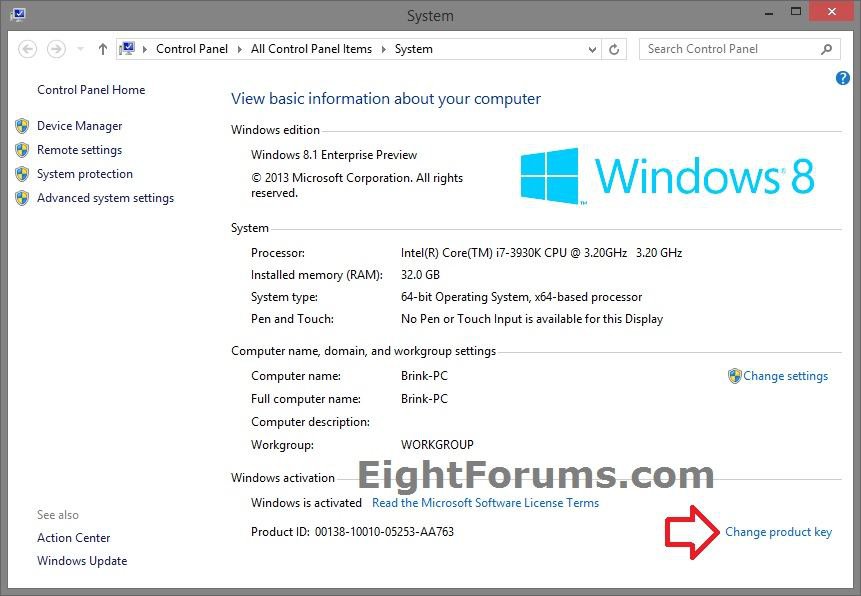
5. Open the Control Panel (icons view), click/tap on the System icon, click/tap on the Change product key link at the bottom right corner, and go to step 6 below. (see screenshot below)
NOTE: You will only have this option if Windows 8 or 8.1 has already been previously activated.
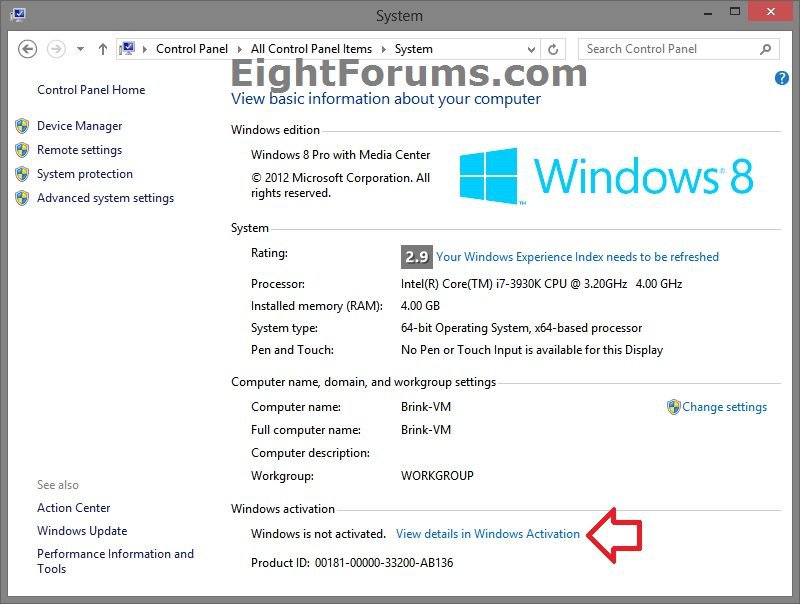
6. Open the Control Panel (icons view), click/tap on the System icon, and click/tap on the View details in Windows Activation link at the bottom. (see screenshot below)
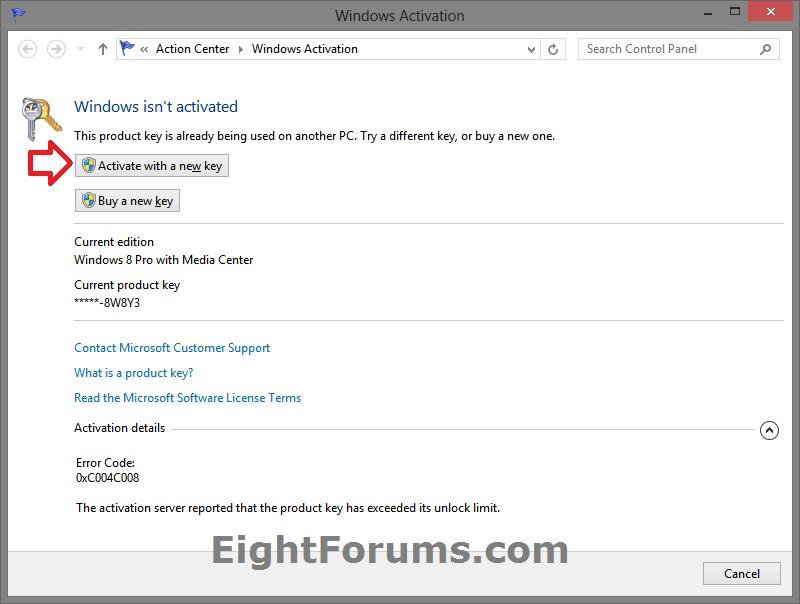
A) If available, click/tap on Activate with a new key, and go to step 7 below. (see screenshot below)
NOTE: If not available, then use step 2 above instead.
7. If prompted by UAC, click/tap on Yes, and do step 8 or 9 below for what Windows 8 you have.
8. In Windows 8, type in your 25-digit product key number, verify it is correctly typed in, and click/tap on Activate. (see screenshots below)
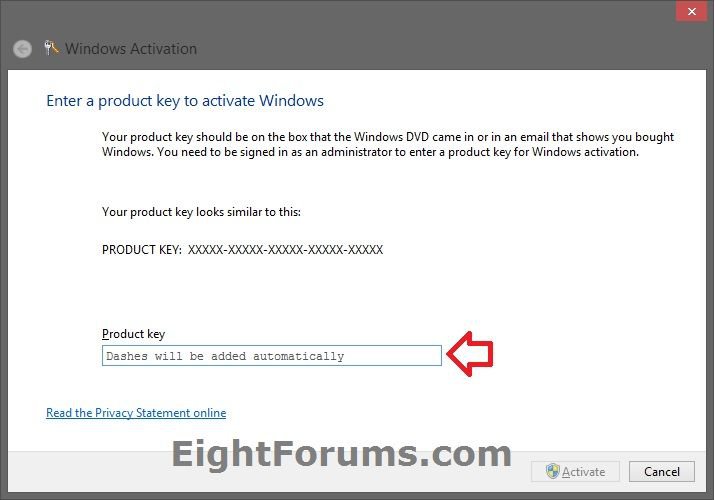
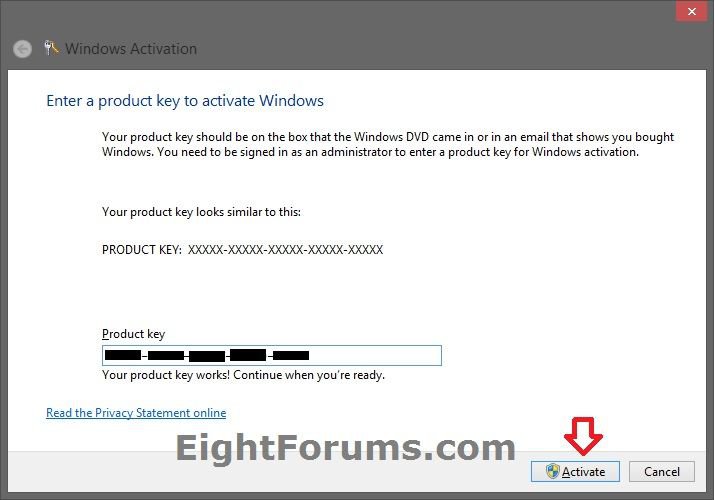
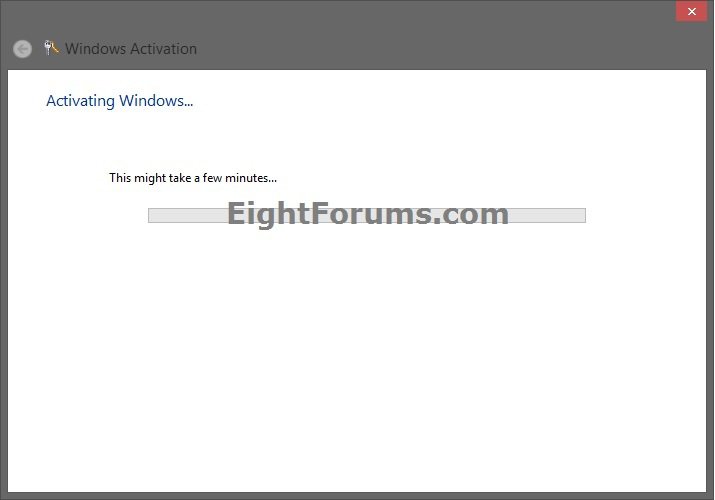
A) Windows 8 will now attempt to activate with the entered product key number. (see screenshot below)
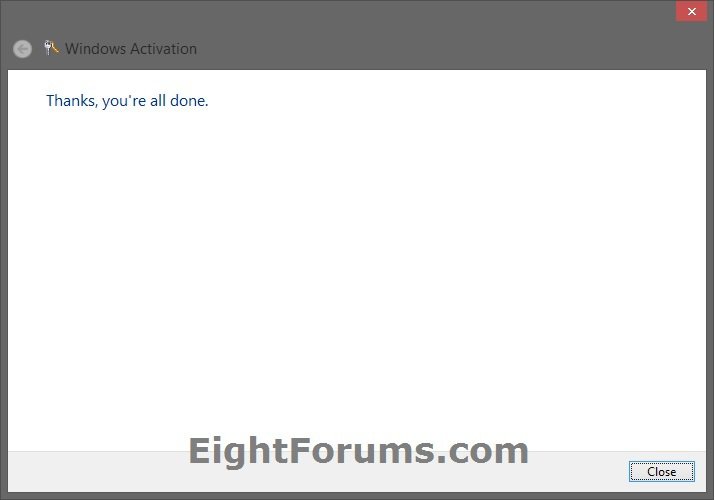
B) If you are online and it was successfully activated, then click/tap on Close. (see screenshot below)
9. In Windows 8.1, type in your 25-digit product key number. (see screenshots below)
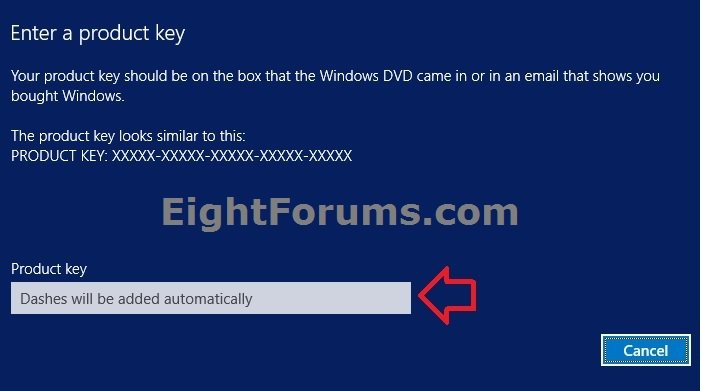
A) If you are online and it was successfully activated, then click/tap on Close. (see screenshot below)

OPTION TWO
To Change Windows 8 and 8.1 Product Key Number in Command Prompt
1. Open an elevated command prompt.
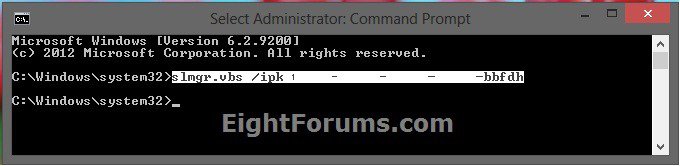
2. In the elevated command prompt, type in the command below, verify that the product key number is correctly typed in, and press enter. (see screenshot below)
NOTE: Substitute XXXXX-XXXXX-XXXXX-XXXXX-XXXXX in ths command below with your actual product key number instead.
slmgr.vbs /ipk XXXXX-XXXXX-XXXXX-XXXXX-XXXXX
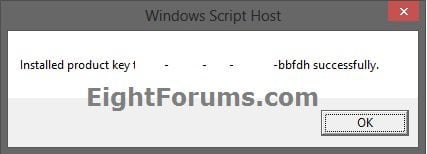
3. If you are online and it was successfully activated, then click/tap on OK. (see screenshot below)
4. You can now close the elevated command prompt if you like.
That's it,
Shawn
Related Tutorials
- How to Activate Windows 8 and 8.1 Online
- How to Activate Windows 8 and 8.1 by Phone
- How to Clear Product Key from Registry in Windows
- How to Uninstall the Product Key Number and Deactivate Vista, Windows 7, or Windows 8
- How to Find Your Windows 8 Product Key Number
- How to Download and Run the "Windows 8 Upgrade Assistant"
- How to Do a Clean Install with Windows 8 Upgrade
- How to Do a Clean Install of Windows 8 or Windows 8.1
- How to Add Features to Windows 8
Attachments

Last edited:


