
How to Change Default Program of a File using "Open with" in Windows 8 and 8.1
 Information
A default program or app is the program that Windows 8 always uses to open a file extension with.
This will show you how to use Open with to change the default program of a file extension for your user account in Windows 8.
These Default Programs association settings are a per user setting and not applied to all users.
This will show you how to use Open with to change the default program of a file extension for your user account in Windows 8.
These Default Programs association settings are a per user setting and not applied to all users.
OPTION ONE
To Use "You have new apps that can open this type of file"
NOTE:You will have more options available using OPTION TWO below.
1. When you open a file and you installed and new apps (ex: Photos, Video, Music) that support opening this file type (ex: .wmv), you will see this new app installed notification appear in the upper right corner for only a few seconds.
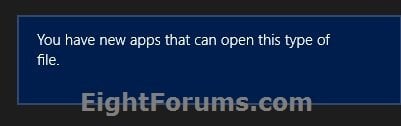
2. Click/tap on the toast notification before it's time delay runs out and it fades away. (see screenshot above)
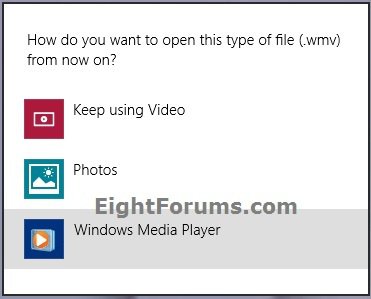
3. Click/tap on a listed app that you want to use to open this file extension type with by default now. (see screenshot below)
OPTION TWO
To Use "Open with" from Context Menu of File
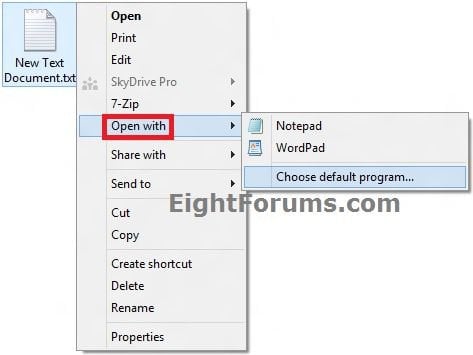
1. Right click or press and hold on a file (ex: a .txt file) that you would like to change the default program of, then click/tap on Open with. (see screenshot below)
NOTE: If you wish to close the "Open with" dialog without making any changes, then you could just click on a empty space anywhere other than in "Open with" for it to close automatically.
 Note
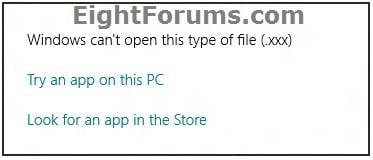
NoteIf Open with is not able to expand in the context menu, then this means this file does not have a program associated to open it with.
Note- Click/tap on Open with.
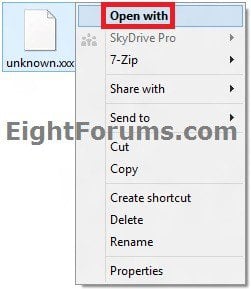
- Click/tap one the Try an app on this PC link.
- Go to step 3B below.
2. To Select a Program that is Already Listed in Context Menu
NOTE: This option will only open the file with this program for just this one time and not always by default.
A) After you have expanded Open with, click/tap on a listed program (ex: Notepad or Wordpad) that you want to open the file with for just this one time. (see screenshot below step 1)
B) Go to step 4 below.
3. To Select a Program that is Not Listed in Context Menu
NOTE: This option will allow you to be able to select to have the file type to always open with the selected program by default if you like.
A) After you have expanded Open with, click/tap on Choose default program. (see screenshot below step 1)
B) If the program you want to associate is not listed, then click/tap on the More Options link if available. (see screenshot below)
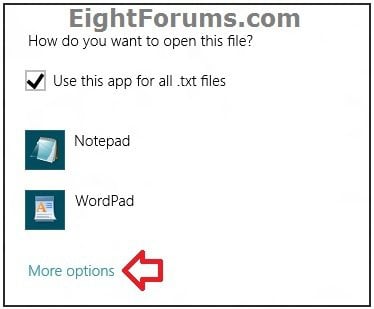
C) Do step 3D or 3E below.
D) To Always Open this File Extension with the Selected Program by Default
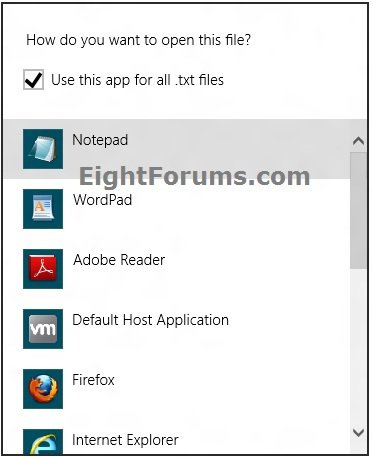
- Click//tap on the Use this app for all (extension) files box to check it. (see screenshots below step 3F)
- Go to step 3F below.
E) To Only Open this File Extension with the Selected Program for Just this One Time
- Click//tap on the Use this app for all (extension) files box to uncheck it. (see screenshots below step 3F)
- Go to step 3F below.
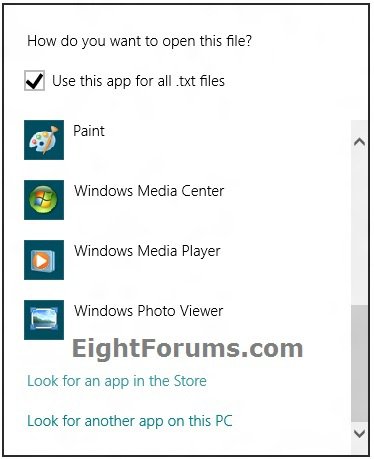
F) Click/tap on a listed program that you want to open the file with. (see screenshots below)
NoteIf the program you wanted to select is still not listed, then you could do either option below.
Note- Click/tap on Look for an app in the Store link to go to the Store to search and find an app to install, then start this tutorial over to select the new app to be associated as the default program.
- Click/tap on Look for another app on this PC link, navigate to the program's exe file, select it, and click/tap on the Open button to then have it set as the default program.
4. The file will now be opened by the selected program.
That's it,
Shawn
Related Tutorials
- Disable "You have new apps that can open this type of file" Notification in Windows 8
- Fix Open with "Choose default program" No Program Associated Error in Windows 8 and 8.1
- How to Set Your Default Programs in Windows 8 and 8.1
- How to Create a "Default Apps" Shortcut in Windows 8.1
- How to Associate a File Type or Protocol with a Program in Windows 8 and 8.1
- Add or Remove "Look for an app in the Store" Link in Windows 8 "Open with"
- How to Restore Default File Extension Type Associations in Windows 8 and 8.1
- How to Add "Open with" to Context Menu of URL Files in Windows
- How to Add "Open with" to Context Menu of BAT Files in Windows
- How to Add or Remove "Open with Notepad" from the Context Menu of Files
- How to Change the Default Program of the "Edit" Context Menu in Windows
- How to Unassociate a File Extension Type in Vista, Windows 7, and Windows 8
Attachments
Last edited: