
How to Create a "System Repair Disc" (CD/DVD) in Windows 8
 Information
This will show you how to create a system repair disc (CD/DVD) in Windows 8 to use to boot to the system recovery options that can be used to help recover Windows 8.
 Note
NoteA system repair disc is not the same as OEM factory recovery/restore/repair disc.
A system repair disc cannot be used to install Windows 8.
A created 32-bit system repair disc can only be created in a 32-bit Windows 8, and used to repair a 32-bit Windows 8.
A created 64-bit system repair disc can only be created in a 64-bit Windows 8, and used to repair a 64-bit Windows 8.
A system repair disc cannot be used to install Windows 8.
A created 32-bit system repair disc can only be created in a 32-bit Windows 8, and used to repair a 32-bit Windows 8.
A created 64-bit system repair disc can only be created in a 64-bit Windows 8, and used to repair a 64-bit Windows 8.
 Warning
Windows 8.1 no longer supports being able to create a system repair disc CD/DVD using the method in this tutorial.
If you like, you can also boot from your Windows 8.1 installation media or from a created recovery drive (USB) for the system recovery options.
If you like, you can also boot from your Windows 8.1 installation media or from a created recovery drive (USB) for the system recovery options.
EXAMPLE: System Recovery Options
NOTE: After you boot from the system repair disc, you will need to select your language and keyboard layout (if displayed) for Windows 8, then select Troubleshoot to see the system recovery options.

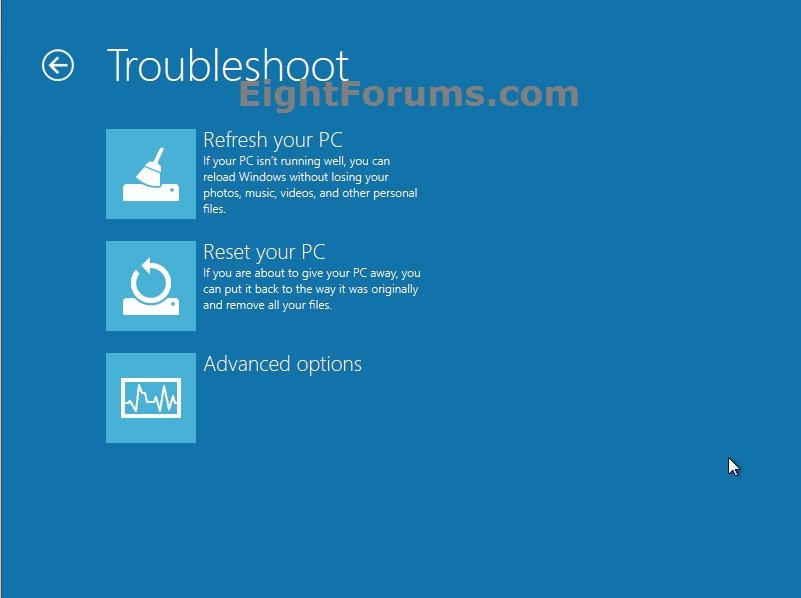
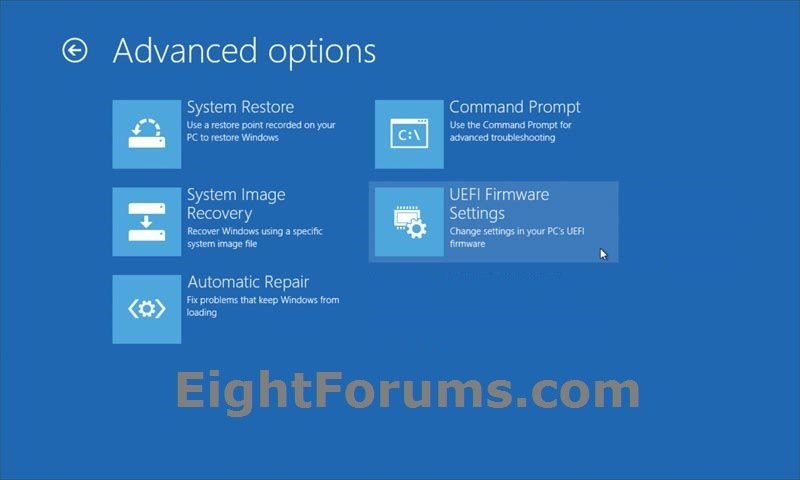
Here's How:
1. Insert a blank unformatted CD or DVD into your CD/DVD drive, then do either step 2 or 3 below.
2. Press the :winkey: + R keys, type recdisc, press Enter, and go to step 4 below.
3. Open the Control Panel (icons view), and click/tap on the Recovery icon.
NOTE: You must be logged in as an administrator to be able to do this step.
A) Unplug all USB flash drives.
B) Click/tap on the Create a recovery drive link. (see screenshot below)
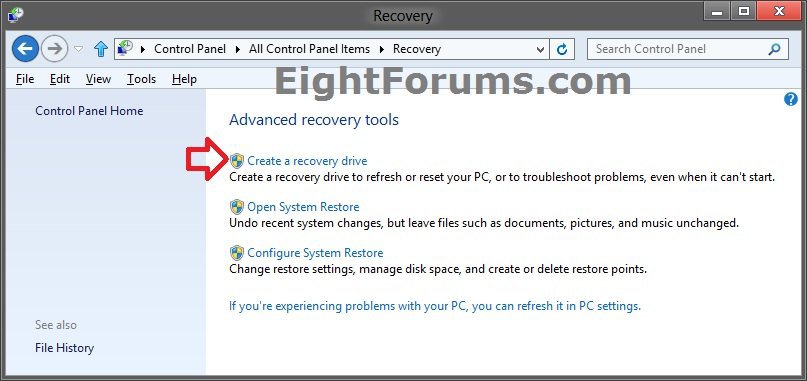
C) If prompted by UAC, then click/tap on Yes.
D) Click/tap on Next. (see screenshot below)
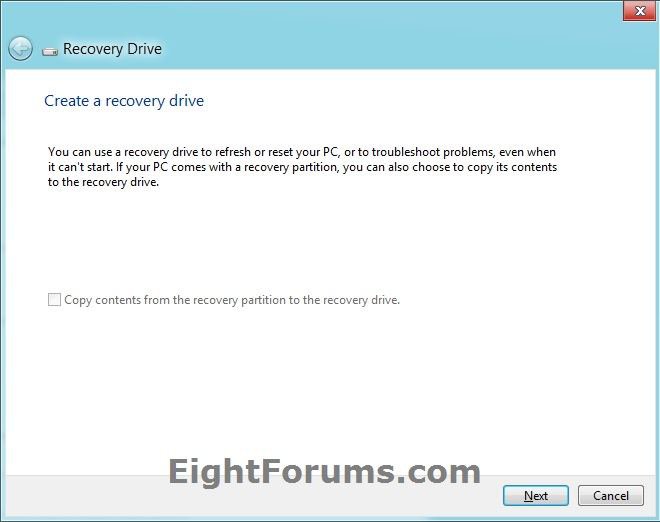
E) Click/tap on the Create a system repair disc with a CD or DVD instead link, and go to step 4 below. (see screenshot below)
NOTE: You will not see this link if you have a USB flash drive connected. You'll need to either use step 2 or disconnect all USB drives and start over with step 3.
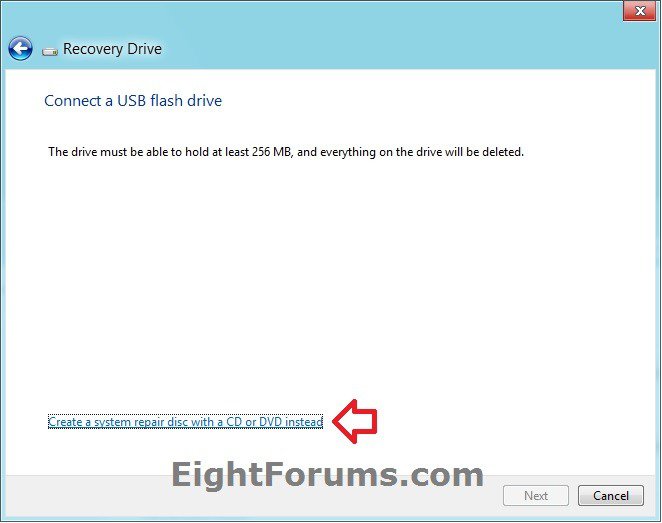
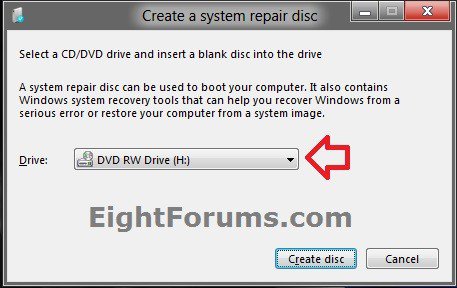
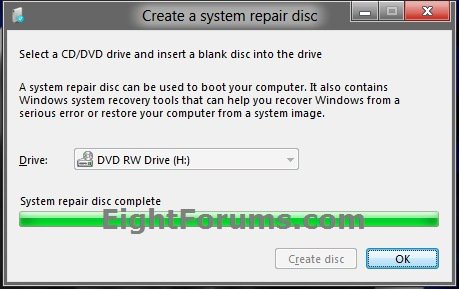
4. Click/tap on Create disc. (see screenshot below)
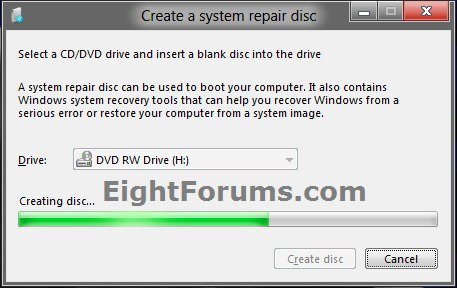
5. The system repair disc will now start to be created. (see screenshot below)
6. When finished, remove your CD/DVD, label it properly for your 32-bit or 64-bit Windows 8 Repair Disc, and click/tap on Close. (see screenshot below)
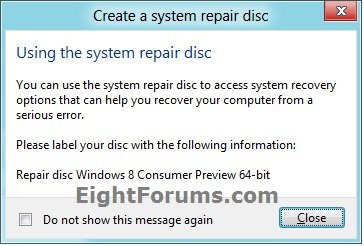
7. Click/tap on OK. (see screenshot below)
8. If you used step 3, then you can now close any remaining opened windows from it.
That's it,
Shawn
Attachments
Last edited by a moderator: