
How to Install Windows 8 or Windows 8.1 using the "Unified Extensible Firmware Interface" (UEFI)
 Information
Systems that are built using Unified Extensible Firmware Interface (UEFI) are more likely to achieve very fast pre-boot times when compared to those with traditional BIOS. This isn’t because UEFI is inherently faster, but because UEFI writers starting from scratch are more able to optimize their implementation rather than building upon a BIOS implementation that may be many years old.
Delivering fast boot times in Windows 8 - Building Windows 8 - Site Home - MSDN Blogs
This method can also be used for the UEFI installation of Windows 7, Windows Server 2008 SP1, Windows Server 2008 R2, and Windows Vista SP1.
 Note
NoteYou will need to satisfy the following requirements in order to proceed:
- A Windows 8 compatible system
- A Windows 8 64-bit installation media. 32-bit is not supported.
- A UEFI v2.0+ compliant PC. Check your chipset manufacturer/firmware documentation.
- A blank, partition-free, hard disk for installation.
 Warning
- Disabling UEFI will make the system unbootable as there is no MBR on the disks.
- You CANNOT make a sector-by-sector copy of GPT disks. The Disk and Partition GUIDs will no longer be unique. This must never happen. You can make a sector-by-sector copy of the contents of ESP or basic data partitions.
Here's How:
1. Do step 2 or 3 below depending on what installation Media you are using.
2. If using a 64-bit Windows 8 or 8.1 Installation DVD with UEFI
A) Insert the DVD, restart the computer, and go to step 4 below.
NOTE: If you are unsure that your 64-bit DVD has UEFI support, then see OPTION TWO here: Windows 8 and Windows 8.1 ISO - Download or Create
3. If using a 64-bit Windows 8 or 8.1 Installation USB Flash Drive with UEFI
A) If you have not already, you will need to create a Windows 8 or 8.1 installation bootable USB flash drive with UEFI from either a Windows 8 installation ISO or DVD.
B) Connect the USB, restart the computer, and go to step 4 below.
 Tip
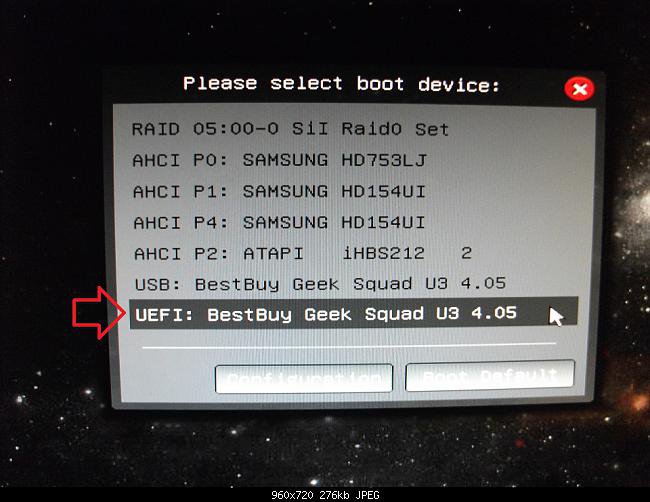
Tip4. Press whatever key (ex: F11) it shows to boot to your motherboard's boot menu, and select to boot from the listed UEFI DVD or UEFI USB. (see screenshot below)
5. Do steps 2 to 7 in the tutorial at the link below, and return.
Clean Install - Windows 8
6. Delete all partitions/volumes on the disk # (ex: Disk 0) that you want to install Windows 8 as UEFI on until that disk # shows as unallocated space. (see screenshot below)
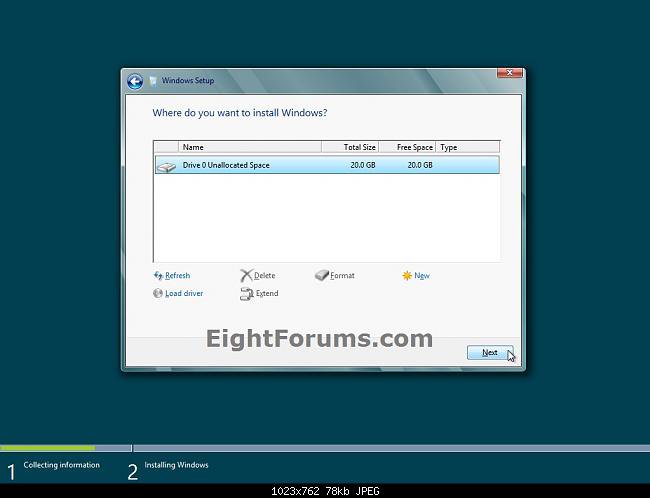
7. When you are finished, click/tap on New, Apply (for full size of disk), and OK. (see screenshot above)
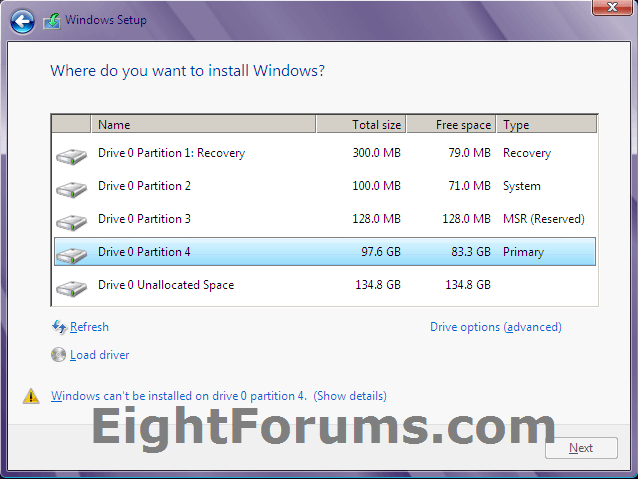
8. You will notice that the disk has now been formatted as GPT with 4 partitions. Select the "Primary" partition 4, and click/tap on Next. (see screenshot below)
NOTE: You might receive a "Windows can't be installed on drive 0" warning, but as long as you can click on the Next button, you're fine.
NoteThe 4 partitions are:
- Paritition 1 - Recovery
- Partition 2 - System - The EFI System partition that contains the NTLDR, HAL, Boot.txt, and other files that are needed to boot the system, such as drivers.
- Partition 3 - MSR - The Microsoft Reserved (MSR) partition that reserves space on each disk drive for subsequent use by operating system software.
- Partition 4 - Primary - Where Windows is to be installed to.
It is imperative that these 4 partitions remain in the exact order as they are
9. You can now finish doing the steps in either tutorial below.
- Steps 9 to 21 here - Clean Install - Windows 8
- Same steps 9 to 21 as above, but also steps 4 to 6 afterwards here - Clean Install with Windows 8 Upgrade
10. That's it. You have successfully installed Windows 8 on a UEFI system.
Related Tutorials
- How to Clean Install Windows on a MSATA (SSD) Drive
- Create a Bootable UEFI USB Flash Drive for Installing Windows 7. Windows 8, and Windows 8.1
- How to Install Windows 7 Using "Unified Extensible Firmware Interface" (UEFI)
- Create Bootable USB or DVD with Windows 8 ISO
- How to Do a Clean Install of Windows 8 or Windows 8.1
- How to Do a Clean Install with Windows 8 Upgrade
- Convert MBR Disk to GPT Disk - Windows 7 Forums
- How to Download and Run the "Windows 8 Upgrade Assistant"
- How to Create or Download a Windows 8 Upgrade ISO
- How to Enable or Disable Secure Boot in UEFI
- How to Check if Secure Boot is Enabled or Disabled in Windows 8 and 8.1
- How to Check if Windows is Booted in UEFI or Legacy BIOS Mode
- How to Boot to UEFI Firmware Settings from inside Windows 8
- How to Do a Repair Install of Windows 8 without Losing Anything
- How to Upgrade from Windows 8, Windows 7, Vista, or XP to Windows 8 or 8.1
- How to Open Device Manager During Installation of Windows 8 and 8.1
External Links:
Attachments
Last edited by a moderator:


