
- Messages
- 2,979
- Location
- Orbiting the Moon
This enhancement applies to VMware Player standalone. If you have VMware Workstation installed, you don't need to apply this as Workstation includes all the features (and also includes VMware Player).
As the most VMware Workstation users know, there is a virtual network editor available that lets you configure the virtual networks, add new networks and delete networks for the virtual machines and also bridged networks with the host computer.
Edit:
One of the usage of the network editor is fixing the bridged network connection:
How to fix bridged networking in VMware player - YouTube
The editor is useful (mostly for advanced users...but you'll never now when it might be needed) to add, delete and configure the default virtual networks that come pre-installed with Player.
VMware Player is Workstation's little brother, it's free and comes with less features. There is no Network editor with VMware Player (...or is it?)
The network editor is available in the VMware Player installer but it's default set NOT to install with the rest of the features (don't know why).
It seems different fixes need to be applied to each of Player's version 4, 5 or 6.
If using version 4 of the Player, this also applies to version 3.
I'm gonna show you how to add the network editor to VMware Player.
It's easy, or it should have been... but each version has its surprise.
Keep in mind that techniques used for one version apply for newer versions too but the files need to be extracted form other installers and other archives or additional files may be required.
Player version 3 and 4
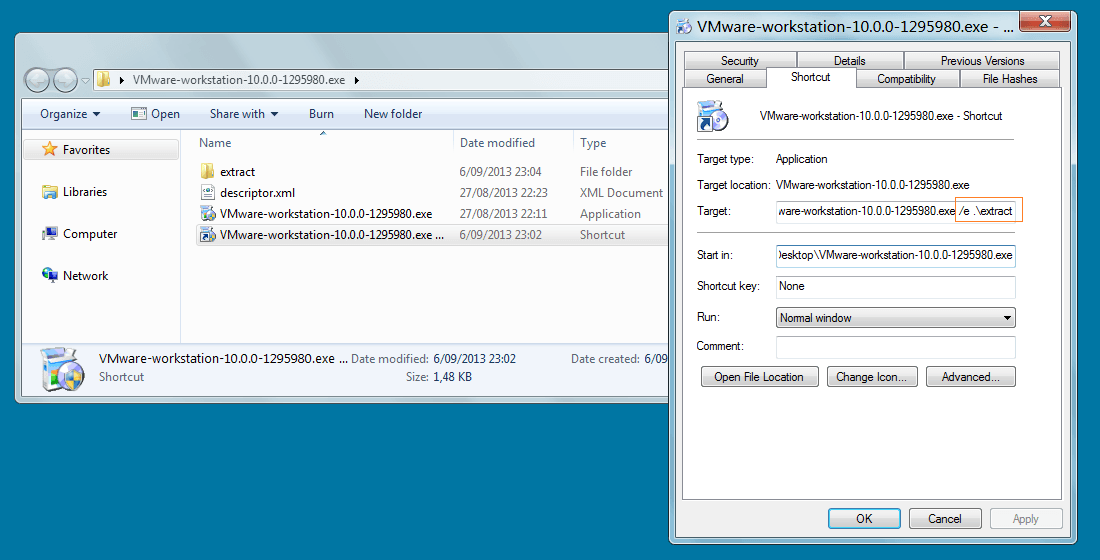
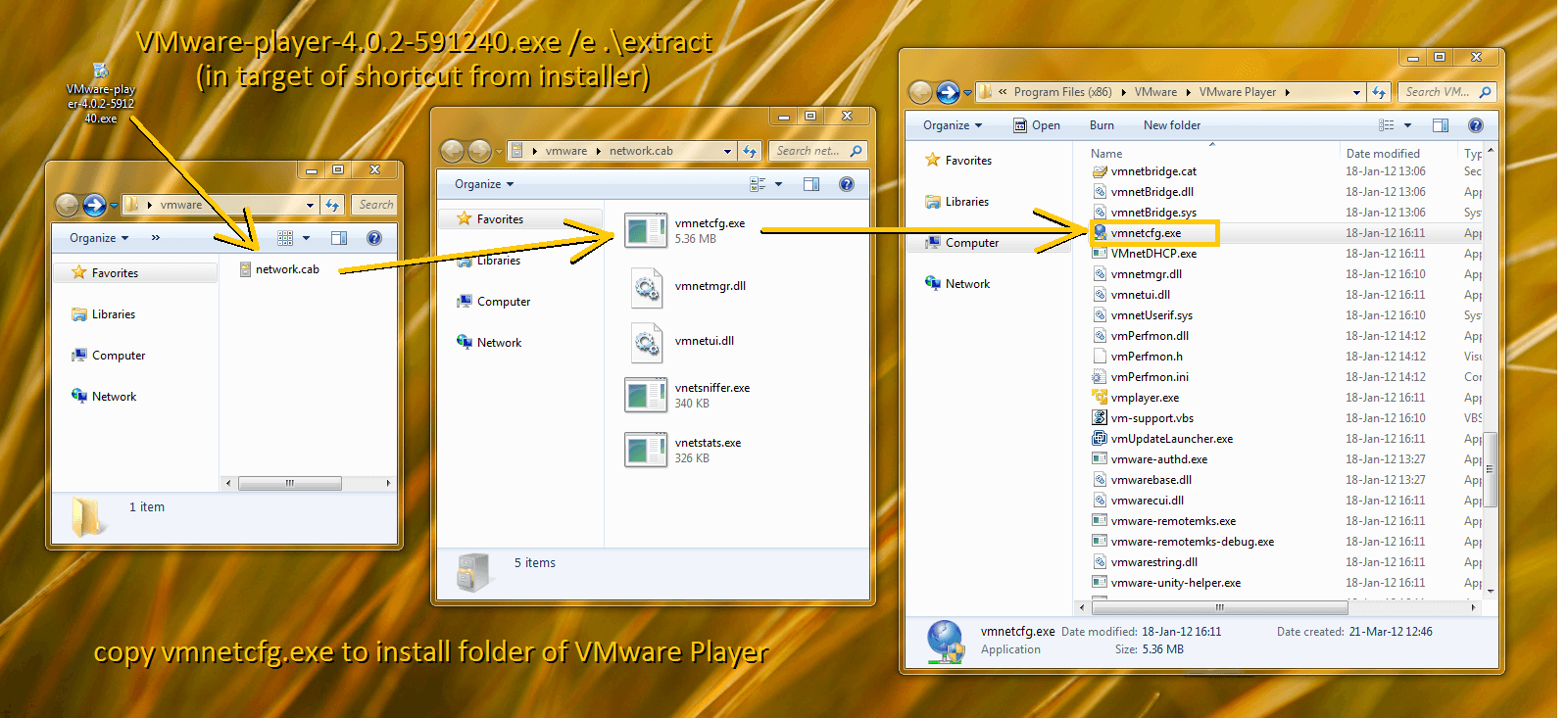
To begin we first need to extract the VMware Player installer with some extra parameters (name-of-installer.exe /e .\extract). You put the installer in a folder of your choice and create a shortcut of it as shown below (1) with the extra parameters in the target:
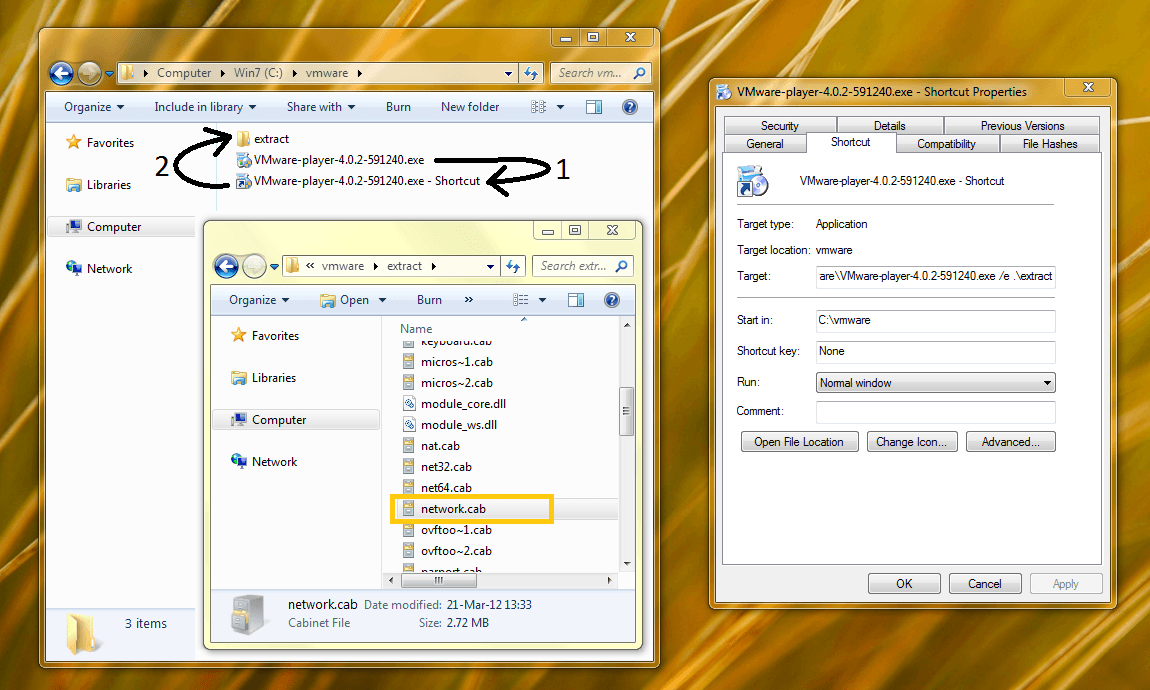
Then you run the shortcut that creates a folder (extract) containing all the components.
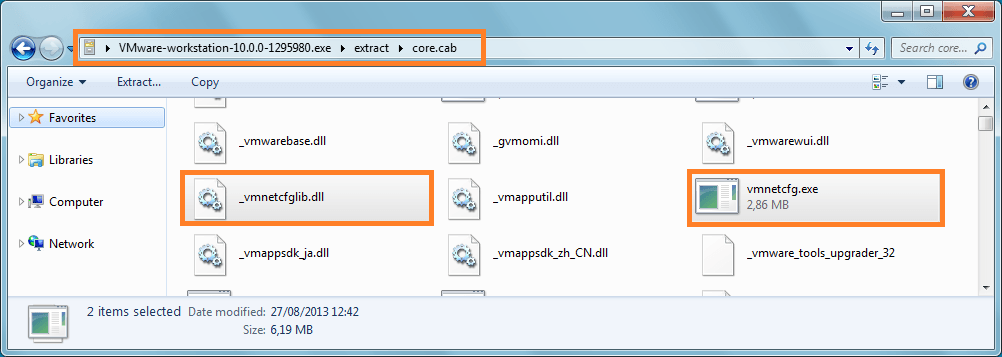
Go to folder "extract". We are interested in "network.cab": open or extract it and there you see "vmnetcfg.exe". It's the network editor.
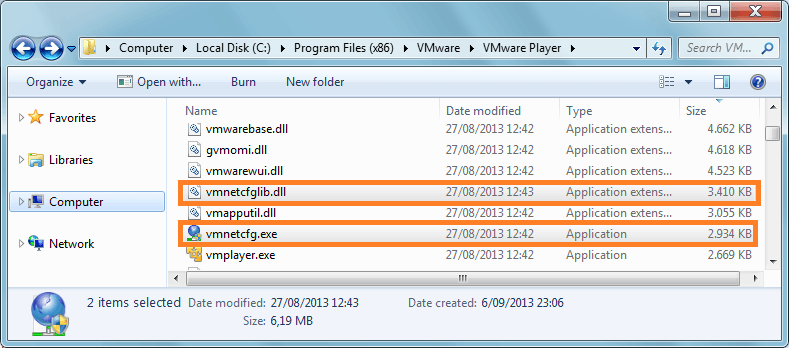
Copy or move it in the VMware Player installation folder ("\Program Files (x86)\VMware\VMware Player" should be the default path).
This is shown below:
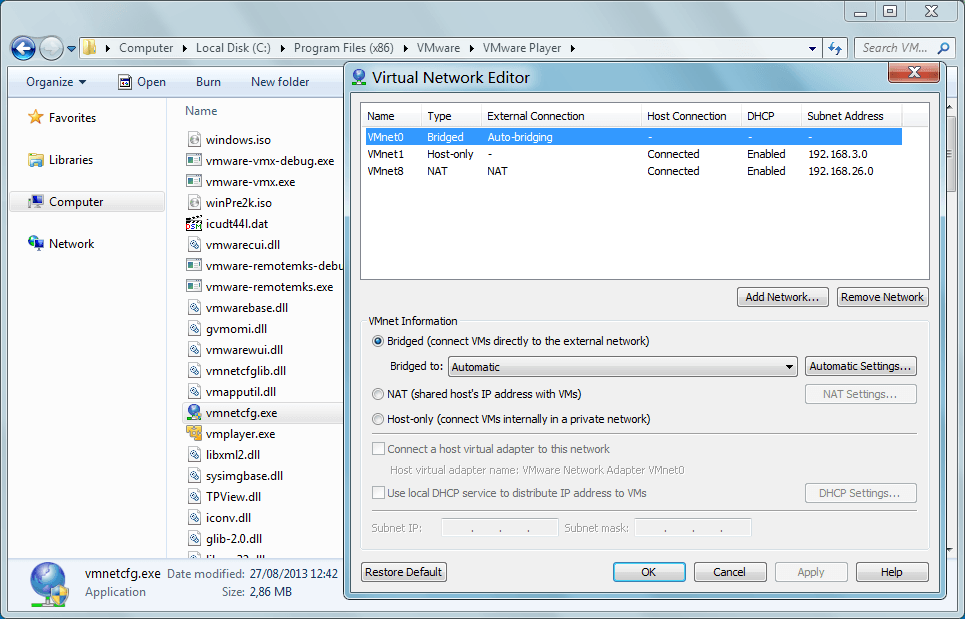
Now we are ready. The network editor is part of VMware Player just like in Workstation.
The virtual networks that appear in the notification area in Windows Vista and later can be configured or deleted:
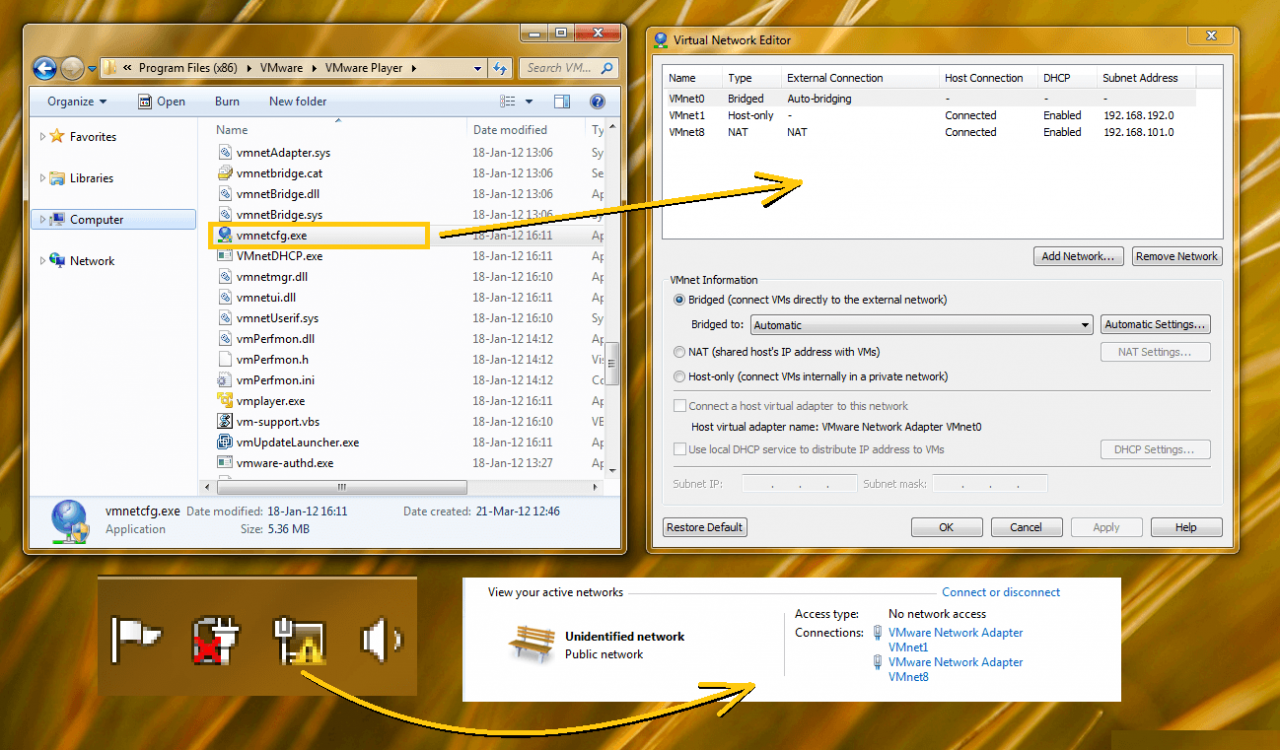
Don't delete them if you use networking in your virtual machines.
The network editor works as seen in last screenshot.
Player version 5
The fix above doesn't work in VMware Player 5: the file we need is included with Workstation. (using "/e extract" parameter for the installer still applies).
Read here: VMware Communities: Whither VMware Player 5.0 VMNetCfg.exe?
Extra update:
Thanks to Vertigo here later on the thread: http://www.eightforums.com/virtuali...-network-editor-vmware-player.html#post199112
some extra info is provided how to simplify things out: VMware Player 5 already has a vmnetui.dll included and the whole procedure posted above is not needed anymore!
Player version 6
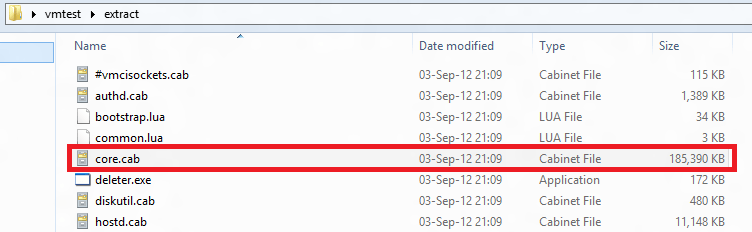
Then,
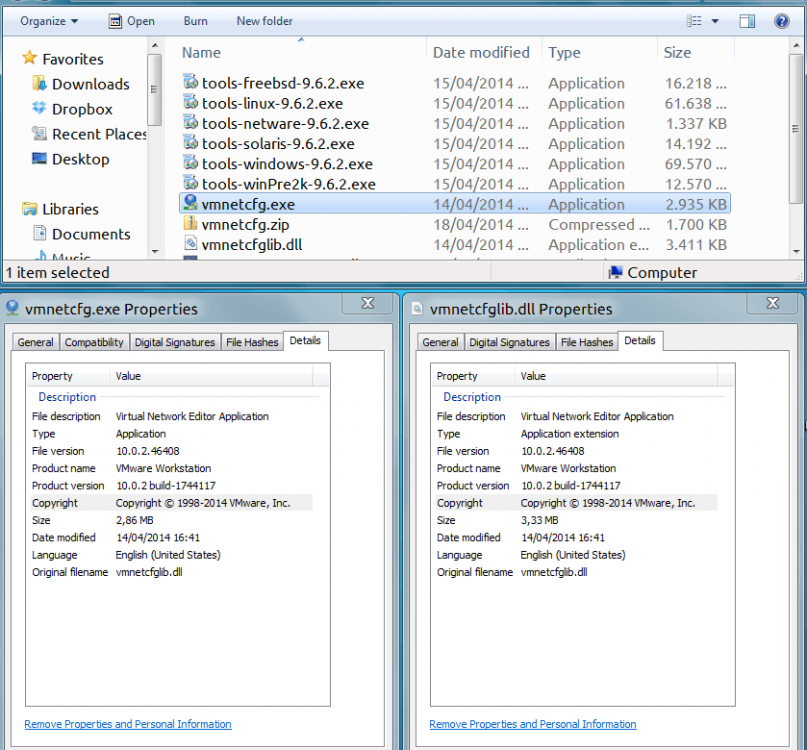
See post here.
Until a command is discovered to see if Player includes the network editor again, the extraction technique of vmnetcfg.exe still is considered as 'the' fix.
Player version 7
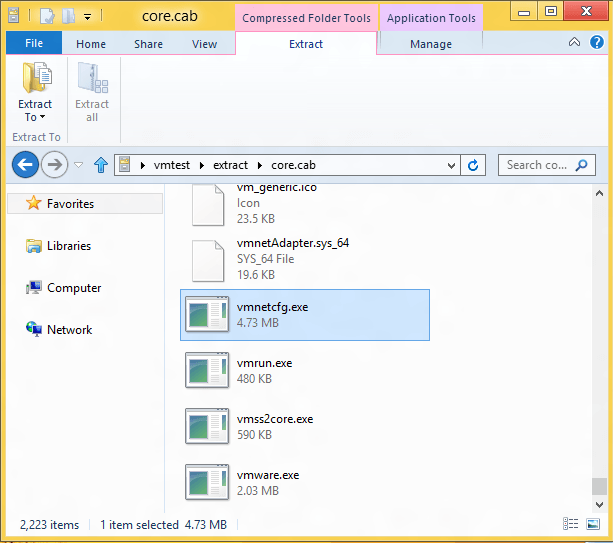
Then,
All previous extracting methods will fail.
But vmnetcfg.exe is still available in the Workstation 11 installer.
To get it working see the post here.
That's it.
Hopachi
Last edited:
My Computer
System One
-
- OS
- Windows 10 x64
- Computer type
- Laptop
- System Manufacturer/Model
- HP Envy DV6 7250
- CPU
- Intel i7-3630QM
- Motherboard
- HP, Intel HM77 Express Chipset
- Memory
- 16GB
- Graphics Card(s)
- Intel HD4000 + Nvidia Geforce 630M
- Sound Card
- IDT HD Audio
- Monitor(s) Displays
- 15.6' built-in + Samsung S22D300 + 17.3' LG Phillips
- Screen Resolution
- multiple resolutions
- Hard Drives
- Samsung SSD 250GB + Hitachi HDD 750GB
- PSU
- 120W adapter
- Case
- small
- Cooling
- laptop cooling pad
- Keyboard
- Backlit built-in + big one in USB
- Mouse
- SteelSeries Sensei
- Internet Speed
- slow and steady
- Browser
- Chromium, Pale Moon, Firefox Developer Edition
- Antivirus
- Windows Defender
- Other Info
- That's basically it.