Nice tut Ray, well done.
| |||||
| | |||||


Nice tut Ray, well done.
Such details!
Very well made. Useful for many beginners.
It's something I already know but never had the guts to post/screen all the procedure.
You know, when this is a routine, it just takes a few seconds to apply.![]()
Hi there theog!.
I was wondering if you could please explain to me how to install an earlier version of driver on windows 8??Im wanting to install an earlier version of driver for my ATI HD5870 for testing purposes, and when I do this in device manager, windows says that the latest driver is already installed and wont let me install the one I want too.
Great tutorial btw![]()
![]()
Hi MoodKiller. Welcome to EightForums!
That would require a 3 step procedure and a reboot may be required/recommended:
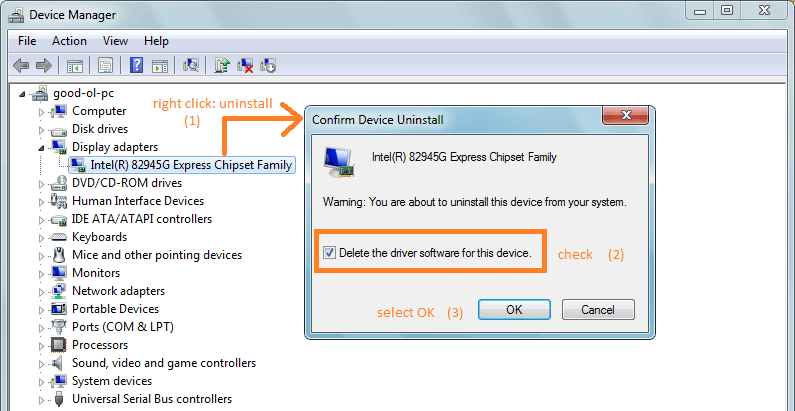
Uninstall Device and Device Driver - Vista Forums
Select graphic adapter's driver
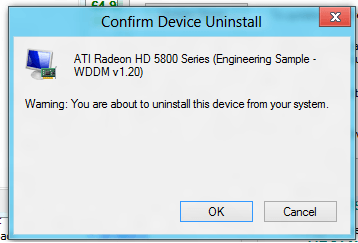
1. right click: uninstall
2. remove the driver software (includes drivers)
3. OK and reboot: then you should see something "MS Basic Display Adapter" instead of ATI.
Now it will install even an older version because there is no other (newer) ATI driver to compare to.
Good luck.
Hopachi
Thank you for the speedy reply.
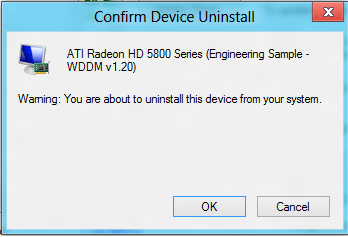
Unfortunately for what ever reason, Windows 8 doesn't have that option on the default driver that it installs for my graphics card...
Notice there is no option to delete the driver...
Any other way you could remove it or get it to install the older version of driver over the top of this one?? (ATI Radeon HD5800...)
Ah yes. That's a driver that was included by default.
Unfortunately I don't know a (proper) way how to uninstall those.
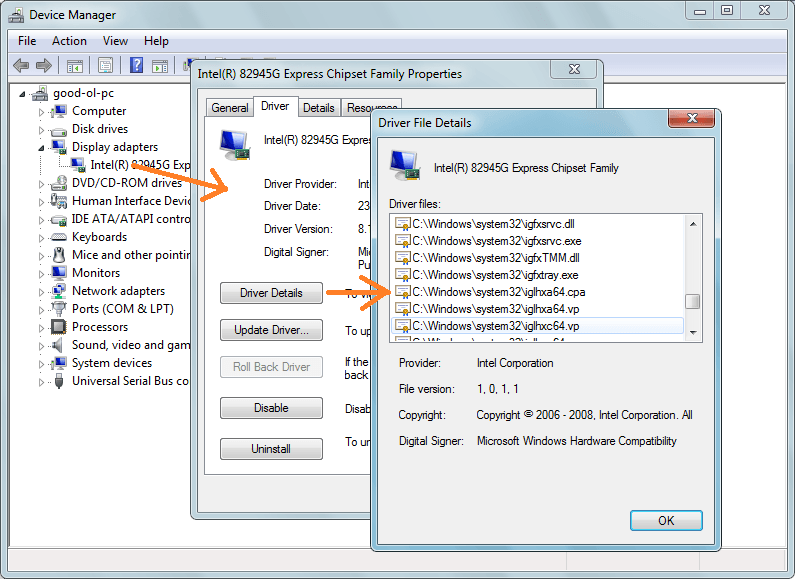
But I do know they are located in system32 and also possible in system32\driverstore
Driver details to show where they are:
They prevent the install of older drivers if they are newer. My previous method works only for devices that don't have preinstalled versions (only the standard/generic version).
I don't recommend to manually delete/replace those (leave this as the last desperate measure) , but I you intend to test it, make backups first (system restore / system image).
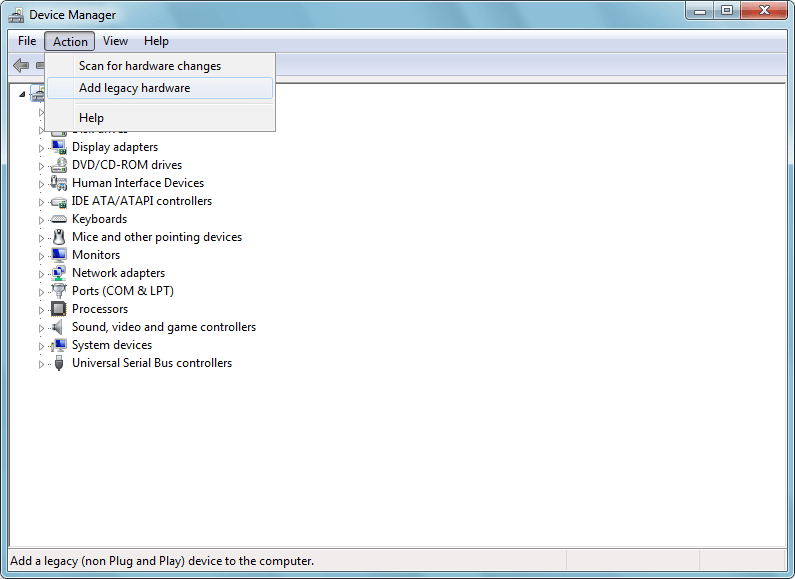
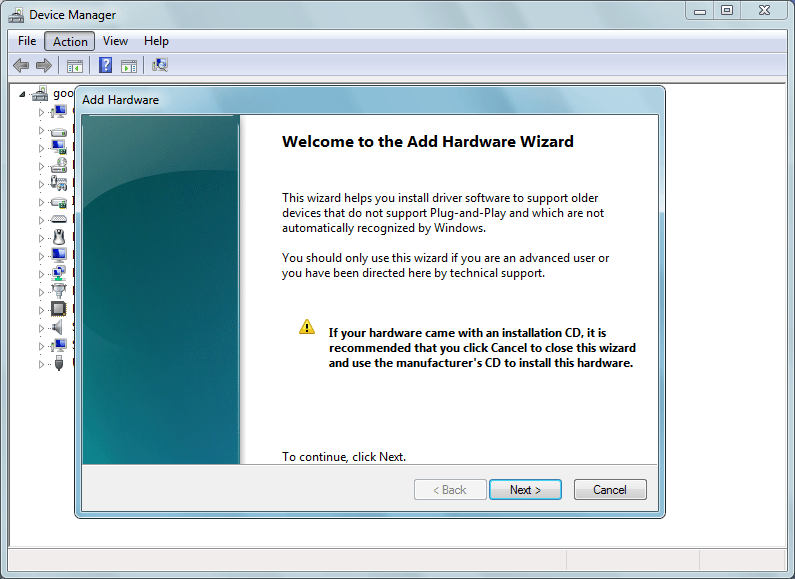
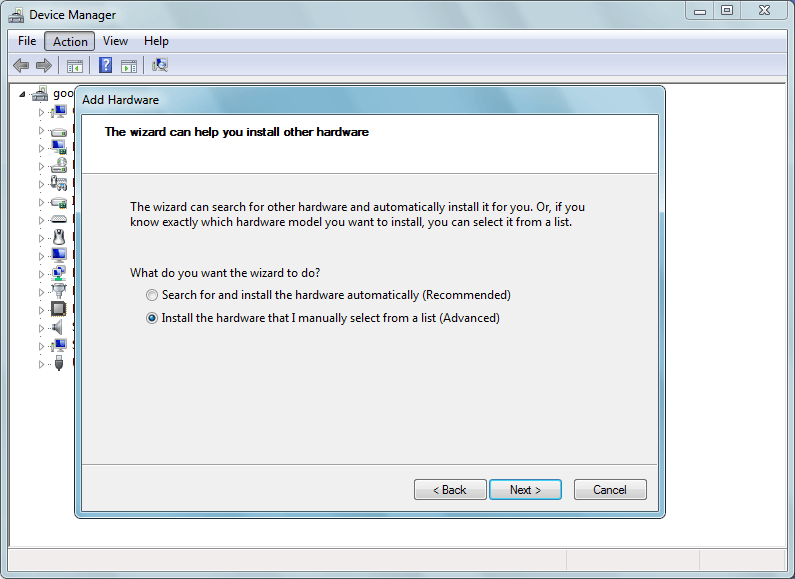
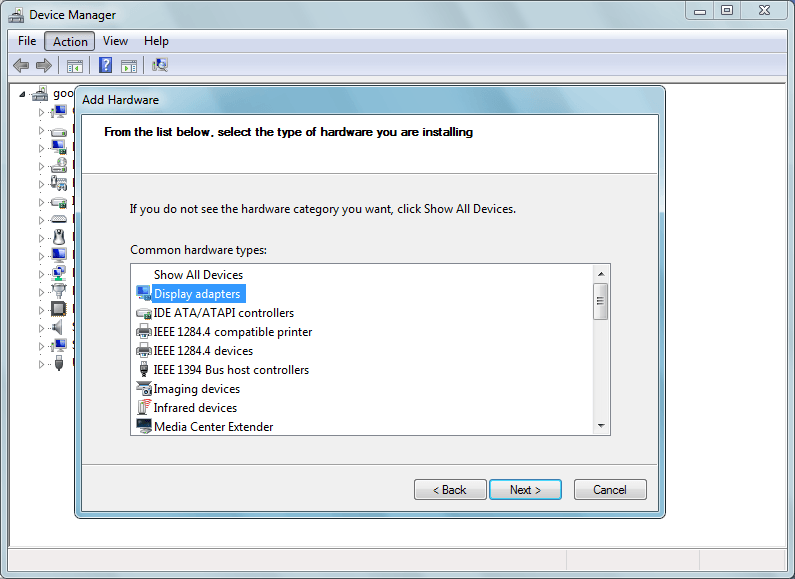
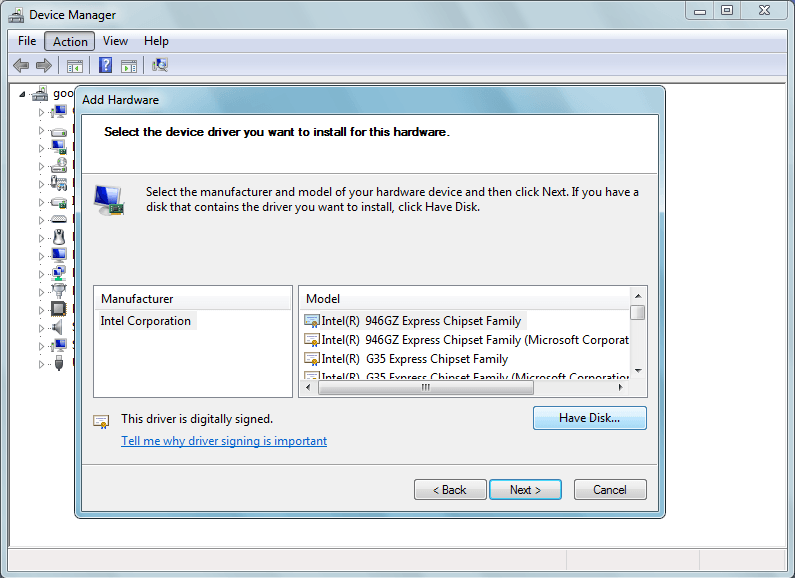
What you should try first is using a classic install method like back on Win95 style:
1. add legacy hardware
2. click next for this step
3. manually select the hardware
4. you need the display adapters, then next
5. click the "have disk" button and select the folder with the driver.
If your driver is an .exe, you'll need to extract it with 7-Zip: browse until you see a folder with the included driver files and extract the folder(s). You can also try to find a .zip version if the exe is not extractable.
If this method works, then it's possible you'll see 2 graphic cards on the list. In that case try to remove the newer one as described earlier, then reboot.
If nothing works then I'm afraid you'll need to stick with the preinstalled driver or newer versions.
This is all I can think of regarding drivers.
Good luck.
Hopachi
Thank you so much again for the detailed explanation on this and how to do it...
In the end it all didnt work and I wasnt able to install the older version of driver. As always I tried the latest driver from ATI, and not even that helped sort out my issue![]()
Thumbs up for all the help and effort again
Regards
Brian
| Similar Threads | ||||
| Tutorial | Forum | |||
| a required CD/DVD drive device driver is missing | Installation & Setup | |||
| | Graphic Cards | |||
| Install MS Download Manager on Windows To Go USB drive - er, no! | Software and Apps | |||
| odd bal in device manager | Drivers & Hardware | |||
| | Sound & Audio | |||