
How to Enable or Disable Built-in Elevated "Administrator" Account Windows 8 and 8.1
This tutorial will show you how to enable or disable the hidden built-in elevated Administrator account in Windows 8, Windows RT, Windows 8.1, and Windows RT 8.1.
You must be signed in as an administrator to be able to do the steps in this tutorial.
 Note
Note
 Warning
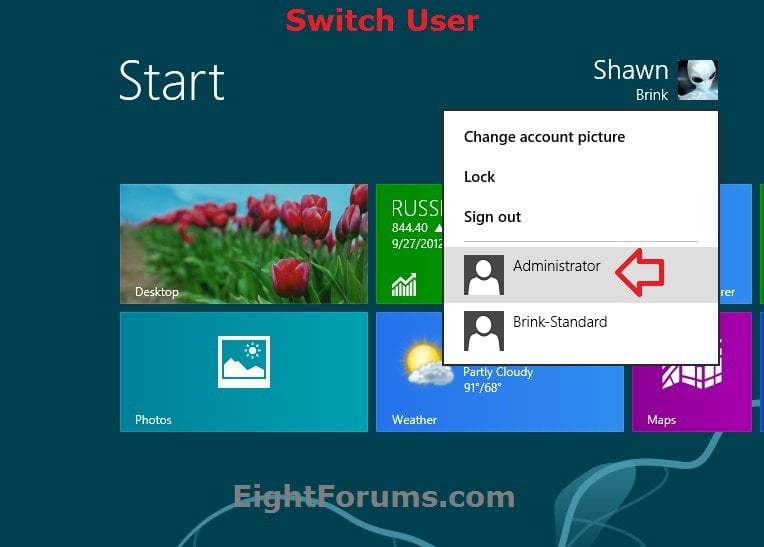
EXAMPLE: Built-in "Administrator" Account Enabled in Windows 8
NOTE: This is for the Sign in screen and Switch User. If you do not see an option to select another user account at sign in, then click/tap on the back arrow button.

1. Open an elevated command prompt, and do either step 2 or 3 below for what you would like to do.
2. To Enable the Built-in Administrator Account in Windows 8
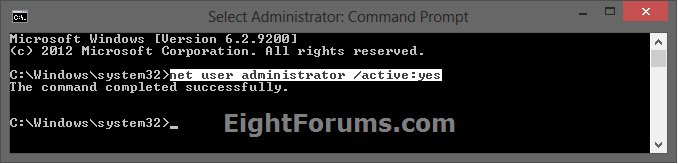
A) In the elevated command prompt, copy and paste the command below and press Enter, then go to step 4 below. (see screenshot below)
Note
net user administrator /active:yes
3. To Disable the Built-in Administrator Account in Windows 8
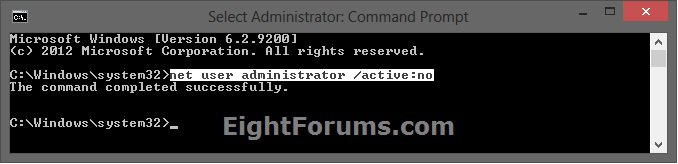
A) In the elevated command prompt, copy and paste the command below and press Enter, then go to step 4 below. (see screenshot below)
Note
net user administrator /active:no
4. Close the elevated command prompt.
5. The built-in Administrator will now be available to select to sign into.
NOTE: This option is great for when you are unable to sign in to Windows 8.
1. Open a command prompt at boot.
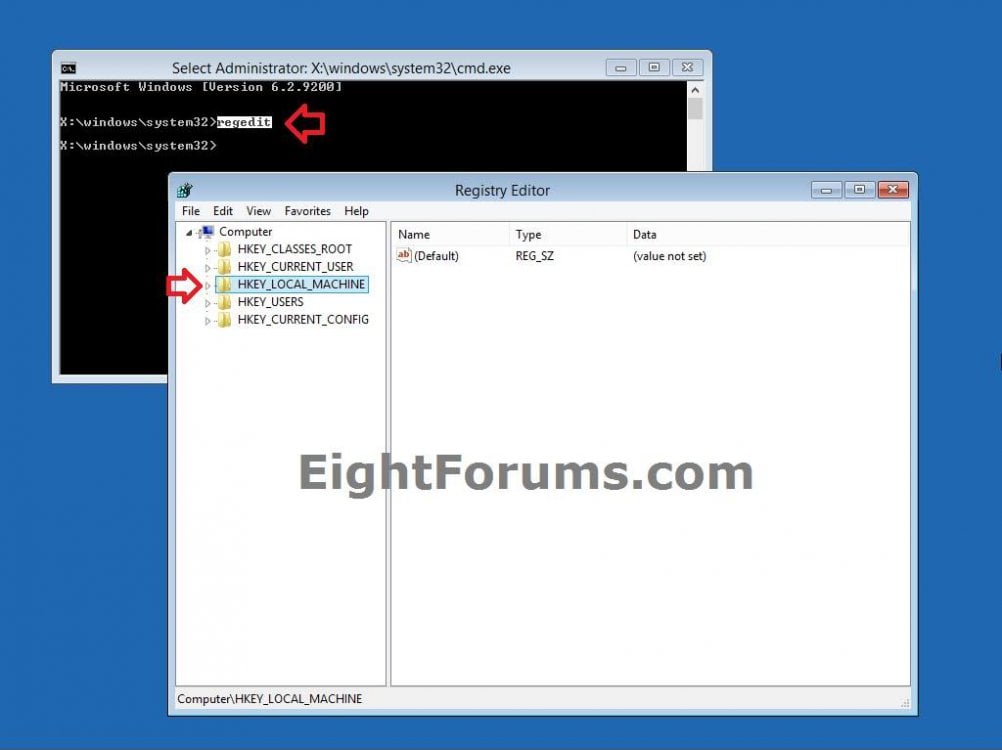
2. In the command prompt, type regedit and press Enter. (see screenshot below step 3)
3. In the left pane of Registry Editor, click/tap on the HKEY_LOCAL_MACHINE key. (see screenshot below)
4. Click/tap on File (menu bar) and on Load Hive. (see screenshot below)
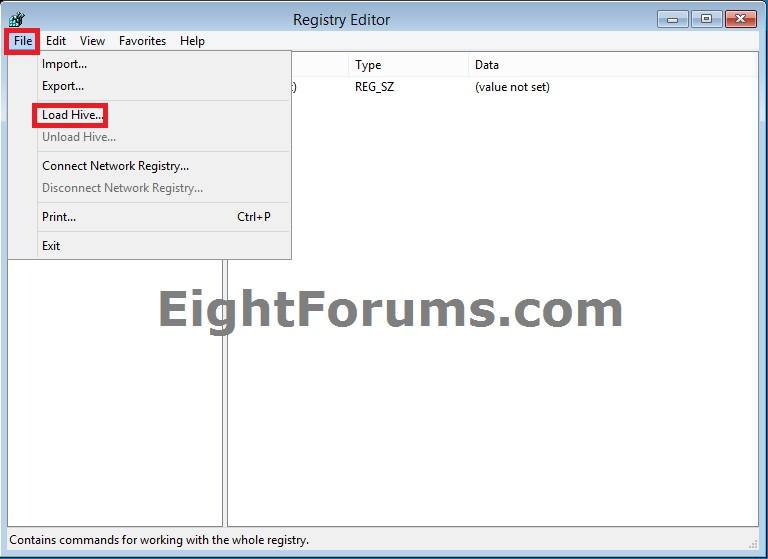
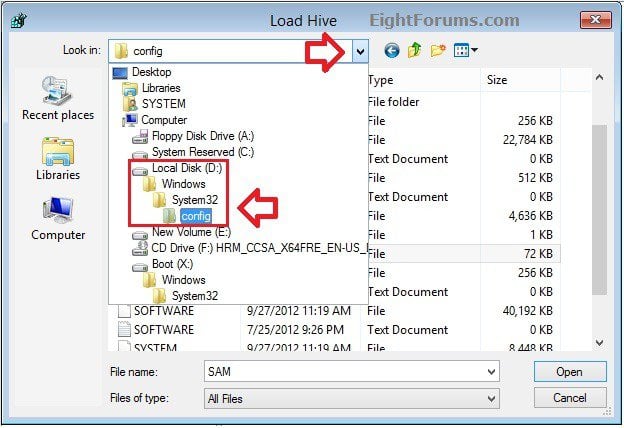
5. Open the drive (ex: D ) that you have Windows 8 installed on, and browse to the location below. (see screenshot below)
NOTE: The drive letter (ex: C) will not always be the same as it is from within Windows 8.
D:\Windows\System32\config
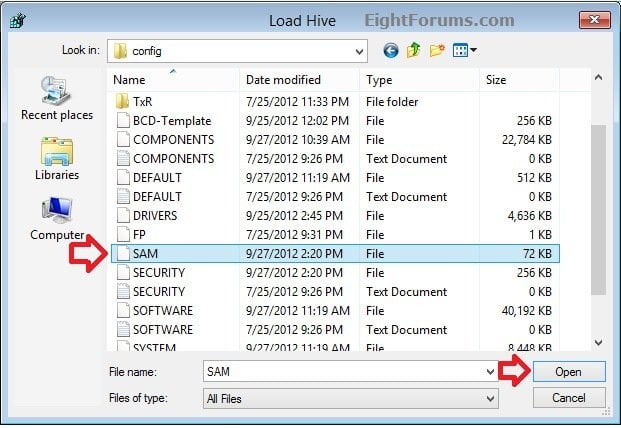
6. Select the SAM file, and click/tap on Open. (see screenshot below)
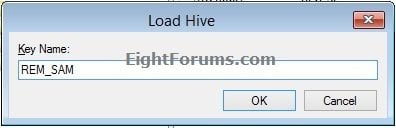
7. In the Load Hive dialog, type REM_SAM and click/tap on OK. (see screenshot below)
8. In the left of Registry Editor, navigate to and open the key below. (see screenshot below)
HKEY_LOCAL_MACHINE\REM_SAM\SAM\Domains\Accounts\Users\000001F4
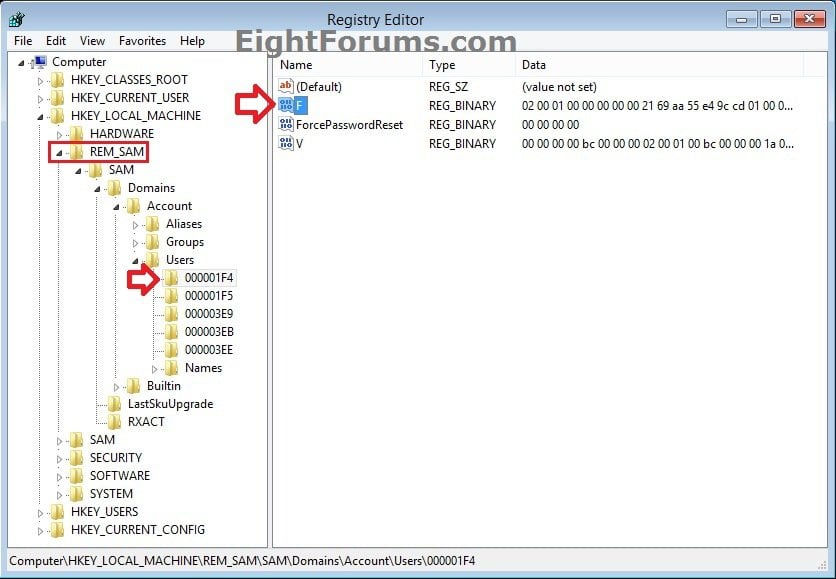
9. In the right pane of 000001F4, double click/tap on F to modify it. (see screenshot above)
10. Do step 11 or 12 below for what you would like to do.
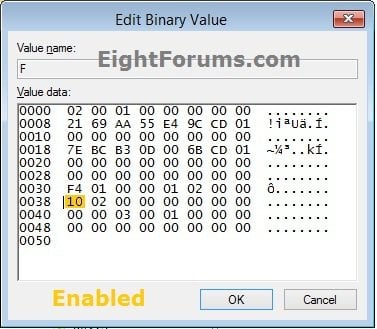
11. To Enable the Built-in Administrator Account in Windows 8
A) In the 2nd column and 8th row, change 11 to 10, click/tap on OK, and go to step 13 below. (see screenshot below)
NOTE: You would do this by clicking to the left of 11 to place the cursor there, press the Delete key, then type 10.
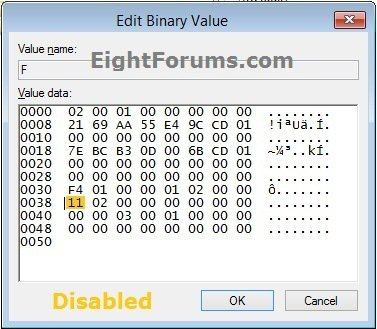
12. To Disable the Built-in Administrator Account in Windows 8
A) In the 2nd column and 8th row, change 10 to 11, click/tap on OK, and go to step 13 below. (see screenshot below)
NOTE: You would do this by clicking to the left of 10 to place the cursor there, press the Delete key, then type 11.
13. Close Registry Editor and the command prompt. (see screenshot below step 3)
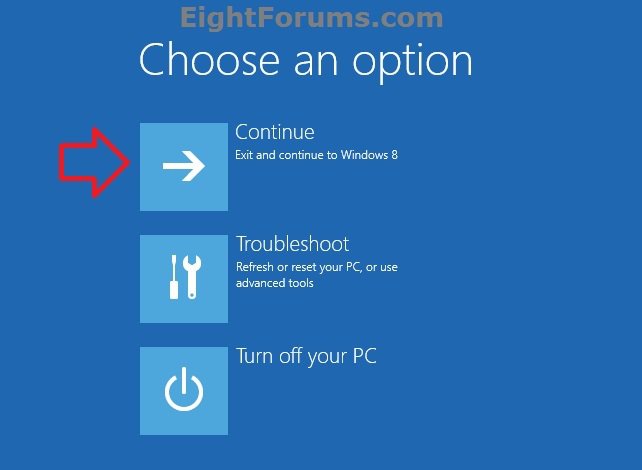
14. Click/tap on Continue to Windows 8, or restart the computer. (see screenshot below)
16. The built-in Administrator will now be available to select to sign into.
NOTE: This option is only available in the Windows 8/8.1 Pro and Windows 8/8.1 Enterprise editions.
1. Press the Windows + R keys to open the Run dialog, type lusrmgr.msc and click/tap on OK.
2. In the left pane, click/tap on the Users folder, then in the middle pane, double click/tap on Administrator. (see sceenshot below)
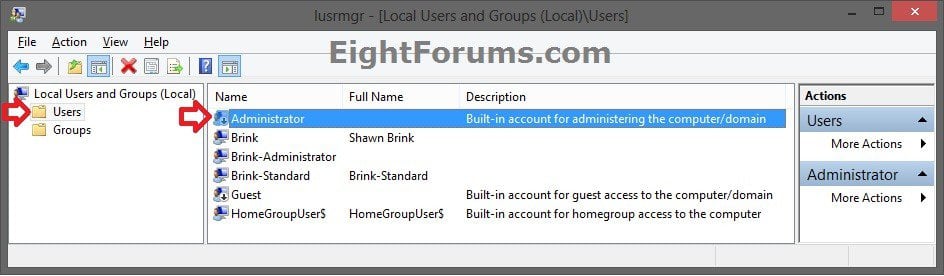
3. Do step 4 or 5 below for what you would like to do. (see sceenshot below)
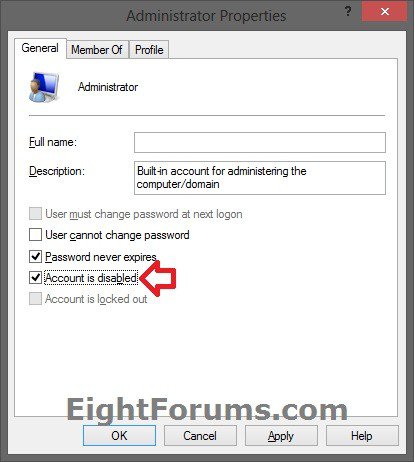
4. To Enable the Built-in Administrator Account in Windows 8
A) Uncheck the Account is disabled box, click/tap on OK, and go to step 6 below. (see screenshot below step 3)
5. To Disable the Built-in Administrator Account in Windows 8
A) Check the Account is disabled box, click/tap on OK, and go to step 6 below. (see screenshot below step 3)
6. Close the Local Users and Groups window. (see screenshot below step 2)
7. The built-in Administrator will now be available to select to sign into.
NOTE: This option is only available in the Windows 8/8.1 Pro and Windows 8/8.1 Enterprise editions.
1. Press the Windows + R keys to open the Run dialog, type secpol.msc and click/tap on OK.
2. In the left pane, click/tap on the Local Policies folder to expand it, and click/tap on the Security Options folder. (see screenshot below)
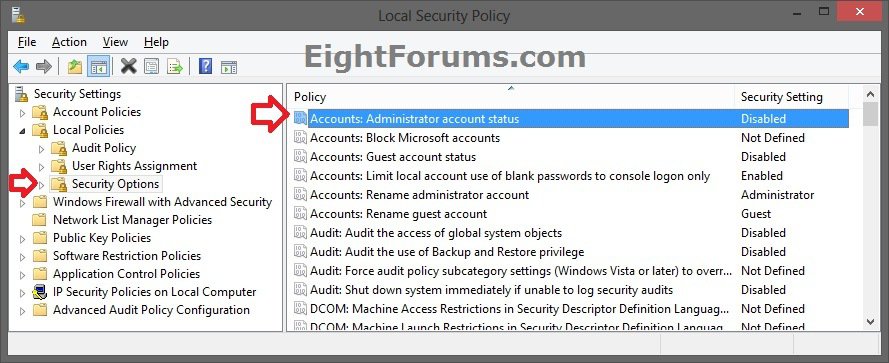
3. In the right pane of Security Options, double click/tap on Accounts: Administrator account status. (see screenshot above)
4. Do step 5 or 6 below for what you would like to do. (see sceenshot below)
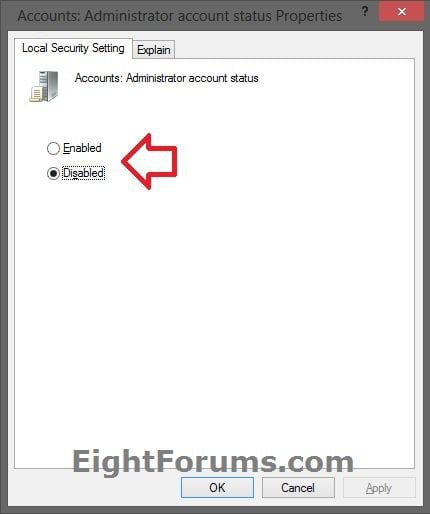
5. To Enable the Built-in Administrator Account in Windows 8
A) Select (dot) Enabled, click/tap on OK, and go to step 7 below. (see screenshot below step 4)
6. To Disable the Built-in Administrator Account in Windows 8
A) Select (dot) Disabled, click/tap on OK, and go to step 7 below. (see screenshot below step 4)
7. Close the Local Security Policy window. (see screenshot below step 2)
8. The built-in Administrator will now be available to select to sign into.
That's it,
Shawn
This tutorial will show you how to enable or disable the hidden built-in elevated Administrator account in Windows 8, Windows RT, Windows 8.1, and Windows RT 8.1.
You must be signed in as an administrator to be able to do the steps in this tutorial.
NoteStandard user (Users) - The standard account is an unelevated restricted user account then can be a local account or Microsoft account. It can help protect your computer by preventing users from making changes that affect everyone who uses the computer, such as deleting files that are required for the computer to work. It is recommend to create a standard account for each user instead of an administrator account for the user. When you are logged on to Windows with a standard account, you can do almost anything that you can do with an administrator account, but if a standard user wanted to do something that requires elevated rights that affects other users of the computer, such as installing software or changing security settings, Windows will give the standard user a UAC prompt to enter the password of an administrator account for approval and confirmation before allowing the action.
administrator user - Is an unelevated administrator account that is created by default during the installation of Windows 8 or 8.1, or is already setup for you on a OEM (ex: Dell) computer. This account can be a local account or Microsoft account. An administrator account has complete access to the computer, and can make any desired changes. To help make the computer more secure, this administrator account type will be prompted by UAC by default to give confirmation before allowed to make any changes that require elevated administrator rights. Such as those that affect the system, other users, or when running anything elevated (Run as Administrator) since running elevated will allow it to have access to the entire computer.
Built-in "Administrator" - Is the hidden elevated local administrator account that has full unrestricted access rights and permission on the computer. By default, this elevated "Administrator" account is not prompted by UAC by default to provide confirmation before allowed to make any changes that require elevated administrator permissions since it is an elevated account.
administrator user - Is an unelevated administrator account that is created by default during the installation of Windows 8 or 8.1, or is already setup for you on a OEM (ex: Dell) computer. This account can be a local account or Microsoft account. An administrator account has complete access to the computer, and can make any desired changes. To help make the computer more secure, this administrator account type will be prompted by UAC by default to give confirmation before allowed to make any changes that require elevated administrator rights. Such as those that affect the system, other users, or when running anything elevated (Run as Administrator) since running elevated will allow it to have access to the entire computer.
Built-in "Administrator" - Is the hidden elevated local administrator account that has full unrestricted access rights and permission on the computer. By default, this elevated "Administrator" account is not prompted by UAC by default to provide confirmation before allowed to make any changes that require elevated administrator permissions since it is an elevated account.
Warning- You will not be able to open and run modern Store apps while signed in to the built-in Administrator account.
- The built-in Administrator account is a local account that cannot be switched to a Microsoft account.
- The built-in Administrator account's C:\Users\Administrator folder will not be created until the first time that it is signed into.
- If you enable the built-in Administrator account, it is recommended that you create a password for it to help prevent unauthorized access of it.
- For better security purposes, it is not recommended to leave the built-in Administrator account always enabled, or used for everyday purposes. The built-in Administrator account should only be used as needed instead.
EXAMPLE: Built-in "Administrator" Account Enabled in Windows 8
NOTE: This is for the Sign in screen and Switch User. If you do not see an option to select another user account at sign in, then click/tap on the back arrow button.
OPTION ONE
To Enable or Disable Built-in Administrator in Command Prompt
1. Open an elevated command prompt, and do either step 2 or 3 below for what you would like to do.
2. To Enable the Built-in Administrator Account in Windows 8
A) In the elevated command prompt, copy and paste the command below and press Enter, then go to step 4 below. (see screenshot below)
NoteIf you had previously renamed the built-in "Administrator" account's name, then you will need to substitute administrator in the command below with the new name instead.
If your Windows uses a different language than English, then you would need to substitute administrator in the command below with the translation for your language instead.
If your Windows uses a different language than English, then you would need to substitute administrator in the command below with the translation for your language instead.
net user administrator /active:yes
3. To Disable the Built-in Administrator Account in Windows 8
A) In the elevated command prompt, copy and paste the command below and press Enter, then go to step 4 below. (see screenshot below)
NoteIf you had previously renamed the built-in "Administrator" account's name, then you will need to substitute administrator in the command below with the new name instead.
If your Windows uses a different language than English, then you would need to substitute administrator in the command below with the translation for your language instead.
If your Windows uses a different language than English, then you would need to substitute administrator in the command below with the translation for your language instead.
net user administrator /active:no
4. Close the elevated command prompt.
5. The built-in Administrator will now be available to select to sign into.
OPTION TWO
To Enable or Disable Built-in Administrator in Command Prompt at Boot
NOTE: This option is great for when you are unable to sign in to Windows 8.
1. Open a command prompt at boot.
2. In the command prompt, type regedit and press Enter. (see screenshot below step 3)
3. In the left pane of Registry Editor, click/tap on the HKEY_LOCAL_MACHINE key. (see screenshot below)
4. Click/tap on File (menu bar) and on Load Hive. (see screenshot below)
5. Open the drive (ex: D ) that you have Windows 8 installed on, and browse to the location below. (see screenshot below)
NOTE: The drive letter (ex: C) will not always be the same as it is from within Windows 8.
D:\Windows\System32\config
6. Select the SAM file, and click/tap on Open. (see screenshot below)
7. In the Load Hive dialog, type REM_SAM and click/tap on OK. (see screenshot below)
8. In the left of Registry Editor, navigate to and open the key below. (see screenshot below)
HKEY_LOCAL_MACHINE\REM_SAM\SAM\Domains\Accounts\Users\000001F4
9. In the right pane of 000001F4, double click/tap on F to modify it. (see screenshot above)
10. Do step 11 or 12 below for what you would like to do.
11. To Enable the Built-in Administrator Account in Windows 8
A) In the 2nd column and 8th row, change 11 to 10, click/tap on OK, and go to step 13 below. (see screenshot below)
NOTE: You would do this by clicking to the left of 11 to place the cursor there, press the Delete key, then type 10.
12. To Disable the Built-in Administrator Account in Windows 8
A) In the 2nd column and 8th row, change 10 to 11, click/tap on OK, and go to step 13 below. (see screenshot below)
NOTE: You would do this by clicking to the left of 10 to place the cursor there, press the Delete key, then type 11.
13. Close Registry Editor and the command prompt. (see screenshot below step 3)
14. Click/tap on Continue to Windows 8, or restart the computer. (see screenshot below)
16. The built-in Administrator will now be available to select to sign into.
OPTION THREE
To Enable or Disable Built-in Administrator in Local Users and Groups
NOTE: This option is only available in the Windows 8/8.1 Pro and Windows 8/8.1 Enterprise editions.
1. Press the Windows + R keys to open the Run dialog, type lusrmgr.msc and click/tap on OK.
2. In the left pane, click/tap on the Users folder, then in the middle pane, double click/tap on Administrator. (see sceenshot below)
3. Do step 4 or 5 below for what you would like to do. (see sceenshot below)
4. To Enable the Built-in Administrator Account in Windows 8
A) Uncheck the Account is disabled box, click/tap on OK, and go to step 6 below. (see screenshot below step 3)
5. To Disable the Built-in Administrator Account in Windows 8
A) Check the Account is disabled box, click/tap on OK, and go to step 6 below. (see screenshot below step 3)
6. Close the Local Users and Groups window. (see screenshot below step 2)
7. The built-in Administrator will now be available to select to sign into.
OPTION FOUR
To Enable or Disable Built-in Administrator in Local Security Policy
NOTE: This option is only available in the Windows 8/8.1 Pro and Windows 8/8.1 Enterprise editions.
1. Press the Windows + R keys to open the Run dialog, type secpol.msc and click/tap on OK.
2. In the left pane, click/tap on the Local Policies folder to expand it, and click/tap on the Security Options folder. (see screenshot below)
3. In the right pane of Security Options, double click/tap on Accounts: Administrator account status. (see screenshot above)
4. Do step 5 or 6 below for what you would like to do. (see sceenshot below)
5. To Enable the Built-in Administrator Account in Windows 8
A) Select (dot) Enabled, click/tap on OK, and go to step 7 below. (see screenshot below step 4)
6. To Disable the Built-in Administrator Account in Windows 8
A) Select (dot) Disabled, click/tap on OK, and go to step 7 below. (see screenshot below step 4)
7. Close the Local Security Policy window. (see screenshot below step 2)
8. The built-in Administrator will now be available to select to sign into.
That's it,
Shawn
Related Tutorials
- How to Reset User Profile of Built-in Administrator Account to Default in Windows
- How to Enable or Disable a User Account in Windows 7 and Windows 8
- How to Rename Built-in Elevated "Administrator" Account in Windows 7 and Windows 8
- How to Create and Add a New User Account in Windows 8 and 8.1
- How to Turn On or Off Guest Account in Windows 8 and 8.1
- How to Create a Password for a User Account in Windows 8 and 8.1
- How to Change your User Account Picture in Windows 8 and 8.1
- How to Create, Change, or Remove a PIN for Your Account in Windows 8 and 8.1
- How to Change a User Account Type in Windows 8 and 8.1
- How to Change User Account Control (UAC) Settings in Windows 8 and 8.1
- Enable or Disable User Account Control (UAC) Prompt for Built-in Administrator in Windows
- How to View Detailed Information About All User Accounts on a Windows PC
Attachments

Last edited by a moderator:


