
How to Relearn your Picture Password if Forgotten in Windows 8 and 8.1
 Information
A picture password is a new way to help protect your Windows 8 computer or touchscreen PC. You can choose to use any picture, and the three gestures you use with the picture, to create a strong unique password for your user account in Windows 8.
This tutorial will show you how to replay and relearn the current set of three gestures for your picture password if forgotten in Windows 8 and Windows 8.1.
This tutorial will show you how to replay and relearn the current set of three gestures for your picture password if forgotten in Windows 8 and Windows 8.1.
Here's How:
1. Open PC settings, and do step 2 or 3 below for what Windows 8 you have.
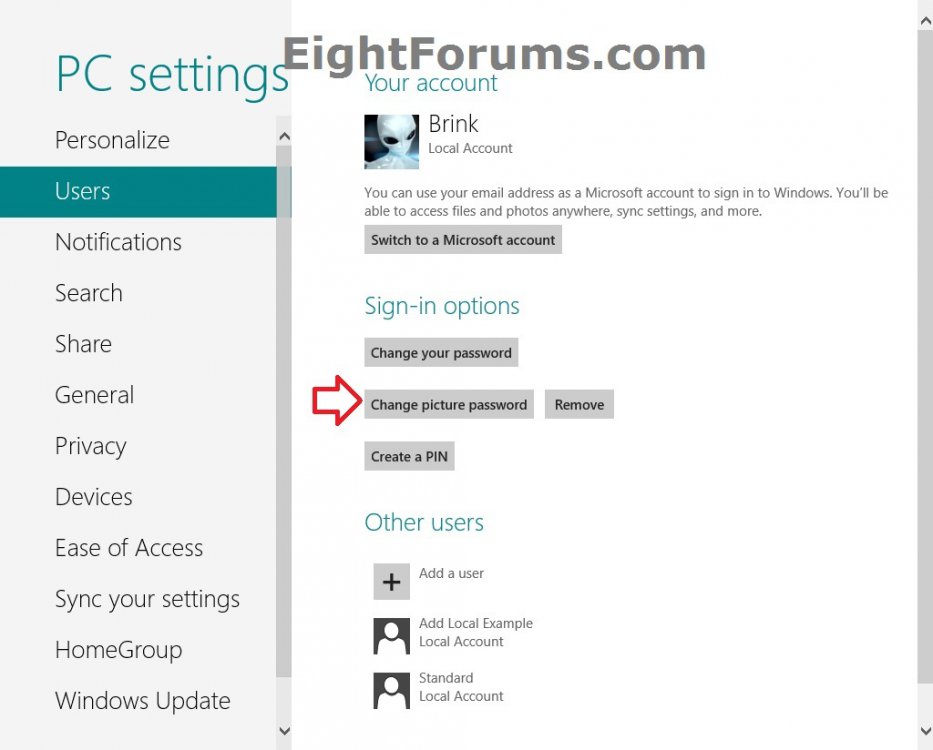
2. In Windows 8 or Windows RT, click/tap on Users in the left pane, click/tap on Change picture password in the right pane, and go to step 4 below. (see screenshot below)
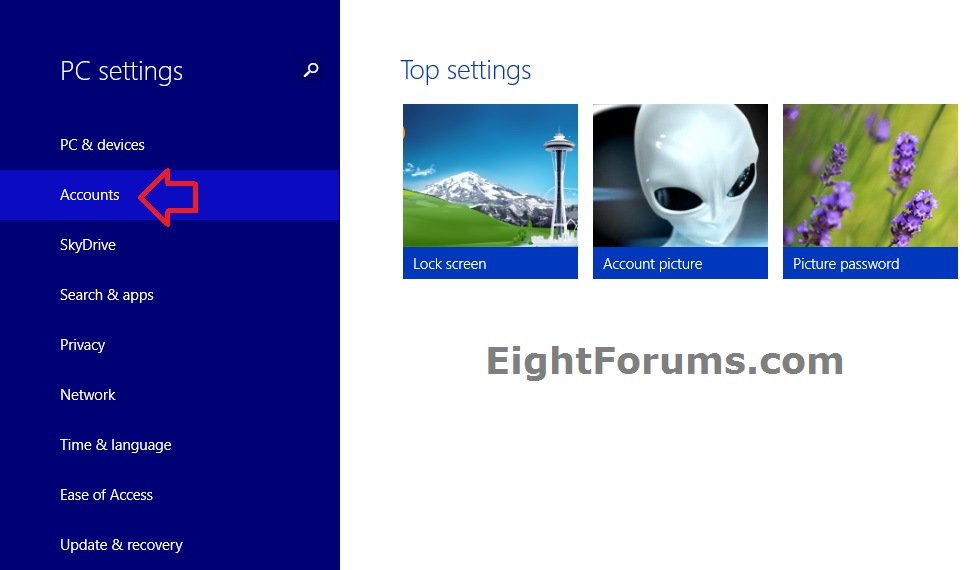
3. In Windows 8.1 or Windows RT 8.1, click/tap on Accounts on the left side. (see screenshot below)
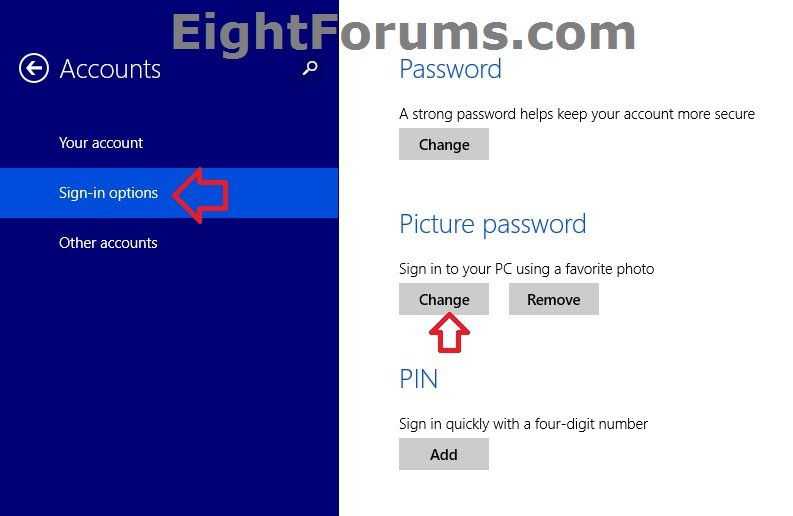
A) Click/tap on Sign-in options on the left side, click/tap on Change under Picture password on the right, and go to step 4 below. (see screenshot below)
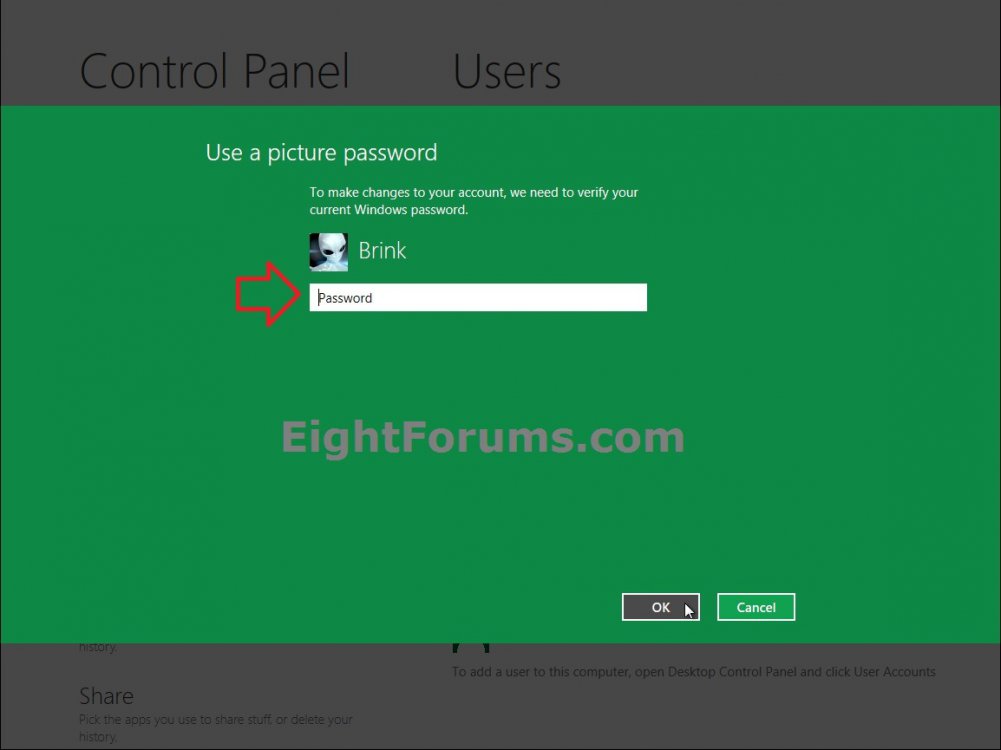
4. Type in your user account's password, and press Enter or click/tap on OK. (see screenshot below)
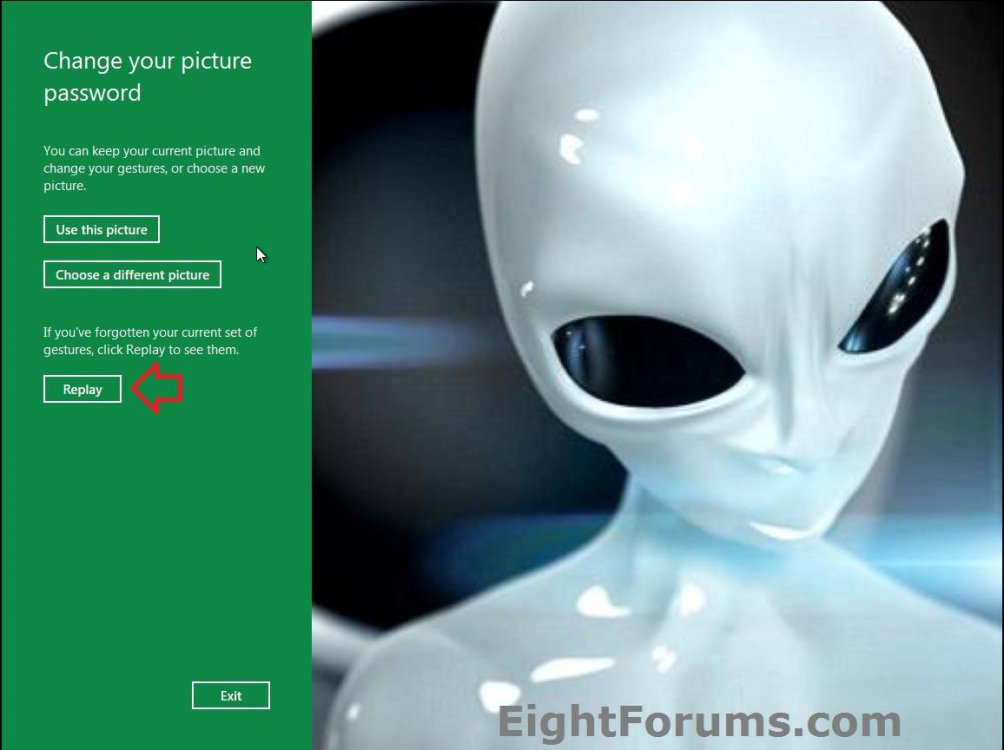
5. Click/tap on Replay. (see screenshot below)
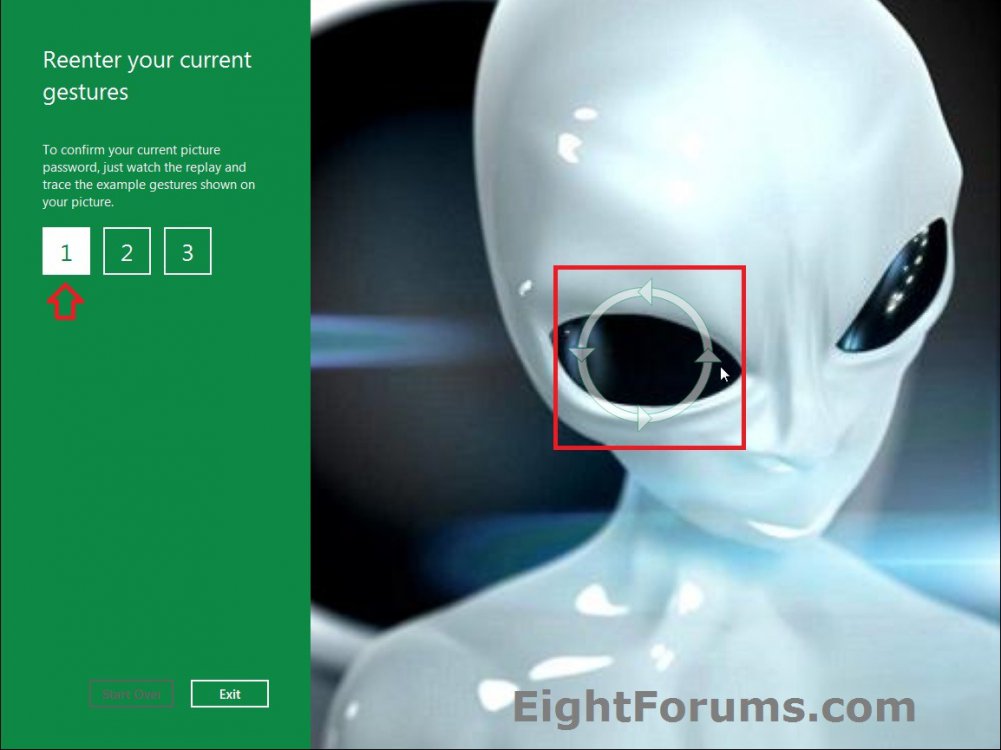
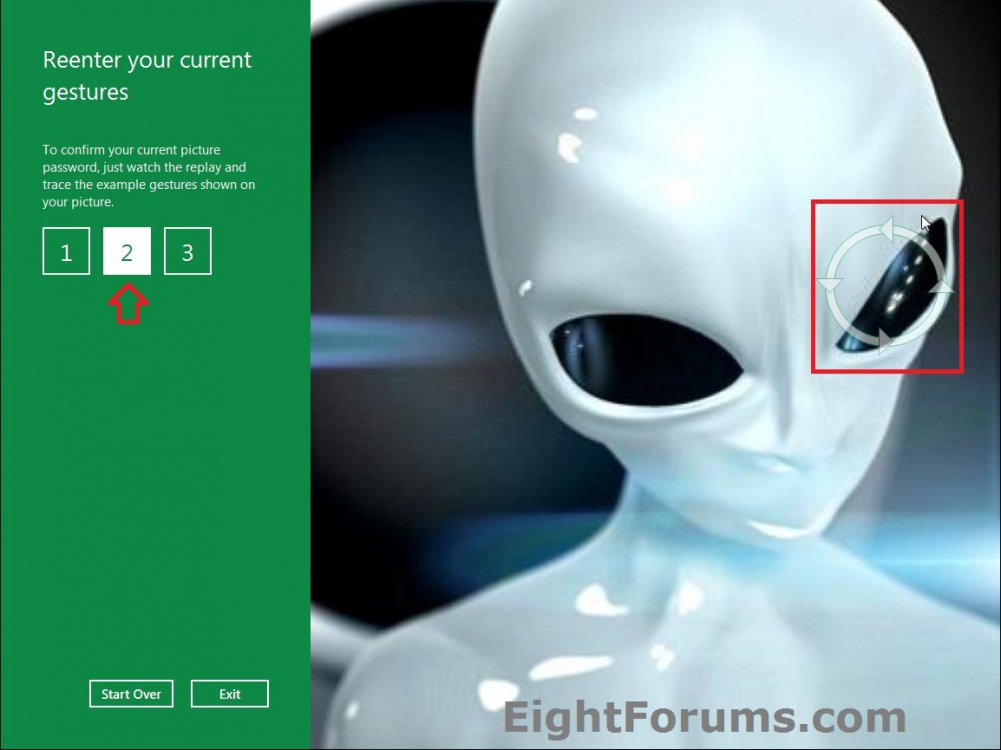
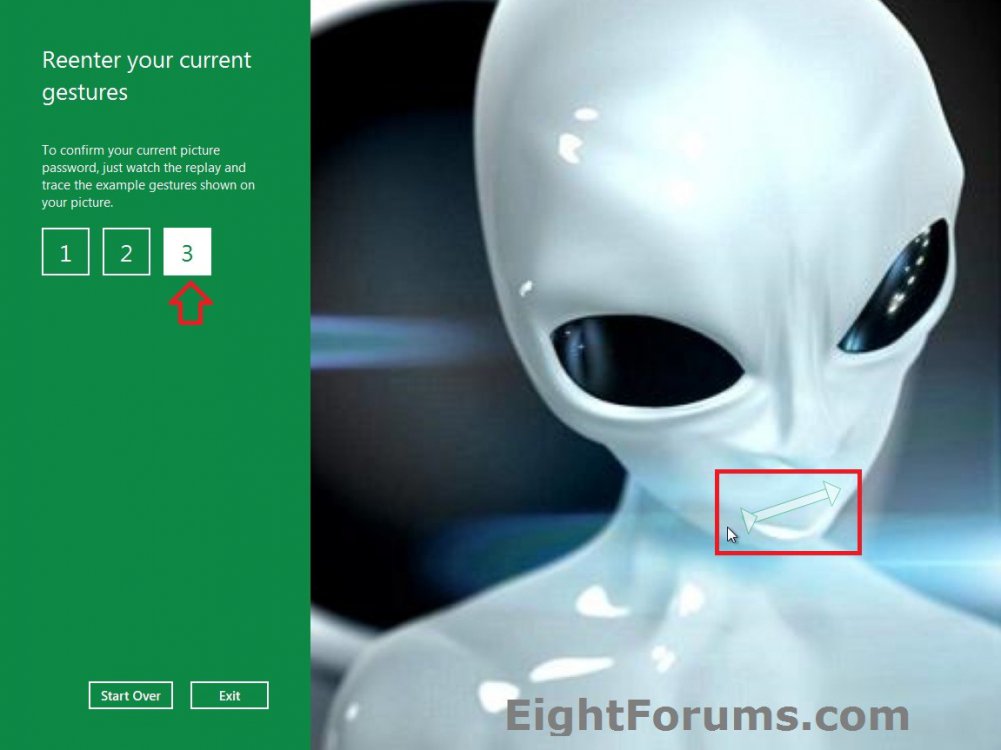
6. You will now be shown an example of your gestures one at a time on your picture. You would need to trace (draw) the example gesture show on your picture after each example gesture one at a time before it will move on to the next gesture. (see screenshot below)
7. When finished, you will need to repeat the three gestures again exactly in the same size, position, and direction as given in step 5, but without any example gesture given to you this time. (see screenshot below)
NOTE: If you make a mistake while drawing your gestures, then you could click on the Start Over button.
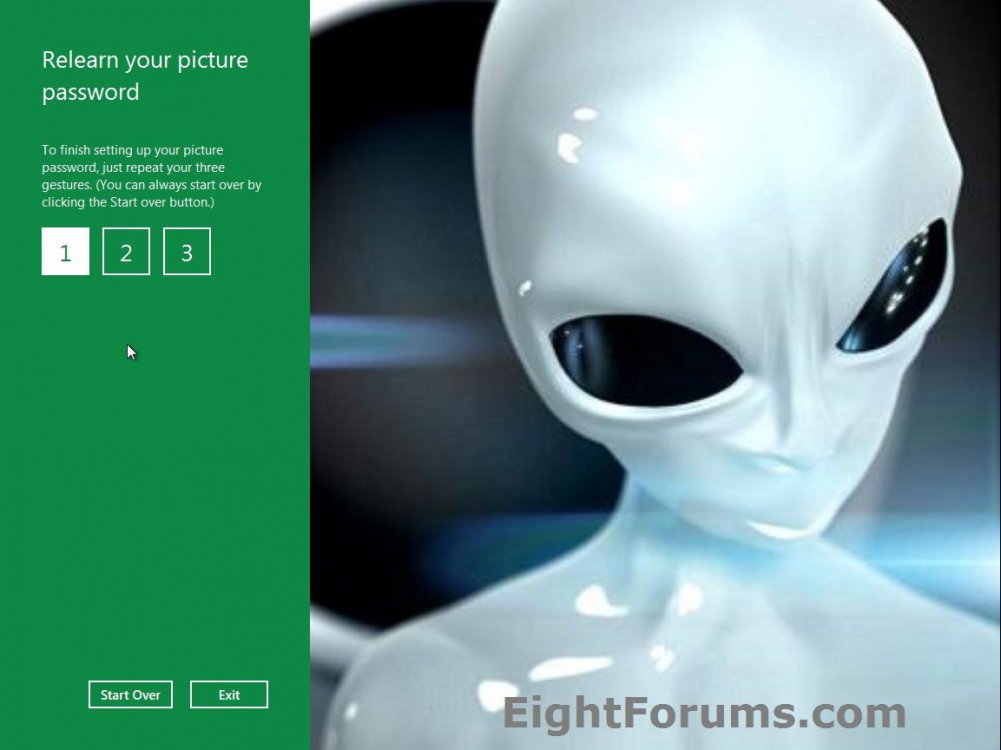
8. Do step 9 or 10 below depending on if you have successfully relearned your picture password or not.
9. If you Failed to Relearned your Picture Password
A) Click on the Try again button, and go to step 6 above. (see screenshot below)
NOTE: You could click on the Exit button to stop trying to learn your picture password at anytime if you do not wish to continue trying to learn it.

10. If you Successfully Relearned your Picture Password
A) Click/tap on OK, and go to step 11 below. (see screenshot below)

11. If you like, you could now close PC settings.
That's it,
Shawn
Attachments

Last edited: