How to Add Safe Mode to Windows Boot Manager in Windows 8 and 8.1
 Information
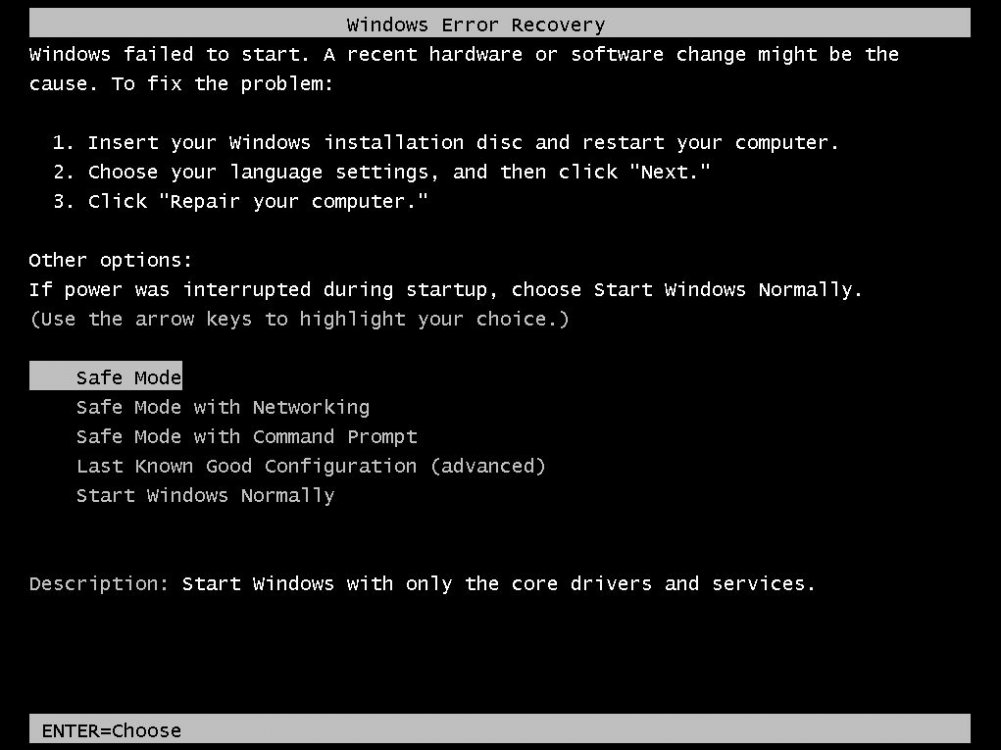
Safe mode is a troubleshooting option for Windows that starts your computer with a minimal set of drivers and services.
This tutorial will show you how to add Windows 8 Safe Mode to the Windows Boot Manager to be able to easily choose Safe Mode, Safe Mode with Networking, Safe Mode with Command Prompt, Windows 8, or any another OS (ex: dual boot) at boot to run at startup.
You must be signed in as an administrator to be able to do the steps in this tutorial.
This tutorial will show you how to add Windows 8 Safe Mode to the Windows Boot Manager to be able to easily choose Safe Mode, Safe Mode with Networking, Safe Mode with Command Prompt, Windows 8, or any another OS (ex: dual boot) at boot to run at startup.
You must be signed in as an administrator to be able to do the steps in this tutorial.
 Note
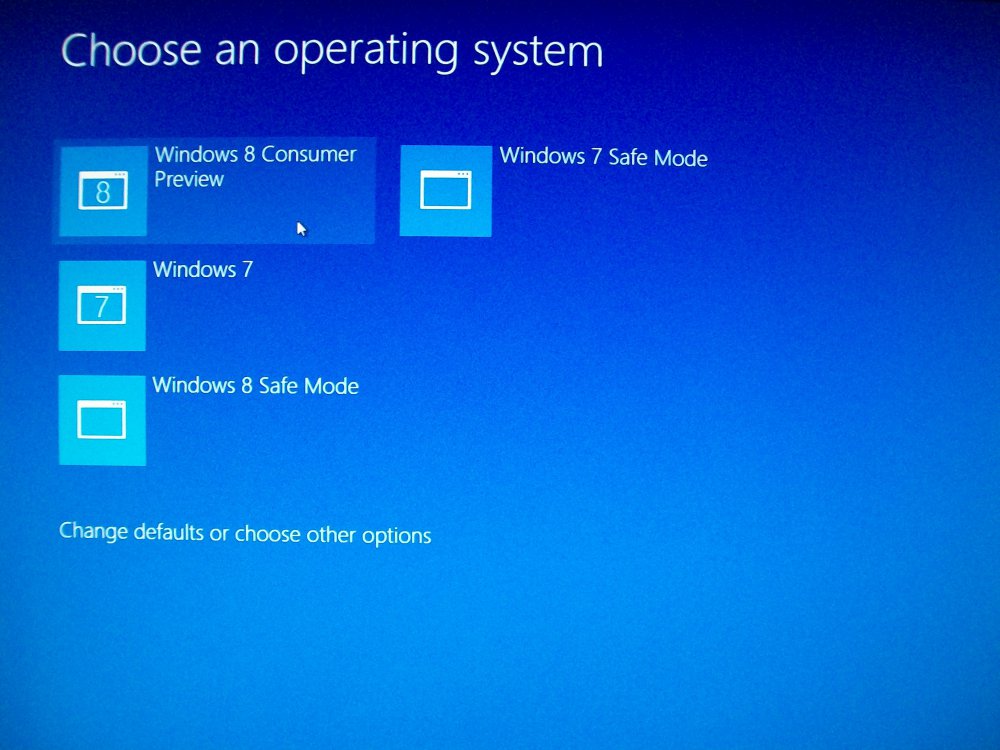
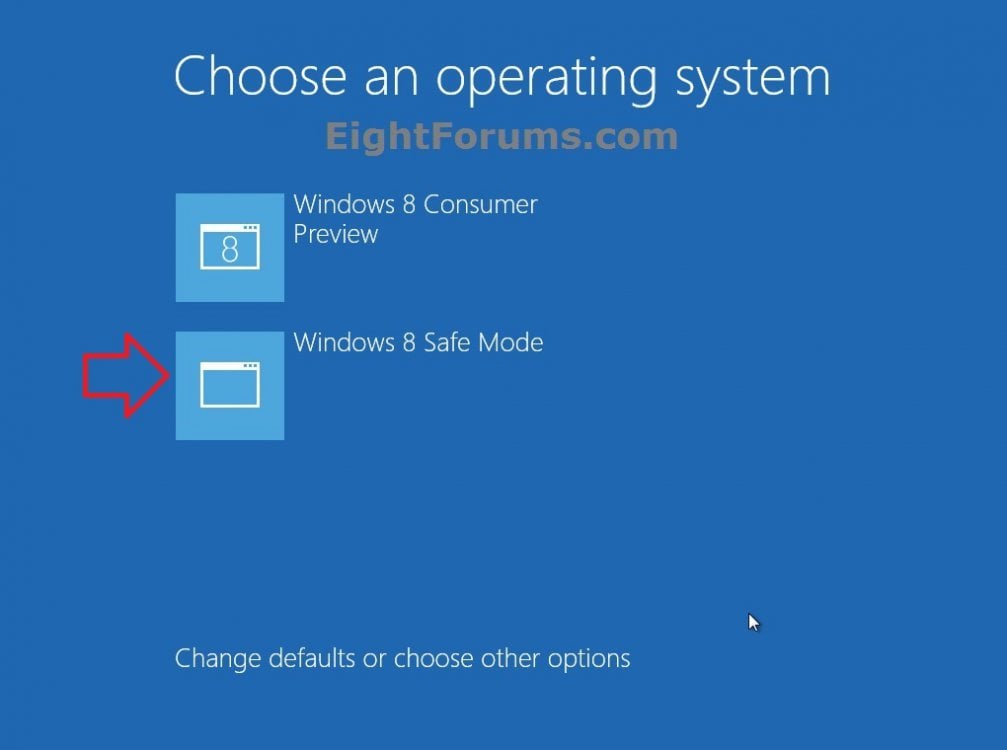
NoteIf you do not already dual boot Windows 8 with another OS (ex: Windows 7 or Vista) with Windows 8 set as the default OS to run at startup, then adding Safe Mode to the Windows Boot Manager will also give you the Change default or choose other options link as in the example screenshot below to make it easier to boot into the Startup Options menu for more System Recovery Options.
EXAMPLE: Windows 8 Safe Mode added to Windows Boot Manager
OPTION ONE
To Add Windows 8 "Safe Mode" to Windows Boot Manager
1. Open an elevated command prompt or a command prompt at boot.
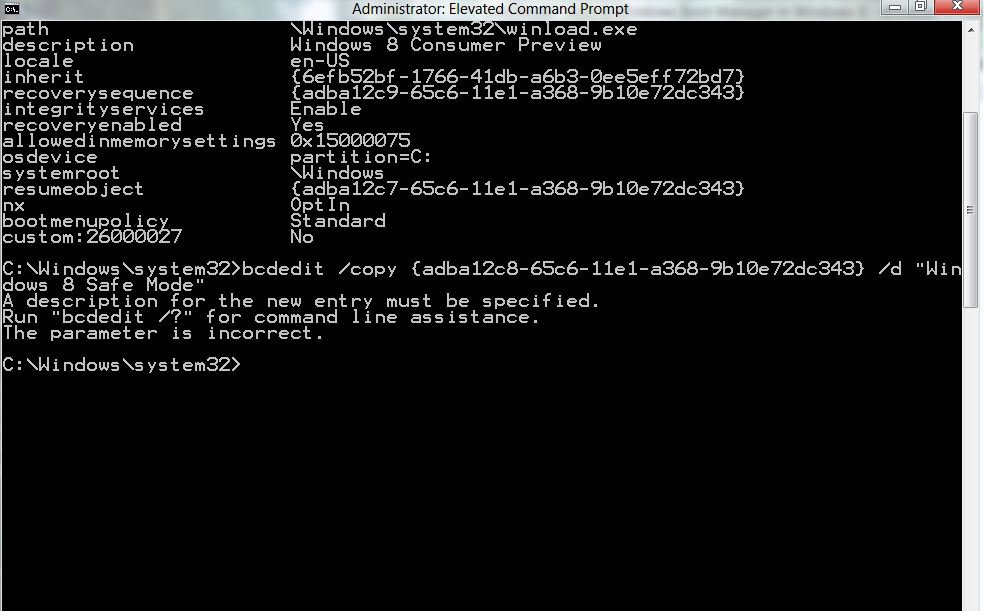
2. In the command prompt, copy and paste the command below and press Enter. (see screenshot below)
bcdedit /enum /v
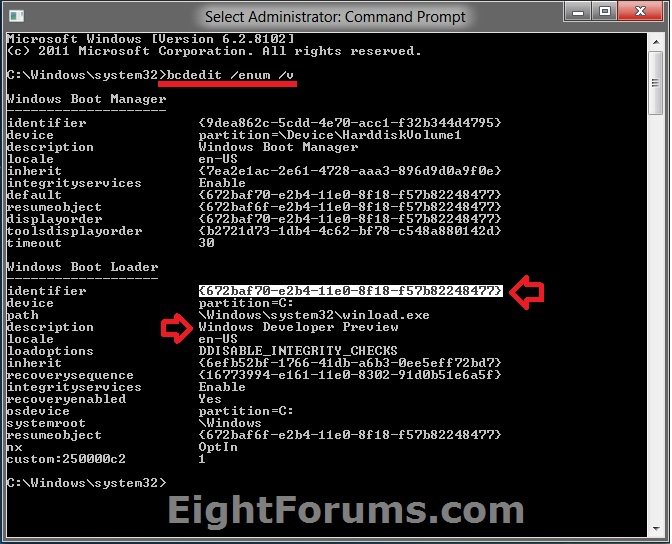
3. From under a Windows Boot Loader section, look for the description that has Windows 8.1 listed (ex: Windows Developer Preview), and make note of it's identifier number (ex: {672baf70-e2b4-11e0-8f18-f57b82248477} ) . (see screenshot above)
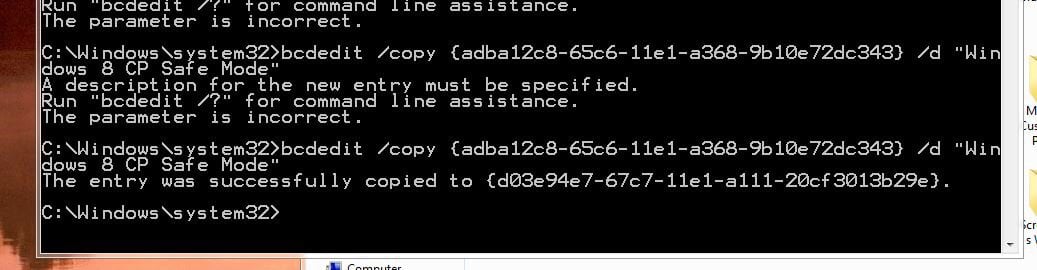
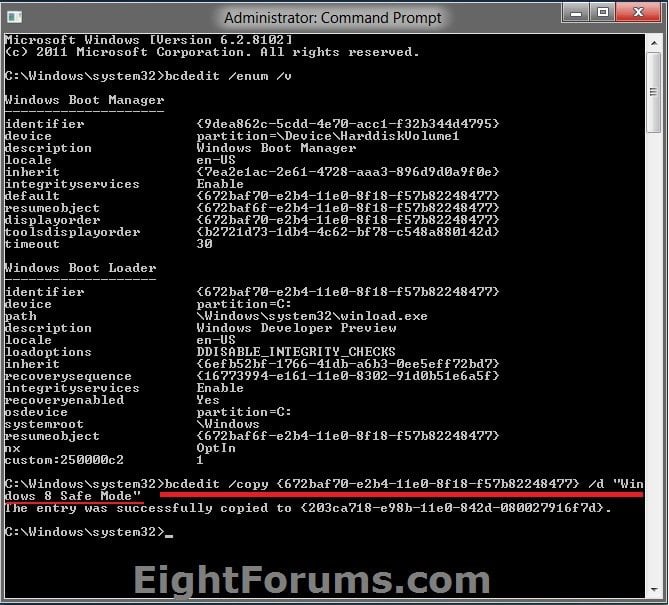
4. In the command prompt, type the command below for the type of Safe Mode you want, and press Enter. (see screenshot below)
NOTE: Substitute identifier number in the command below with your actual Windows 8.1 identifier number from step 3.
bcdedit /copy {identifier number} /d “Windows 8.1 Safe Mode”
OR
bcdedit /copy {identifier number} /d “Windows 8.1 Safe Mode with Networking”
OR
bcdedit /copy {identifier number} /d “Windows 8.1 Safe Mode with Command Prompt”
For example: I would type this command below exactly for Safe Mode with my identifier number {672baf70-e2b4-11e0-8f18-f57b82248477}.
bcdedit /copy {672baf70-e2b4-11e0-8f18-f57b82248477} /d “Windows 8.1 Safe Mode”
 Warning
While you could copy and paste the bcdedit /copy {identifier number} part of the command, you must completely type out the /d “Windows 8.1 Safe Mode” part of the command or you will get the "A description for the new entry must be specified" error message if you try and copy and paste it. Be sure to backspace and then type out the rest of the command to also leave a space between these parts of the same command.
Warning
If it doubt, you can always type out the full command.
5. Press the Windows + R keys to open the Run dialog, type msconfig, and click/tap on OK.
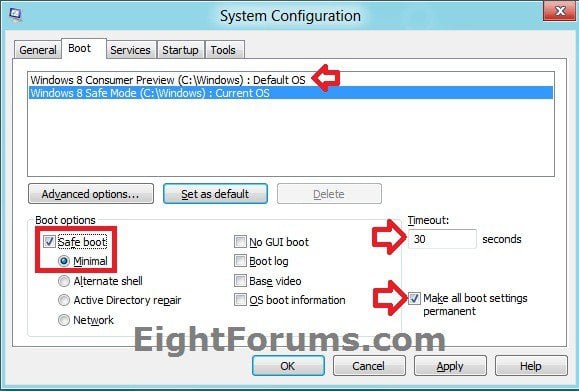
6. Click/tap on the Boot tab, verify that Windows 8.1 (or the OS you want) is set as the Default OS instead of Windows 8.1 Safe Mode. (see screenshot below)
A) Next, select Windows 8.1 Safe Mode in the top box, and check the Safe boot box under "Boot options".
B) Select (dot) either Minimal, Alternate shell, or Network for the type of Safe Mode you wanted from step 4 above.
NoteSafe Mode (Minimal) = This starts Windows with a minimal set of drivers and services.
Note
Safe Mode with Networking (Network) = This starts Windows in safe mode and includes the network drivers and services needed to access the Internet or other computers on your network.
Safe Mode with Command Prompt (Alternate shell) = This starts Windows in safe mode with a command prompt window instead of the usual Windows interface.
C) Set enough seconds (ex: 30) in the Timeout field to be able to have enough time to choose an OS at boot, check the Make all boot settings permanent box, and click/tap on OK. (see screenshot below)
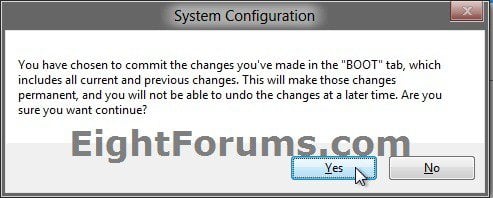
7. Click/tap on Yes. (see screenshot below)
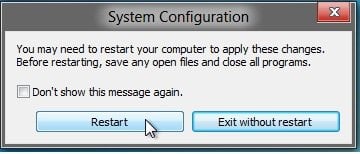
8. Click/tap on Restart. (see screenshot below)
9. When the computer restarts, you will see that Windows 8.1 Safe Mode has been added to the Windows Boot Manager.
OPTION TWO
To Remove Windows 8 "Safe Mode" from Windows Boot Manager
NoteThis option will undo OPTION ONE above to remove Windows 8.1 Safe Mode from the Windows Boot Manager screen, and return you back to what you had before doing OPTION ONE.
1. Open an elevated command prompt or a command prompt at boot.
2. In the command prompt, copy and paste the command below, and press Enter. (see screenshot below)
bcdedit /enum /v
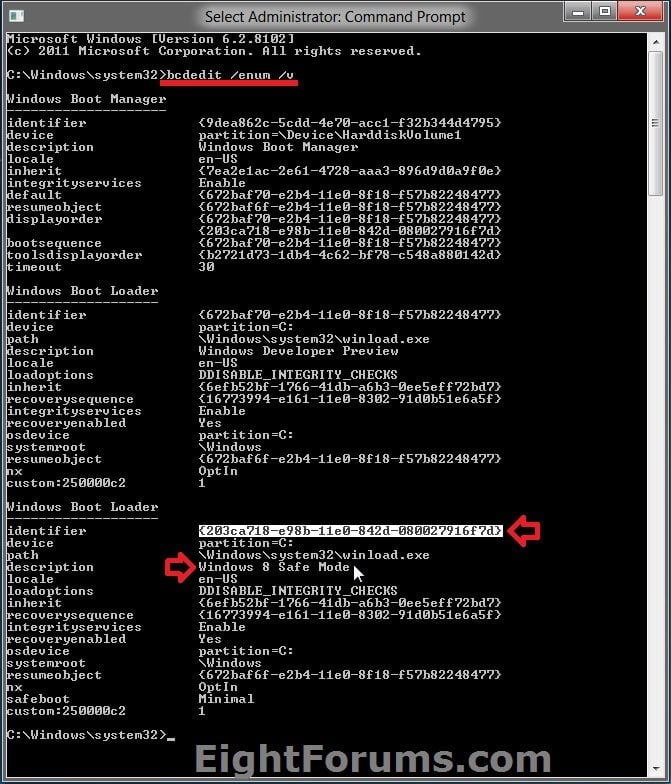
3. From under a Windows Boot Loader section, look for the description that has Windows 8.1 Safe Mode listed, and make note of it's identifier number (ex: {203ca718-e98b-11e0-842d-080027916f7d} ) . (see screenshot above)
4. In the command prompt, type the command below and press Enter. (see screenshot below)
NOTE: Substitute identifier number in the command below with your actual "Windows 8.1 Safe Mode" identifier number from step 2.
bcdedit /delete {identifier number}
For example: I would type this command below exactly for my identifier number {203ca718-e98b-11e0-842d-080027916f7d}.
bcdedit /delete {203ca718-e98b-11e0-842d-080027916f7d}
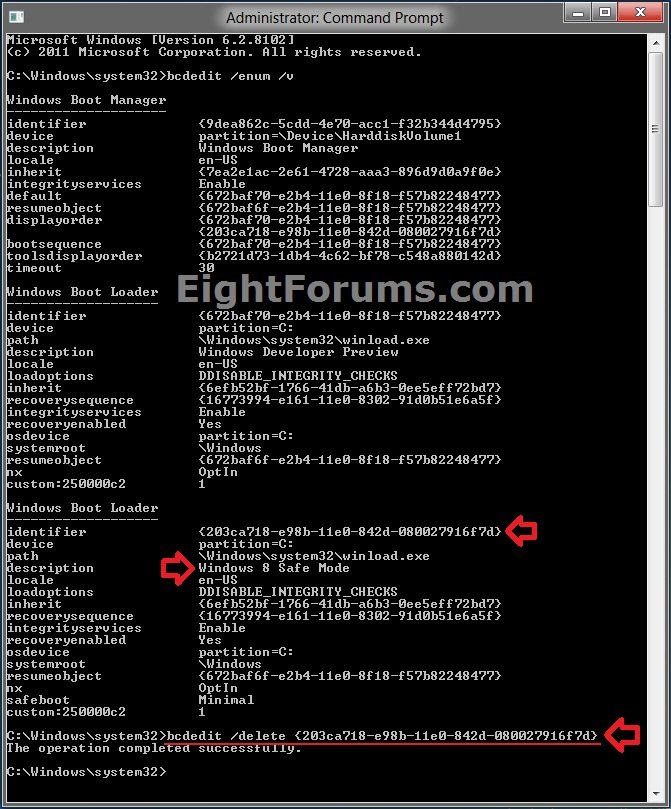
5. Close the command prompt. The next time that you restart the computer, you will see that Windows 8.1 Safe Mode has been removed.
That's it,
Shawn
Related Tutorials
- How to Start Windows 8 in Safe Mode
- How to Add "Safe Mode" to Desktop Context Menu in Windows 7 and Windows 8
- How to Boot to the Advanced Windows "Startup Settings" in Windows 8
- How to Refresh Windows 8
- How to Choose a Default Operating System to Run at Startup in Windows 8
- How to Delete an Operating System Listed in Windows Boot Manager
Attachments

Last edited by a moderator: