
How to Open a Command Prompt at Boot in Windows 8
 Information
A command prompt is an entry point for typing computer commands in the Command Prompt window. By typing commands at the command prompt, you can perform tasks on your computer without using the Windows graphical interface.
This tutorial will show you how to boot to an elevated command prompt at startup in Windows 8.
This tutorial will show you how to boot to an elevated command prompt at startup in Windows 8.
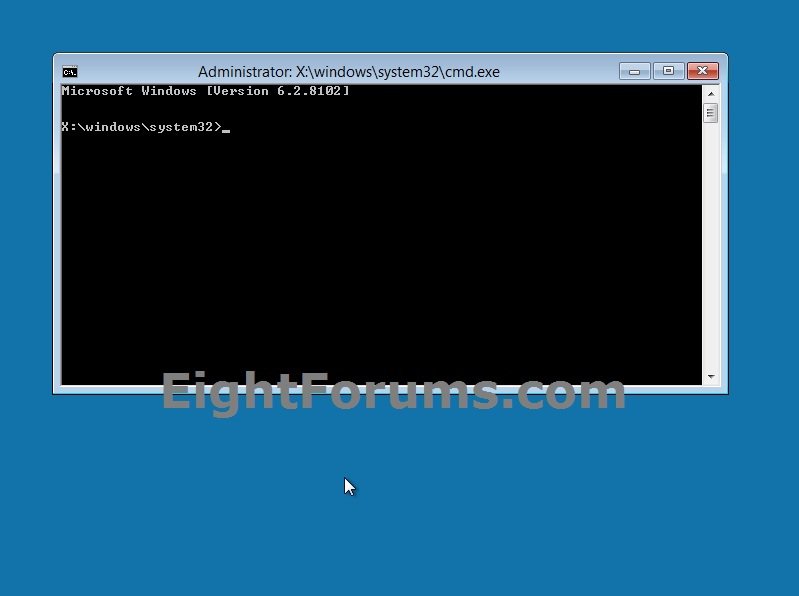
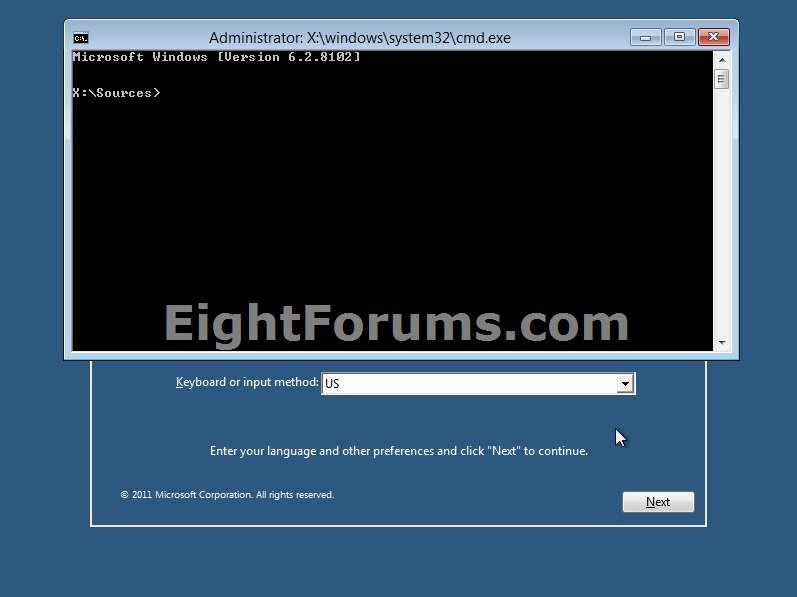
EXAMPLE: Command Prompt at Boot in Windows 8
Here's How:
1. Do step 2 or 3 below for how you would like to open a command prompt at boot.
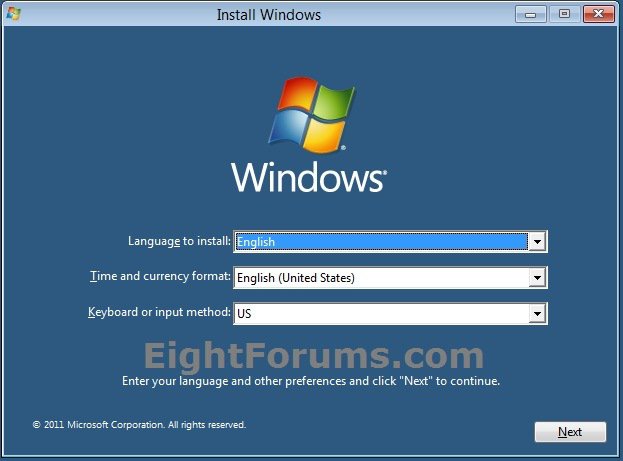
2. Boot from your Windows 8 installation DVD or USB thumb drive, or ISO file if in a virtual machine.
A) Press Shift + F10 when you are at the Install Windows screen, and go to step 4 below.
OR
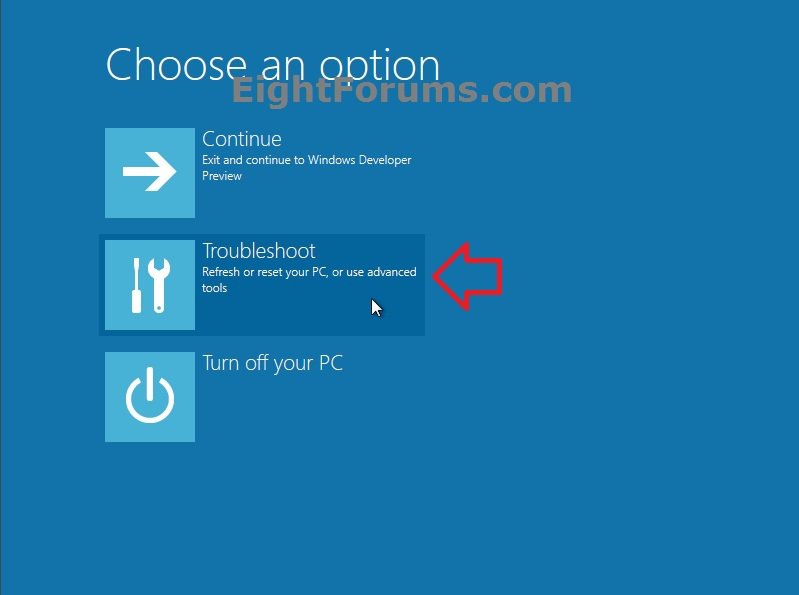
3. Boot to the System Recovery Options screen.
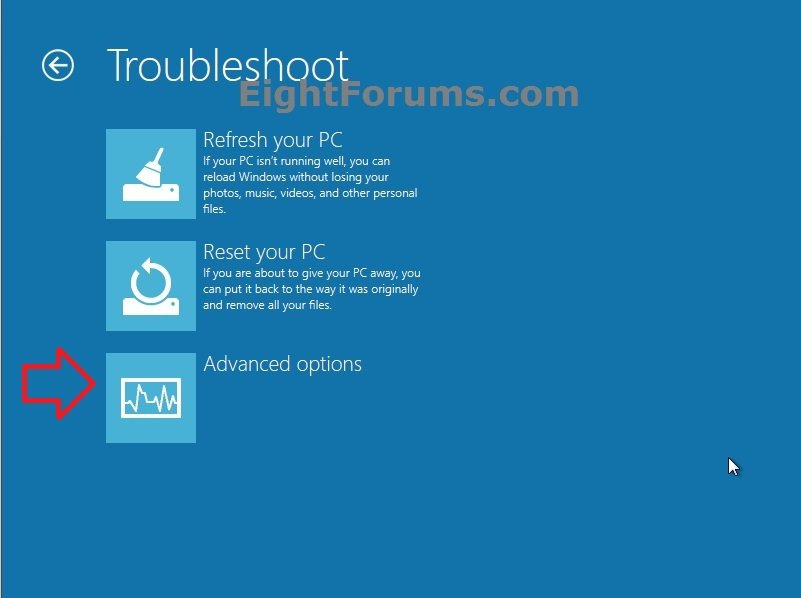
A) Click/tap on the Troubleshoot option. (see screenshot below)
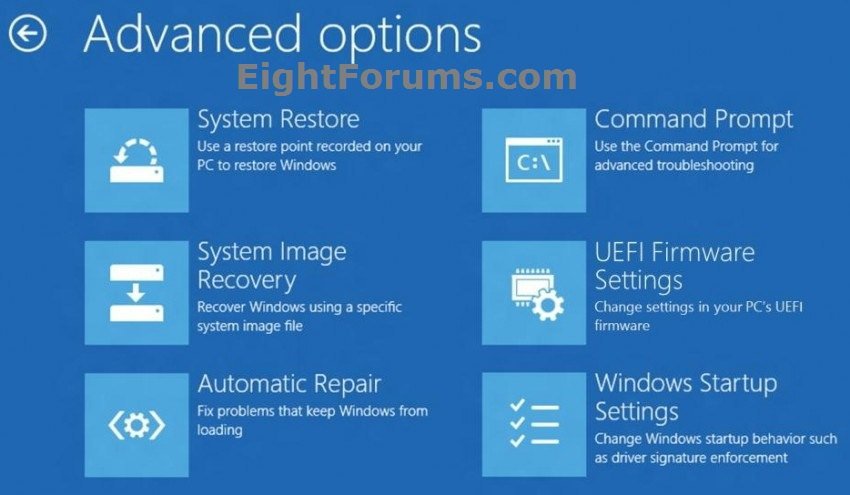
B) Click/tap on Advanced options. (see screenshot below)
C) Click/tap on the Command prompt option. (see screenshot below)
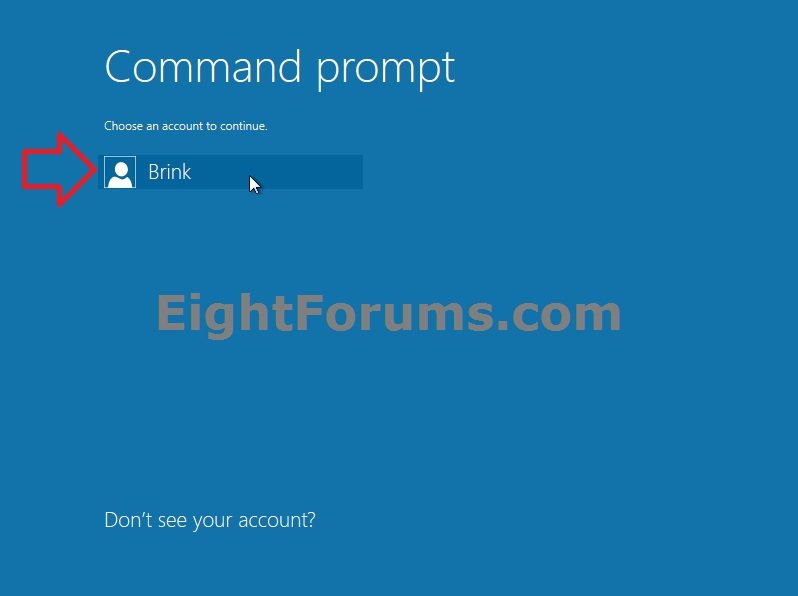
D) If prompted, select and click/tap on a listed administrator account that you want to sign in as. (see screenshot below)
NOTE: You will only see this if you used the F8 option to boot to recovery options, and not if you booted from your Windows 8 installation media. Standard user accounts and domain accounts on the computer will not be listed.
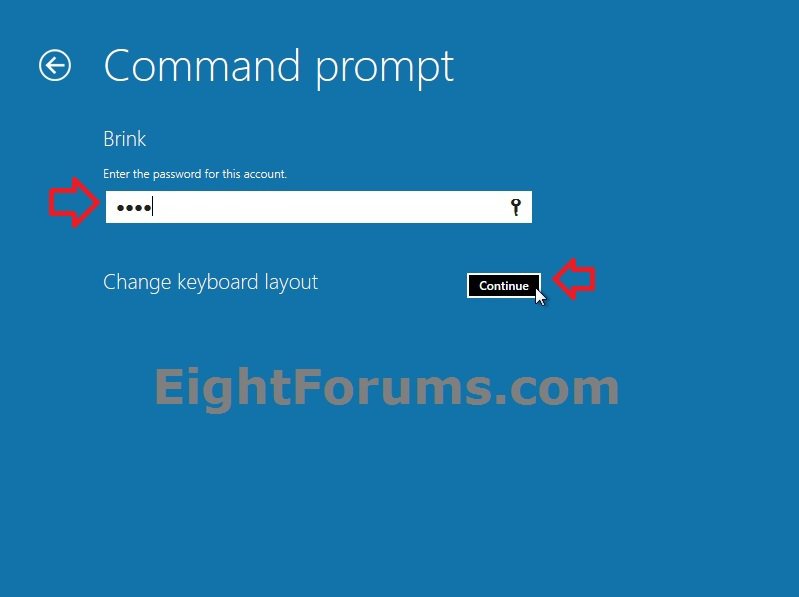
E) Type in the password of the selected administrator account, and click/tap on Continue. (see screenshot below)
4. The elevated command prompt at boot will now open.
That's it,
Shawn
Related Tutorials
Attachments
Last edited:


