
How to Upload and Post a Screenshot and File in Eight Forums
IntroductionThis tutorial will show you how to upload, attach, and post a screenshot, image, or a file in your post here at Vista Forums.
CONTENTS:
- Option One: To Insert Image into Post
- Option Two: To Attach Files to Post
OPTION ONE
To Insert Image into Post
2. Drag and drop the image from your computer to where you want into your post, and go to step 8 below. (see screenshot below)

3. Place the cursor in your post where you want to insert the image at, click/tap on the Insert image (Ctrl+P) button on the toolbar of your post, and go to step 4 below. (see screenshot below)

5. Drag and drop the image from your computer into the Drop Image box, and go to step 8 below. (see screenshot below)


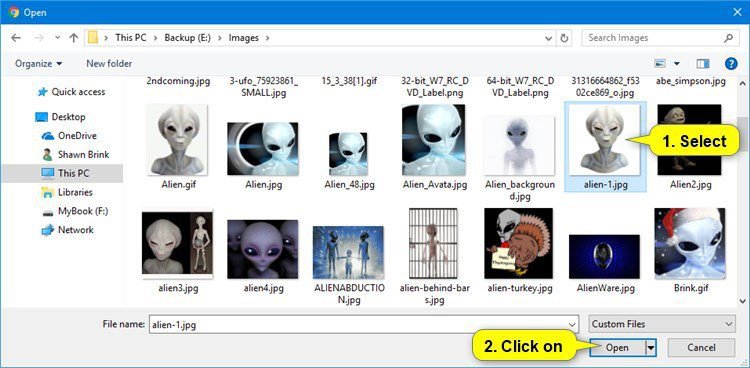
7. Browse to and select the image you want to insert, click/tap on Open, and go to step 8 below. (see screenshot below)
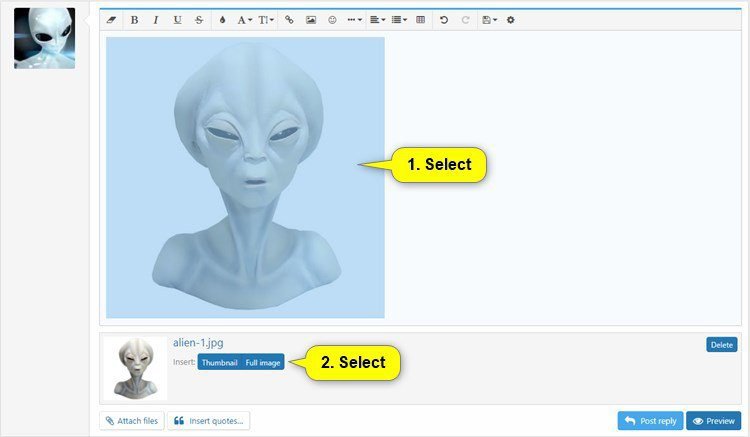
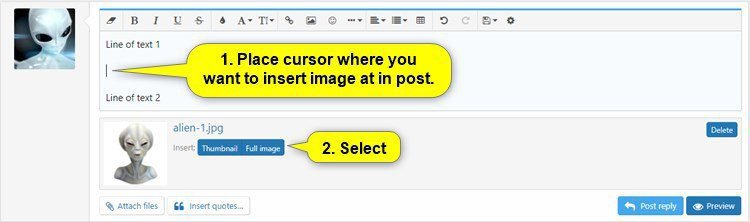
8. Select the now attached image in your post, and select if you want a Thumbnail (recommended) or Full image version of this image. (see screenshot below)
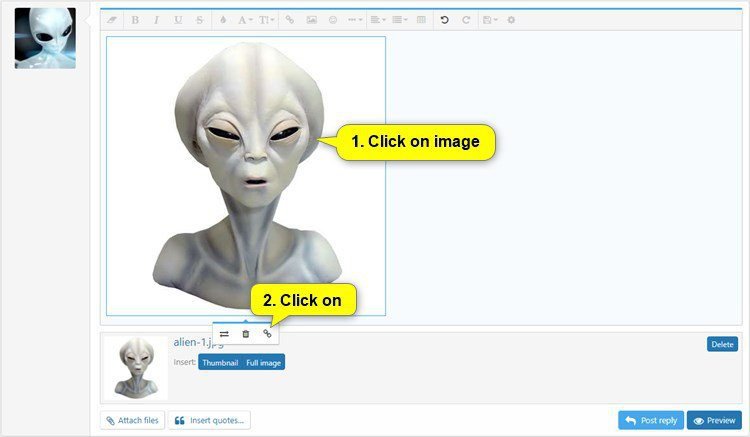
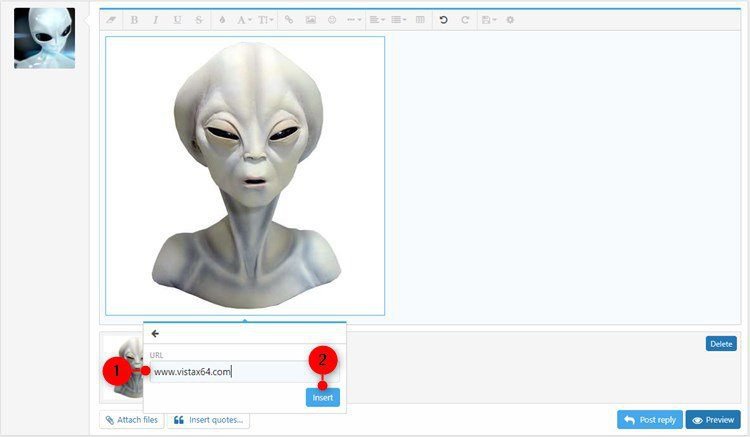
9. If you want to add a link to the image, then click/tap on the image in your post, and click/tap on the Insert link icon. (see screenshot below)
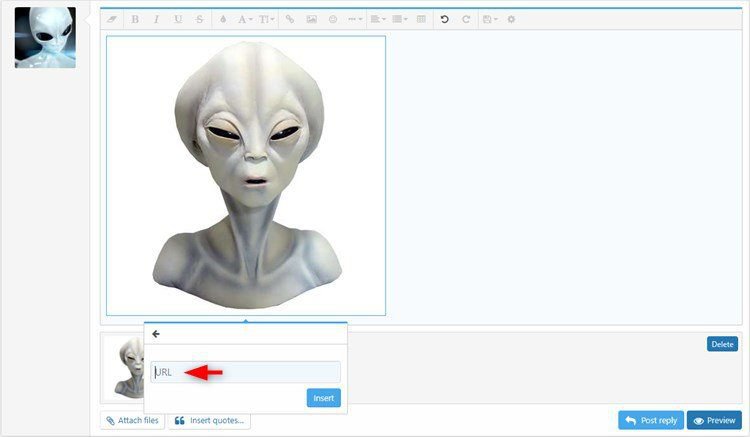
A) Type the URL address you want for the link, and click/tap on Insert. (see screenshots below)
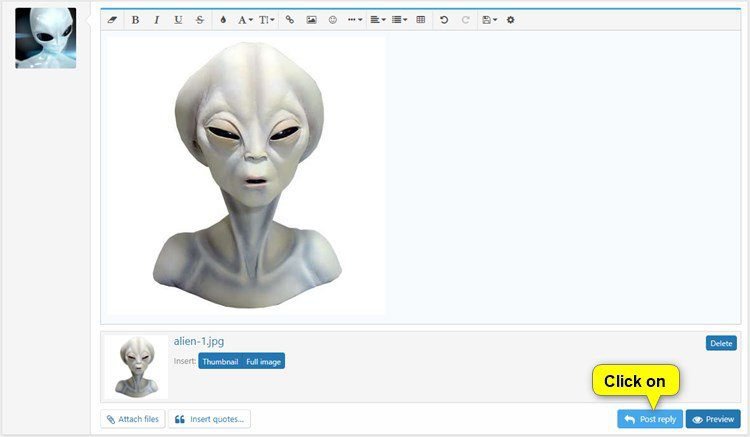
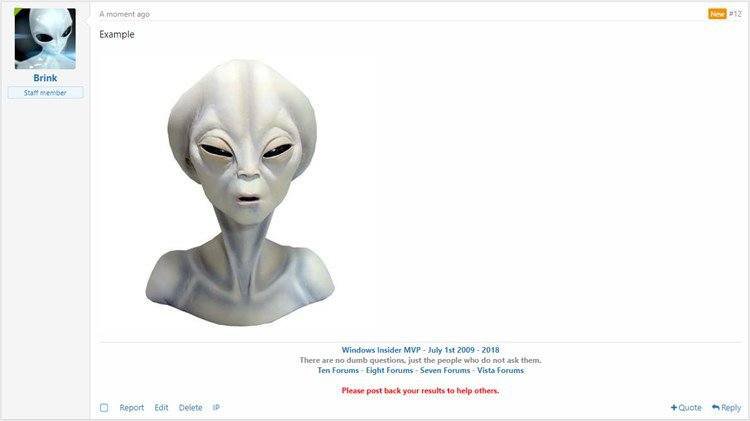
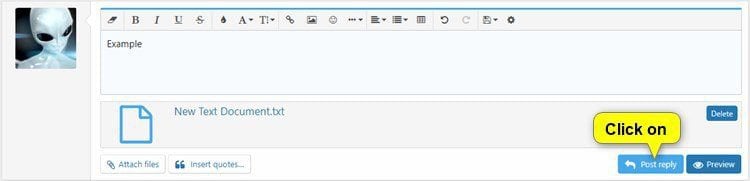
10. When you are ready to submit your post, click/tap on the Post reply button. (see screenshots below)
OPTION TWO
To Attach Files to Post
1. Click/tap on the Attach files button at the bottom left of the post box. (see screenshots below)

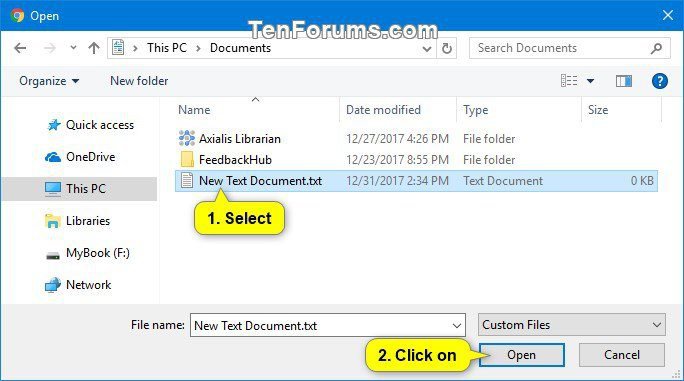
2. Browse to and select the file you want to attach, and click/tap on Open. (see screenshot below)
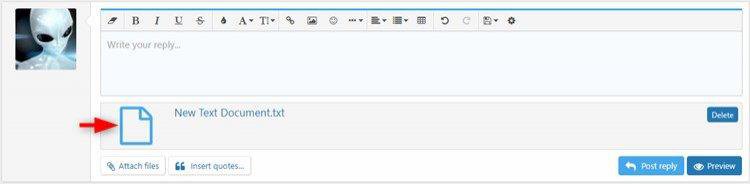
4. If you uploaded a file, you will now see it listed at the bottom. Go to step 6 below. (see screenshot below)
5. If you uploaded an image, place the cursor in your post where you want to insert the image, select if you want a Thumbnail (recommended) or Full image version of this image, and go to step 9 in Option One above. (see screenshots below)

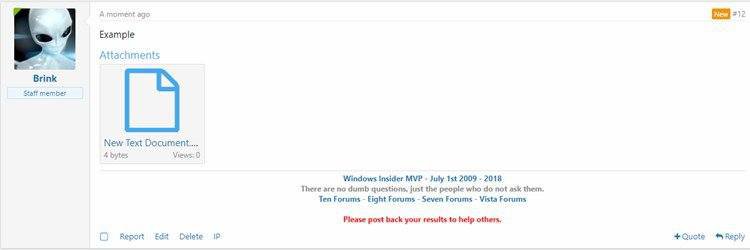
6. When you are ready to submit your post, click/tap on the Post reply button. (see screenshots below)
That's it,
Shawn
Attachments

Last edited by a moderator: