How to Lock, Hibernate, Restart, Shut Down, Sign out, Sleep, and Switch User in Windows 8 and 8.1
 Information
This tutorial will show you the different ways to Hibernate, Lock, Restart, Sign out (Log off), Shut Down, and Switch User in Windows 8, Windows RT, Windows 8.1, and Windows RT 8.1.
 Note
NoteThe Windows 8.1 Update released on April 8th 2014 via Windows Update, adds a Power button on the Start screen, and to "Shut down or Sign out" in the WIN+X power user tasks menu.
OPTION ONE
From User Details on Your Start Screen
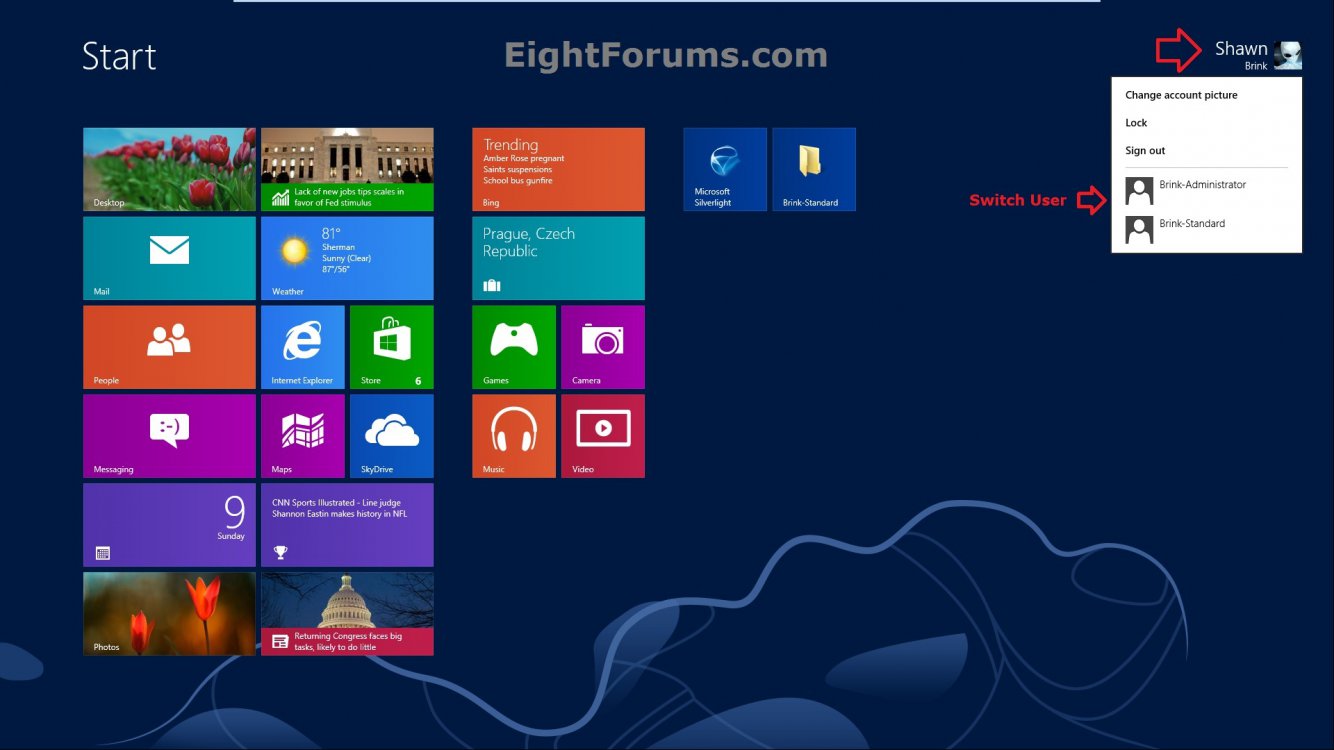
1. While on your Start screen, click/tap on either your user name or picture tile to select the Lock, Sign out (Log off), or switch user option. (see screenshot below)
NOTE:If you are not in the Start screen as below, you can press the Windows key CTRL+ESC keys or to go to it. A user to switch to will not be available unless you have already added the user account.
OR
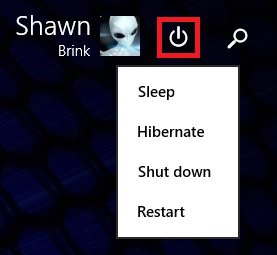
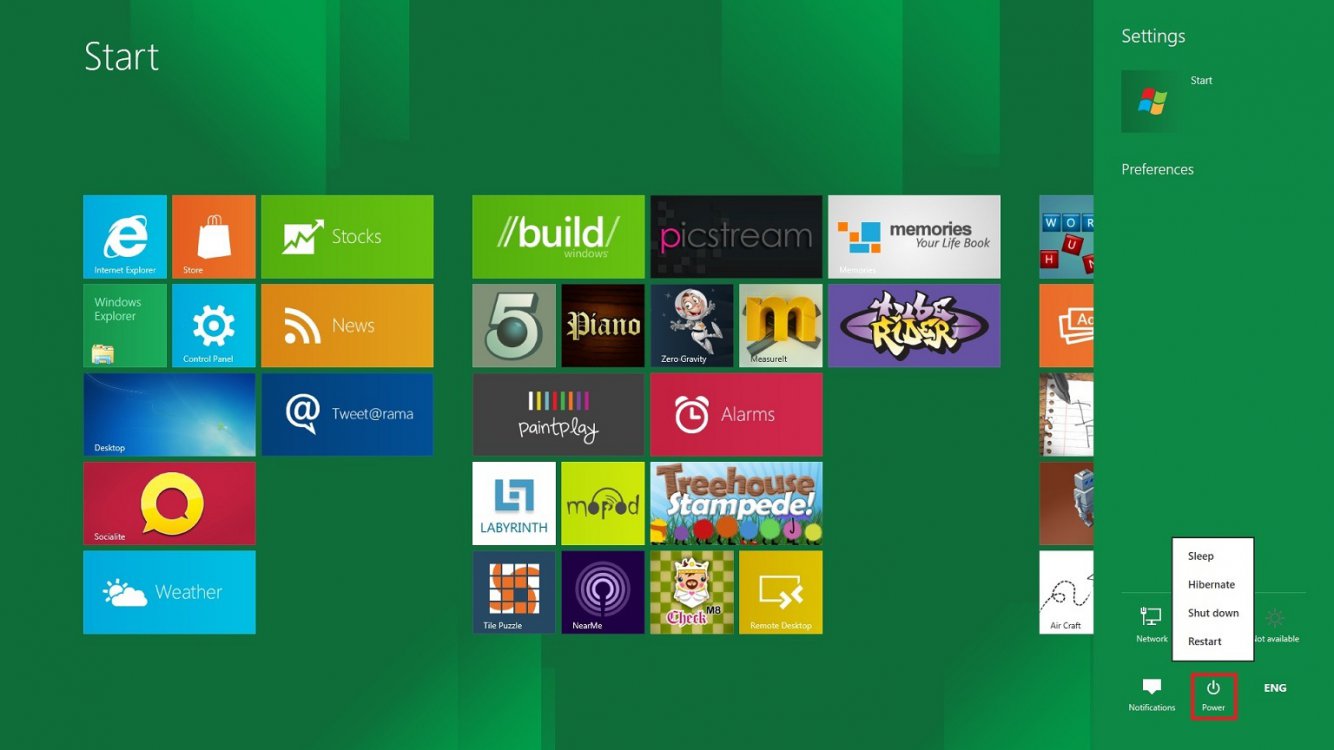
2. While on your Start screen in Windows 8.1 Update, click/tap on the Power button at the top right to select to Sleep, Hibernate, Shut down or Restart. (see screenshot below)
NOTE: To add or remove Sleep and/or Hibernate, see: How to Add or Remove "Sleep" or "Hibernate" from the Power Options Menu in Windows 8
OPTION TWO
From CTRL+ALT+DEL Screen
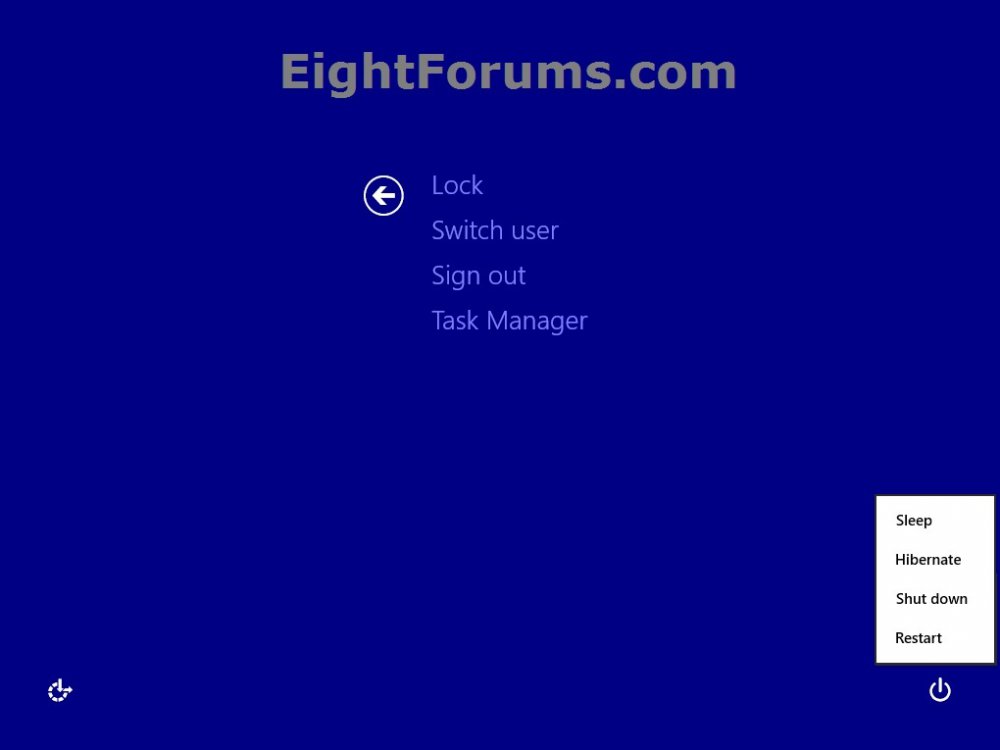
1. Press the CTRL+ALT+DEL keys. From here you can select to Lock, Switch user, Sign out (Log off), or you could click/tap on the power button at the bottom right corner to select to Sleep, Hibernate, Shut down or Restart.
NOTE: To add or remove Sleep and/or Hibernate, see: How to Add or Remove "Sleep" or "Hibernate" from the Power Options Menu in Windows 8
OPTION THREE
From "Shut Down Windows" Dialog Box
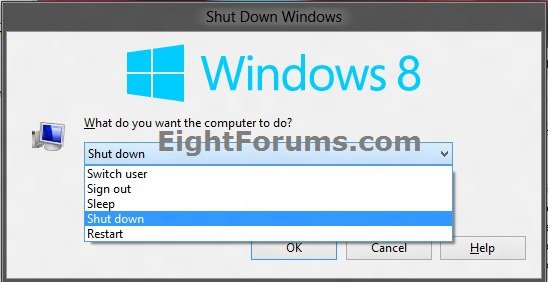
1. While on the Desktop (Windows+D), press the ALT+F4 keys. From here, you can select to Switch user, Sign out (Log off), Sleep, Hibernate, Shut down, or Restart.
NOTE: This can only be done from on the desktop. It will not work on the Start screen. To add or remove Sleep and/or Hibernate, see: How to Add or Remove "Sleep" or "Hibernate" from the Power Options Menu in Windows 8
OPTION FOUR
From "Power" Menu in Settings Charm
1. Open the Charms bar, and click/tap on Settings.
NOTE: You could also just press the Windows+I keys to open Settings in step 2 below.
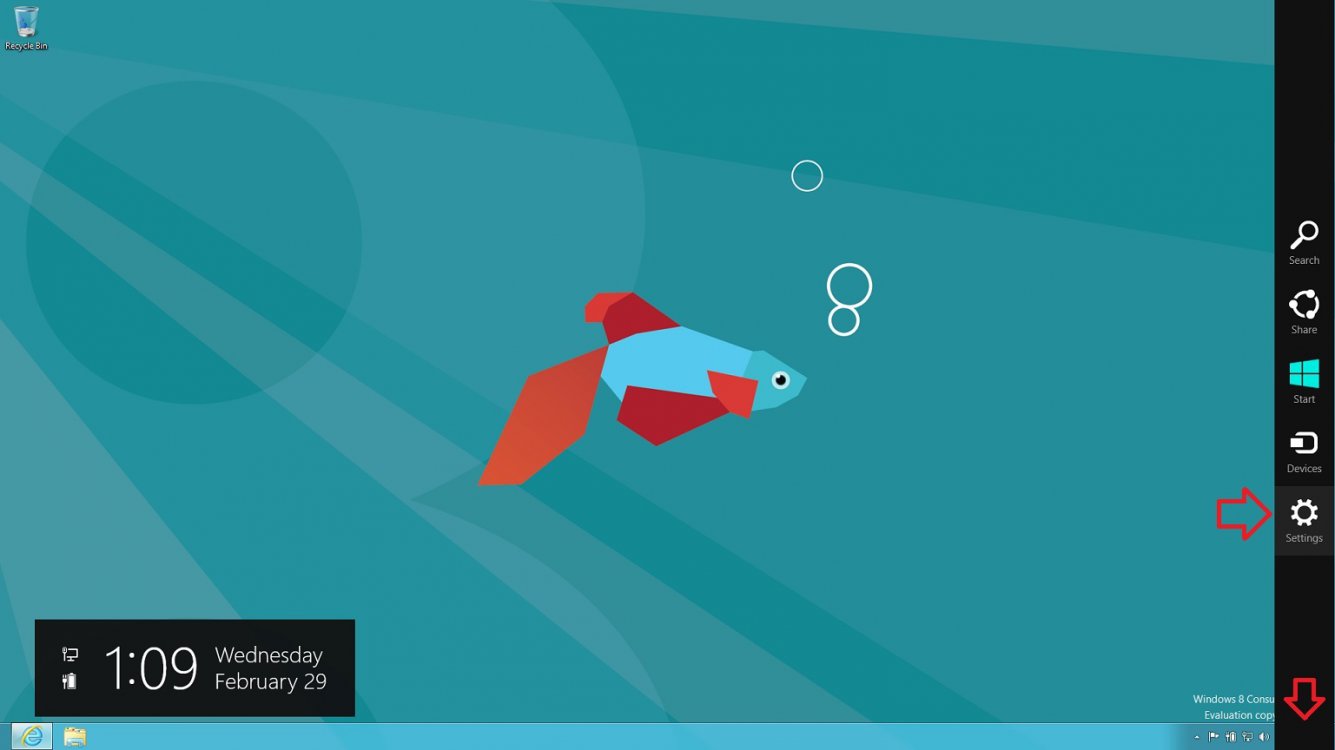
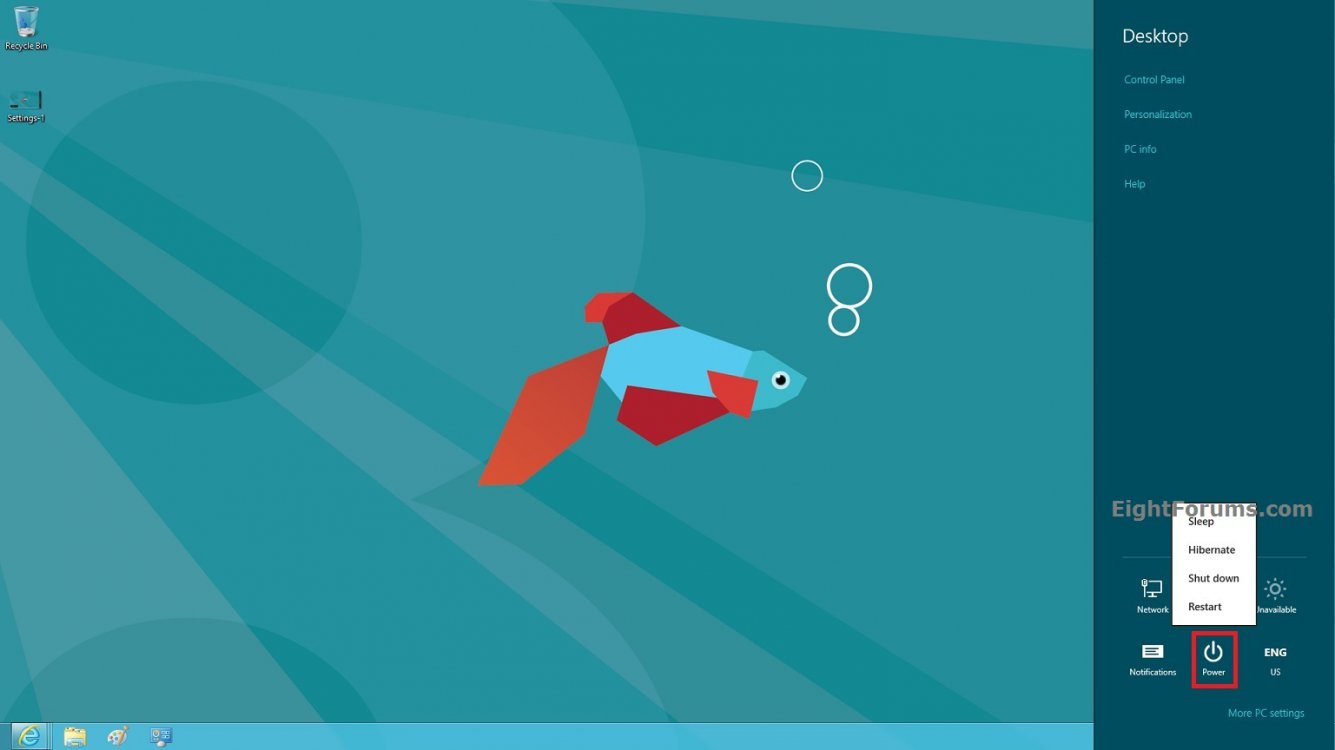
2. Click/tap on the Power button at the bottom right corner in the Settings slide out menu. From here, you can select to Sleep, Hibernate, Shut down or Restart.
NOTE: To add or remove Sleep and/or Hibernate, see: How to Add or Remove "Sleep" or "Hibernate" from the Power Options Menu in Windows 8
OPTION FIVE
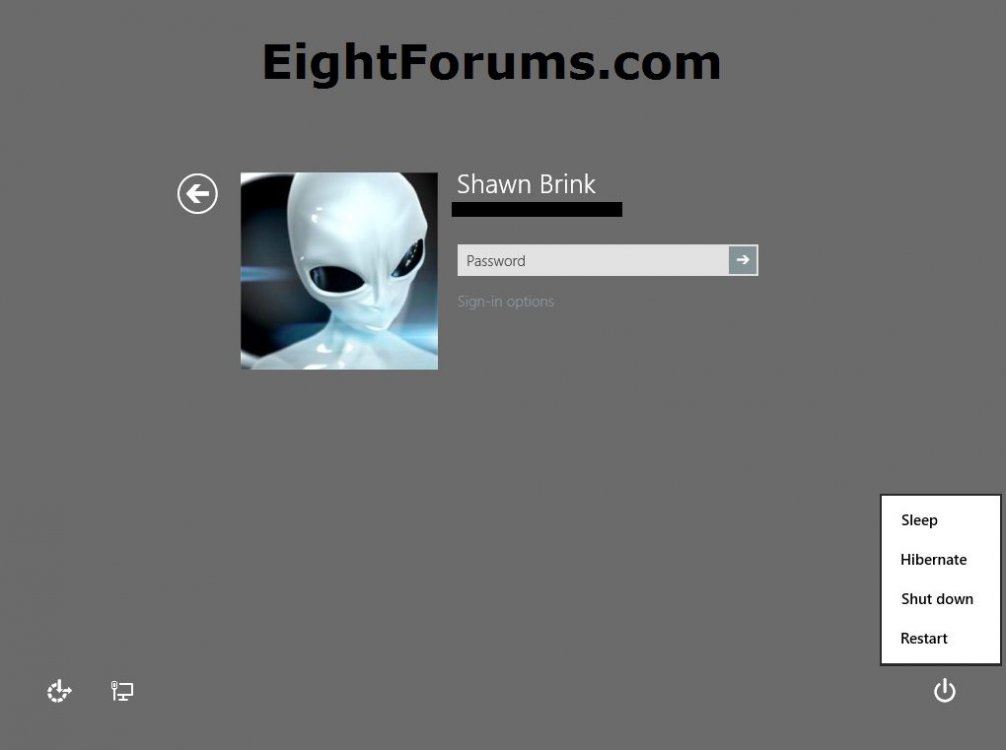
From Sign in Screen
1. Click/tap on the Power button at the bottom right corner in the Settings slide out menu. From here, you can select to Sleep, Hibernate, Shut down or Restart.
NOTE: To add or remove Sleep and/or Hibernate, see: How to Add or Remove "Sleep" or "Hibernate" from the Power Options Menu in Windows 8

OPTION SIX
From Task Manager
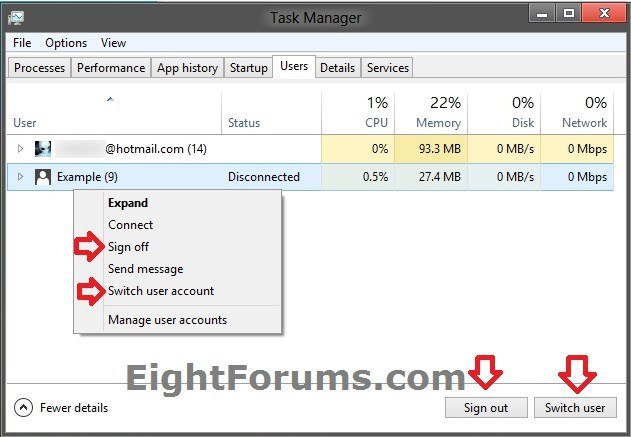
1. Open Task Manager, and click/tap on More details.
2. Click/tap on the Users tab. From here, you can select a signed in user to Sign out or Switch user. (see screenshot below)
NOTE: You must have more than one user signed in for Switch user to be available.
3. When finished, you can close Task Manager.
OPTION SEVEN
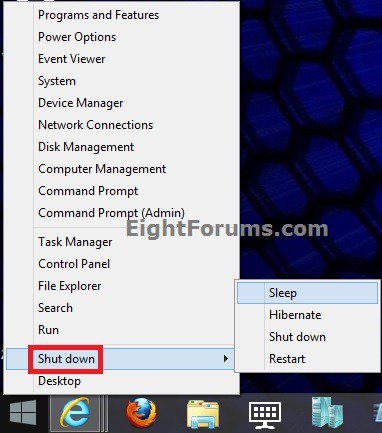
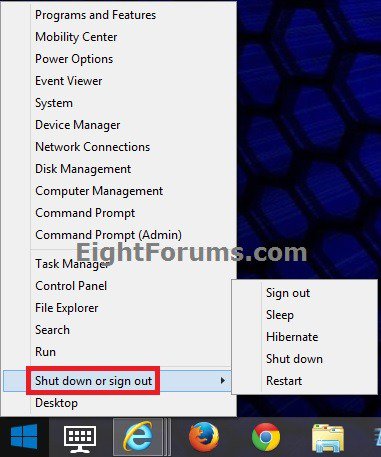
From Win+X Power Users Tasks Menu in Windows 8.1
1. Open the Win+X Power Users Tasks menu, and click on Shut down or press the U key to expand Shut down. (see screenshot below)
2. From here, you can select to Sign out, Sleep, Hibernate, Shut down or Restart Windows 8.1.
NoteTo add or remove Sleep and/or Hibernate, see: How to Add or Remove "Sleep" or "Hibernate" from the Power Options Menu in Windows 8
Note
If you shut down from the WIN+X menu in Windows 8.1, it will perform a full shut down even if you have Fast Startup turned on.
(Windows 8.1)
(Windows 8.1 Update)
That's it,
Shawn
Related Tutorials
- How to Add or Remove "Sleep" or "Hibernate" from Power Options Menu in Windows 8 and 8.1
- How to Add or Remove Power Button on Start Screen in Windows 8.1 Update
- How to Add a "Power" Cascading Desktop Context Menu in Windows 8 and 8.1
- How to Add "Restart" Computer to Desktop Context Menu in Windows 8 and 8.1
- How to Create a "Restart" Shortcut in Windows 8 and 8.1
- How to Perform an Emergency Restart in Vista, Windows 7, and Windows 8
- How to Add "Shut Down" Computer to Desktop Context Menu in Windows 8 and 8.1
- How to Create a "Shut Down" Shortcut in Windows 8 and 8.1
- How to Create a "Slide to Shut down" Shortcut in Windows 8.1
- How to Create a "Hybrid Shut Down" Shortcut in Windows 8 and 8.1
- How to Add "Switch User" to Desktop Context Menu in Windows 8 and 8.1
- How to Add or Remove "Switch User" in Windows 8 and 8.1
- How to Add "Lock Computer" to Desktop Context Menu in Windows 8 and 8.1
- How to Add "Lock Computer and Turn Off Monitor" to the Context Menu in Windows
- How to Create a Lock Computer Shortcut in Windows 7 and Windows 8
- How to Change the Lock Screen Timeout Period in Windows 8 and 8.1
- How to Add "Sign out" to the Desktop Context Menu in Windows 8 and 8.1
- How to Turn Fast Startup On or Off for a Hybrid Boot in Windows 8 and 8.1
- How to Allow or Prevent Users and Groups to Shut Down the Computer
- How to Speed Up the Shut Down Time in Windows 7 and Windows 8
- How to Change Default Action of Alt+F4 "Shut Down Windows" Dialog in Windows 8 and 8.1
- How to Enable or Disable to Display Highly Detailed Status Messages in Windows 8 and 8.1
- How to Hide or Show "Sign out" in Windows 8 and 8.1
Attachments

Last edited by a moderator: