How to Do a Dual Boot Installation with Windows 8 and Windows 7 or Vista
 Information
This will show you how to set up a dual boot installation with Windows 8 and Windows 7 or Vista when Windows 7 or Vista is installed first.
Windows 8 : frequently asked questions
Windows 8 : frequently asked questions
 Note
NoteWindows 8 System Requirements
Windows 8 works great on the same hardware that powers Windows Vista and Windows 7.
Processor: 1 gigahertz (GHz) or faster
RAM: 1 gigabyte (GB) (32-bit) or 2 GB (64-bit)
Hard disk space: 16 GB (32-bit) or 20 GB (64-bit)
Graphics card: MicrosoftDirectX 9 graphics device or higher
Additional requirements to use certain features:
Windows 8 works great on the same hardware that powers Windows Vista and Windows 7.
Processor: 1 gigahertz (GHz) or faster
RAM: 1 gigabyte (GB) (32-bit) or 2 GB (64-bit)
Hard disk space: 16 GB (32-bit) or 20 GB (64-bit)
Graphics card: MicrosoftDirectX 9 graphics device or higher
Additional requirements to use certain features:
- To use touch, you need a tablet or a monitor that supports multitouch.
- To access the Windows Store and to download and run apps, you need an active Internet connection and a screen resolution of at least 1024 x 768.
- To snap apps, you need a screen resolution of at least 1366 x 768.
 Tip
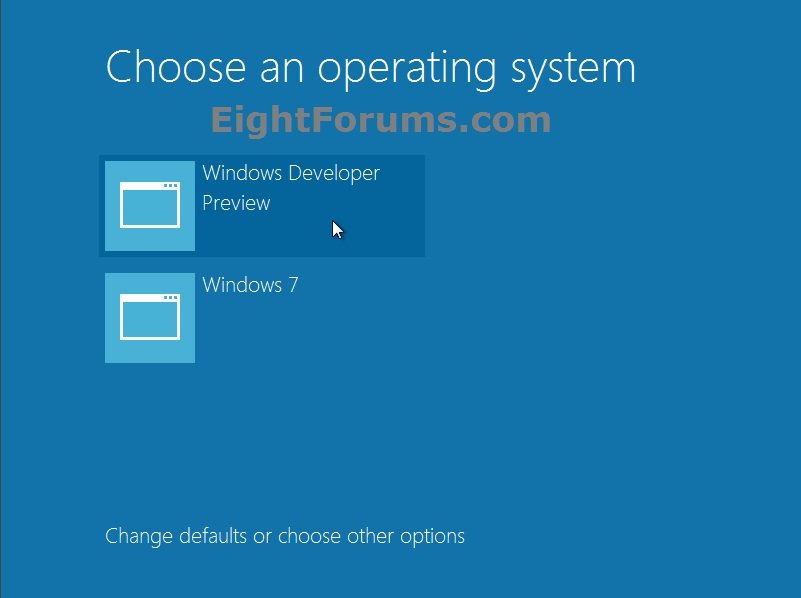
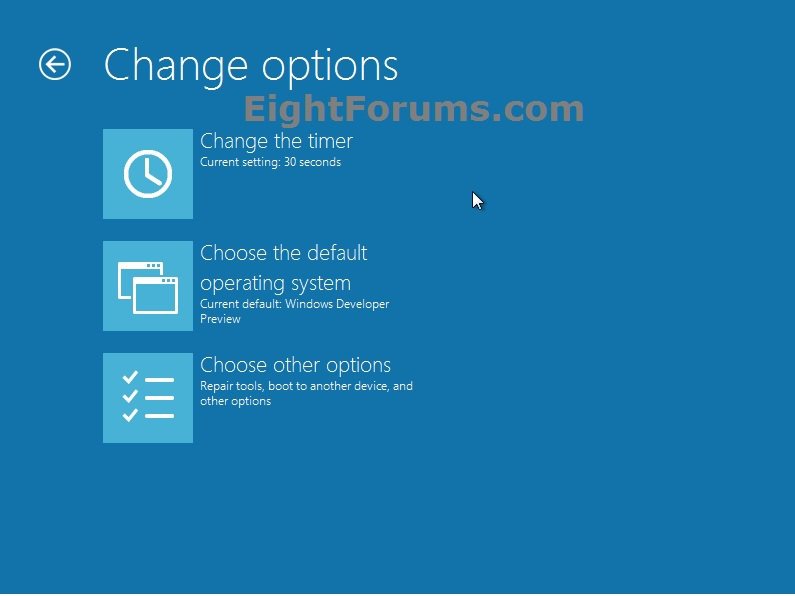
TipIf you dual boot Windows 8 with another OS (ex: Windows 7 or Vista) with Windows 8 set as the default OS to run at startup, then it gives you the Change default or choose other options link as in the example screenshot below to make it easier to boot into the Startup Options menu for more System Recovery Options.
EXAMPLE: "Choose an operating system" Screen at Boot
NOTE: This is the new "Windows Boot Manager" screen that Windows 8 uses now to allow you to select either Windows 8 or say Windows 7 to start when your boot or restart the computer. Clicking on the Change default or choose other options link at the bottom will allow you to change the default time to wait before starting the default OS, change the default OS to start automatically after wait time, or to choose a recovery option.
Here's How:
1. Other than the hard drive that you plan on installing Windows 8/8.1 on, it's recommended to disconnect all hard drives that do not have an OS installed on them.
2. Start Windows 7 or Vista, and log on to an administrator account. Go to either step 2 or 3 below for what you wanted to install Windows 8 on.
 Warning
If your motherboard as UEFI, then also see either tutorial below:
UEFI (Unified Extensible Firmware Interface) - Install Windows 7 with
or
UEFI (Unified Extensible Firmware Interface) - Install Windows 8 with
UEFI (Unified Extensible Firmware Interface) - Install Windows 7 with
or
UEFI (Unified Extensible Firmware Interface) - Install Windows 8 with
3. If you Already Have an Empty Hard Drive or Partition to Install Windows 8 On
A) Go to step 5 below.
4. If you Want to Shrink a Partition to Install Windows 8 On
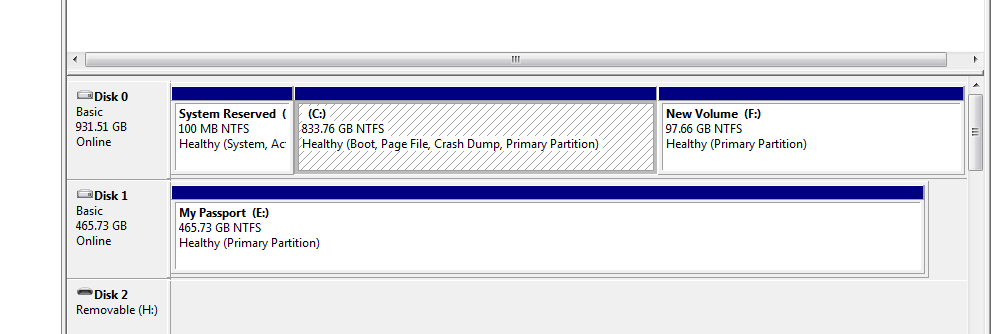
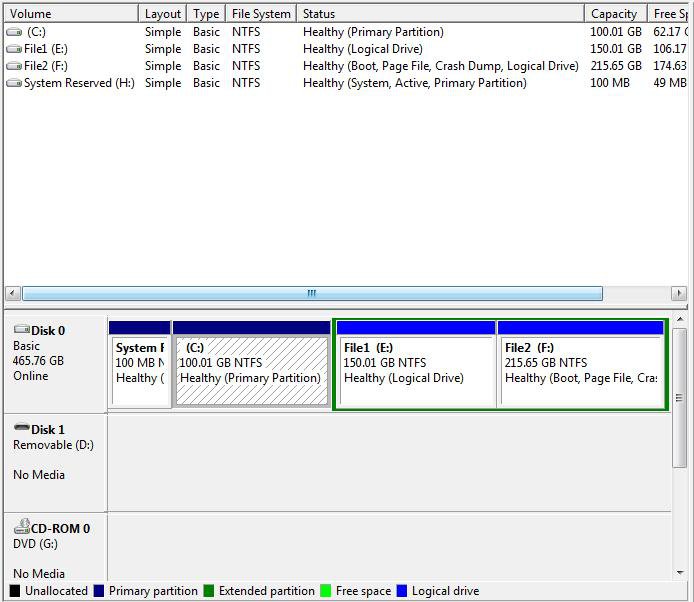
A) Shrink a partition, such as the Windows 7 partition (ex: C: drive), in Disk Management by at least 20GB (20480MB) (1GB=1024MB) to have unallocated space to be able to install Windows 8 on, and go to step 5 below. (see screenshots below)
NOTE: This example has the 100 MB System Reservered partition that Windows 7 creates when installed on a unallocated HDD. If your Windows 7 installation does not have the 100 MB System Reservered partition, then that is fine since this will still work to dual boot with Windows 8. Just do not delete the 100 MB System Reservered partition if you do have one.
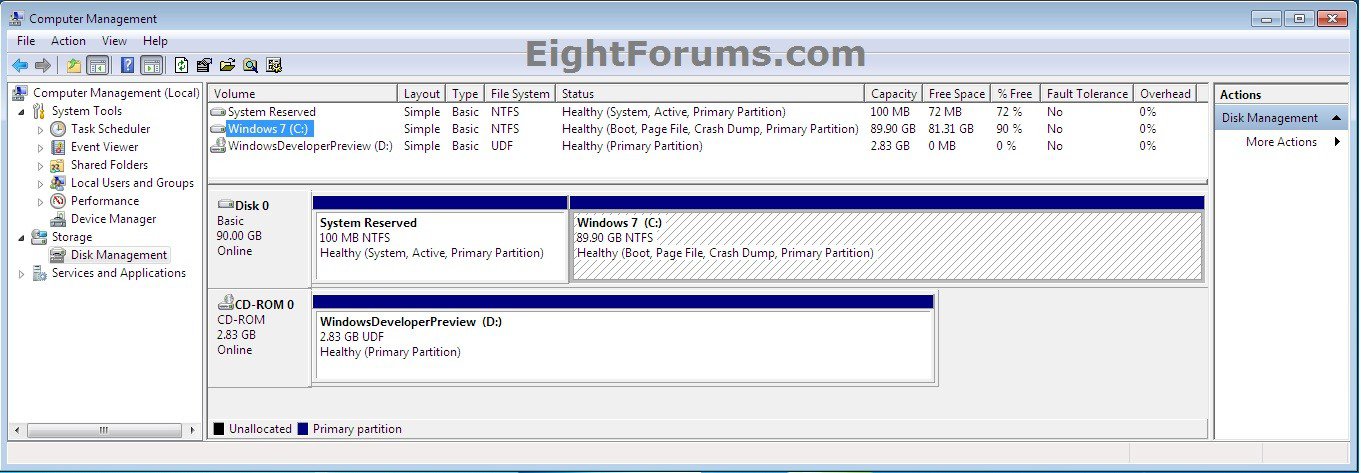
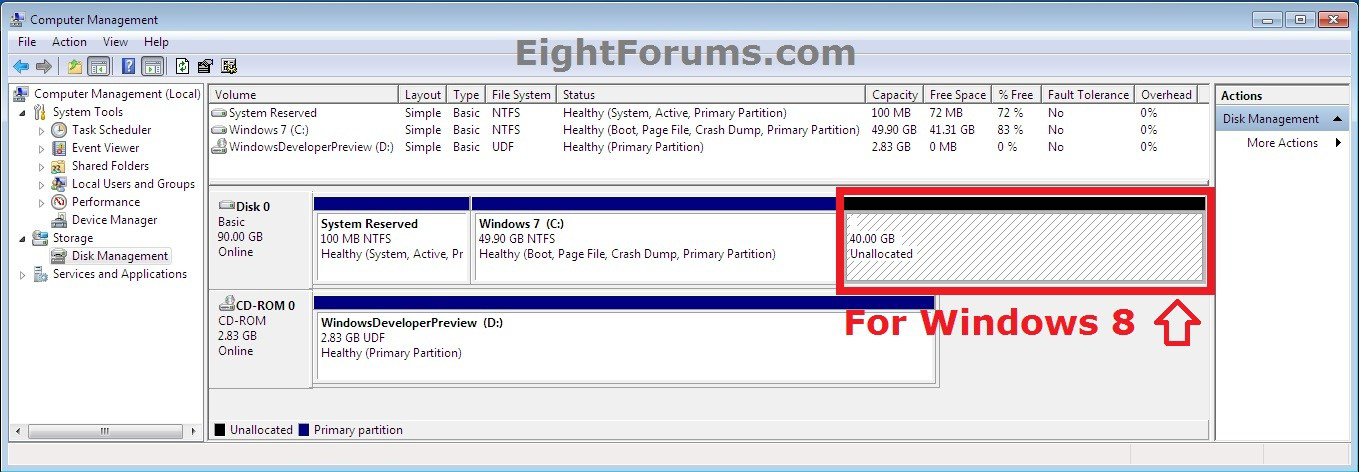
5. Do either step 6 or 7 below for how you want to start installing Windows 8.
6. To Install Windows 8 at Boot to Dual boot with Windows 7 or Vista
A) Insert or connect your Windows 8 installation DVD or USB thumb drive, and restart the computer to boot from your Windows 8 installation media.
B) Go to step 8.
7. To Install Windows 8 from within Windows 7 or Vista to Dual Boot with
A) Do step B or C below depending on if you are using a Windows 8 DVD/USB or a Windows 8 ISO.
B) Insert or connect your Windows 8 installation DVD or USB thumb drive. In the Computer window, right click on the Windows 8 installation USB/DVD drive, and click on Open. Go to step 7D.
OR
C) After installing a free program like 7-Zip, right click on the Windows 8 ISO file, select 7-Zip and click on Extract Files, extract the ISO file to a folder (ex: WindowsDeveloperPreview) on your Desktop in Windows 7 or Vista, and open the extracted folder when finished. Go to step 7D.
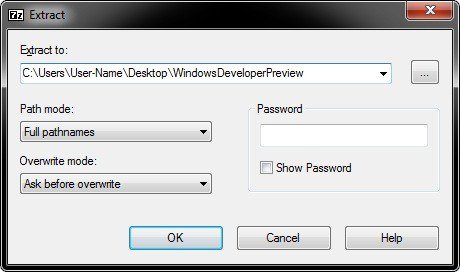
NOW
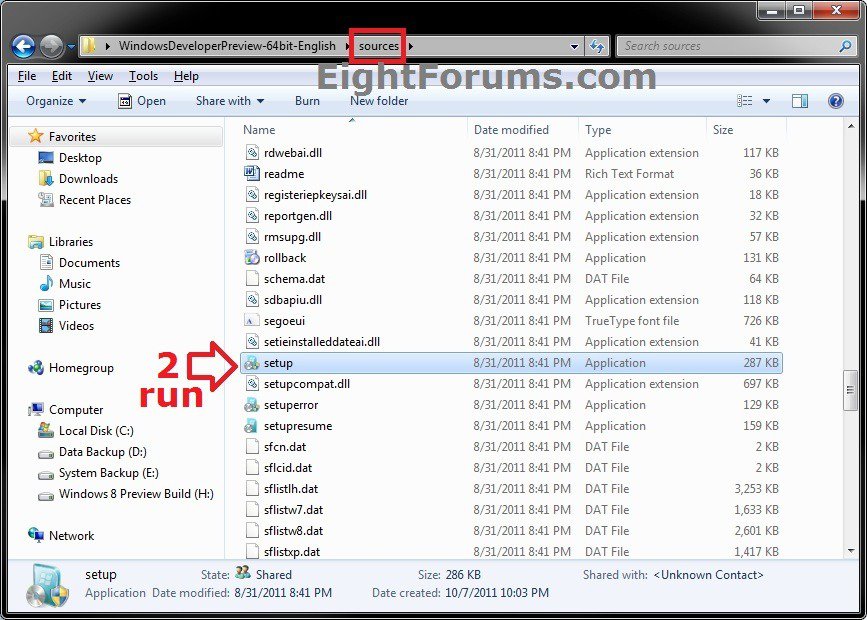
D) Open the sources folder first, and run the setup.exe file inside the sources folder. (see screenshots below)
WarningIf you run the setup file in the root directory instead of the one in the sources folder, then you will be upgrading Windows 7 or Vista to Windows 8 instead of dual booting with Windows 8 and will lose Windows 7 or Vista.
Warning
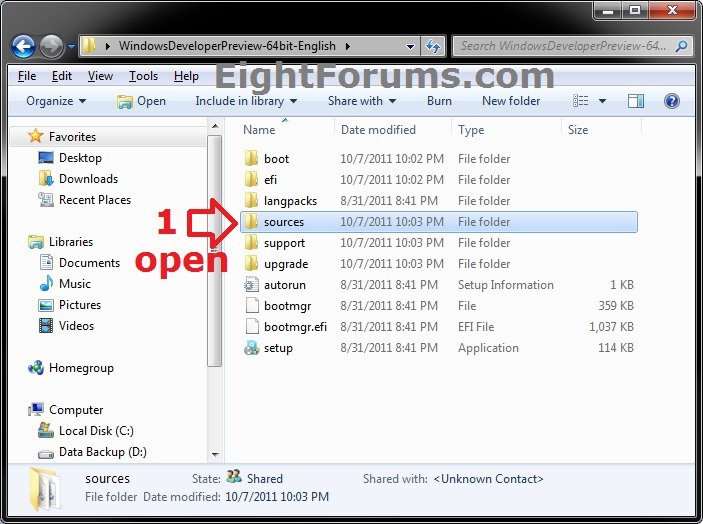
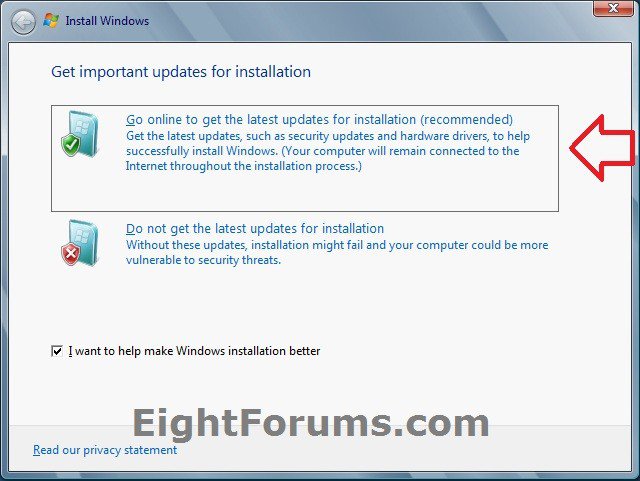
E) Click on the Go online to get the latest updates for installation option. (see screenshot below)
F) Continue on to step 8.
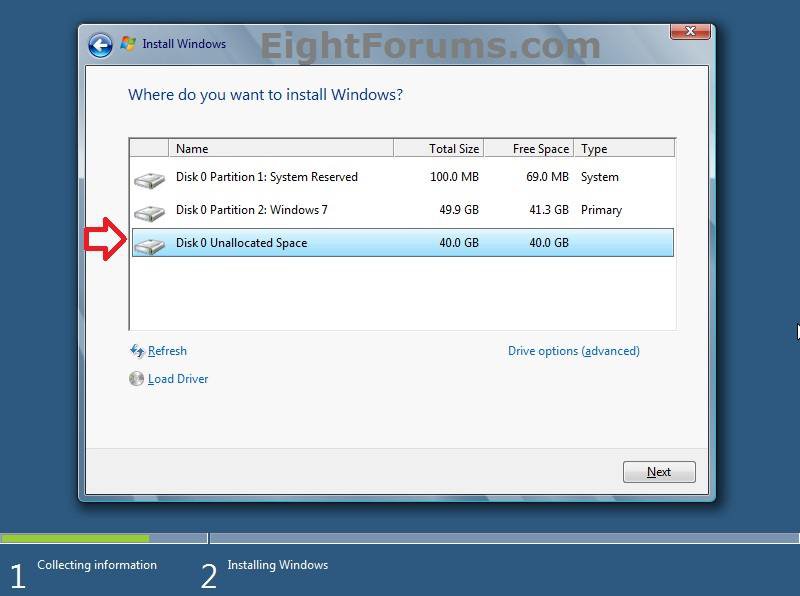
8. You can now finish doing a clean install of Windows 8 to either the empty HDD or partition from step 3, or the unallocated space created in step 4. Be sure to not select your Windows 7 or Vista partition to install Windows 8 to. If you do, Windows 8 will replace it.
NOTE: The screenshot below is at step 7 in the clean install tutorial.
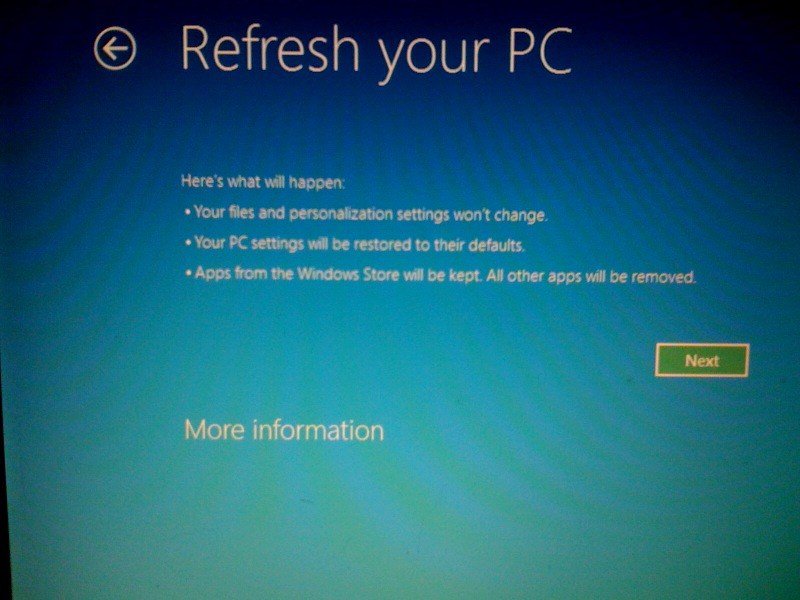
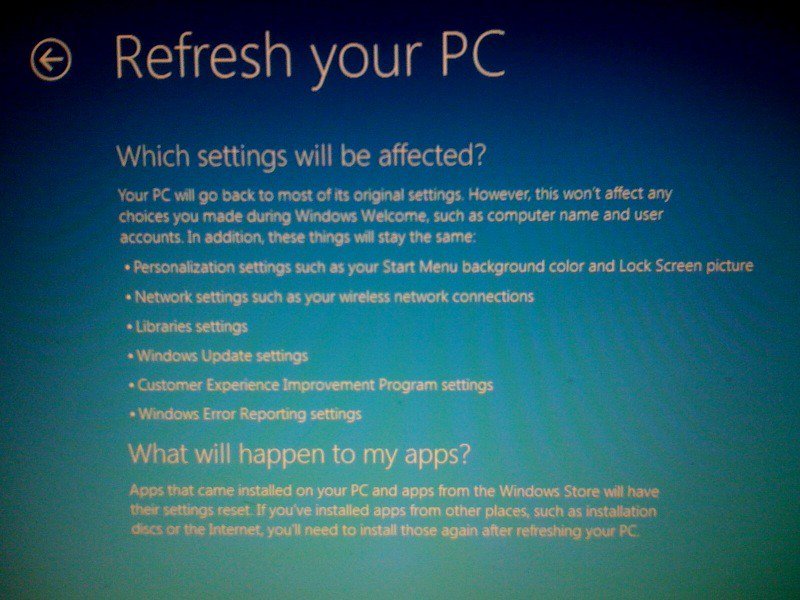
9. If this a Windows 8 upgrade copy, then you will now need to refresh Windows 8 for it to be activated.
Warning
Windows 8 EULA
What about upgrading the software?
The software covered by this agreement is an upgrade to your existing operating system (XP SP3, Vista, or Windows 7) software, so the upgrade replaces the original software that you are upgrading. You do not retain any rights to the original software after you have upgraded and you may not continue to use it or transfer it in any way. This agreement governs your rights to use the upgrade software and replaces the agreement for the software from which you upgraded. After you complete your upgrade, additional software will be required to playback or record certain types of media, including DVDs.
10. When finished, you will be in Windows 8 with Windows 8 set as the default OS to start after the wait time. Restarting Windows 8 will allow you to be able to select what OS you would like to start like in the example at the top of the tutorial.11. In a dual boot setup with Windows 8 and a previous version of Windows (ex: Windows 7 or Vista), then it is recommended to turn off Fast Startup to avoid possibly having issues with shut down, restart, and chkdsk.
12. When finished, you can reconnect any hard drives from step 1.
That's it,
Shawn
Related Tutorials
- How to Enable or Disable Secure Boot in UEFI
- How to Delete "Windows 8" in your Dual Boot with Windows 7 or Vista
- How to Delete "Windows 7" in your Dual Boot with Windows 8
- How to Delete an Operating System Listed in Windows Boot Manager
- How to Do a Clean Install of Windows 8 or Windows 8.1
- How to Do a Clean Install with Windows 8 Upgrade
- How to Install Windows 8 Using "Unified Extensible Firmware Interface" (UEFI)
- How to Create a Bootable USB or DVD with the Windows 8 ISO
- How to Upgrade from Windows 8, Windows 7, Vista, or XP to Windows 8 or 8.1
- How to Downgrade Windows 8 to Windows 7
- How to Download and Run the "Windows 8 Upgrade Assistant"
- How to Create or Download a Windows 8 Upgrade ISO
- How to Install Windows 8 on VMware Player
- How to Install Windows 8 on VirtualBox
- How to Reset Windows 8
- How to Refresh Windows 8
- How to Create a Windows 8 VHD at Boot to Dual Boot with Windows 7 or Vista
- How to Boot from a VHD using Windows 7 and Windows 8
- How to Choose a Default Operating System to Run at Startup in Windows 8
- How to Change the Product Key Number in Windows 8
- How to Load SATA Driver During Windows 8 Setup
Attachments
Last edited by a moderator: