
How to Always Show "All Users" or "Last User" at Sign in to Windows 8 and 8.1
 Information
When you have more than one user account on the PC, this tutorial will show you how to always show either all users or only last user that signed out listed in the sign in (log on) screen of Windows 8 and 8.1 after a restart or shut down of the PC for all users.
You must be signed in as an administrator to be able to do the options in this tutorial.
You must be signed in as an administrator to be able to do the options in this tutorial.
 Note
NoteWhen you are using the default setting to only have the last user that signed out listed in the sign in screen, and that user doesn't have a password, then Windows 8 will automatically sign in to that user account.
When you are using the default setting to only have the last user that signed out listed in the sign in screen, and that user does have a password, then Windows 8 will show only that last user in the sign in screen and you must click on the back arrow button to see all users.
When you are using the default setting to only have the last user that signed out listed in the sign in screen, and that user does have a password, then Windows 8 will show only that last user in the sign in screen and you must click on the back arrow button to see all users.
 Tip
TipIf you like, you could enable Ctrl+Alt+Delete secure sign-in instead to also see all users on the sign in screen instead of just the user that last signed off after you press Ctrl+Alt+Delete on the sign in (log on) screen.
CONTENTS:
- Option One: Always Show "All Users" or "Last User" using "Winaero User List Enabler"
- Option Two: Always Show "All Users" or "Last User" using Group Policy
- Option Three: Always Show "All Users" or "Last User" at Sign in using a Task
EXAMPLE: All Users and Last User Sign in for Windows 8 and 8.1
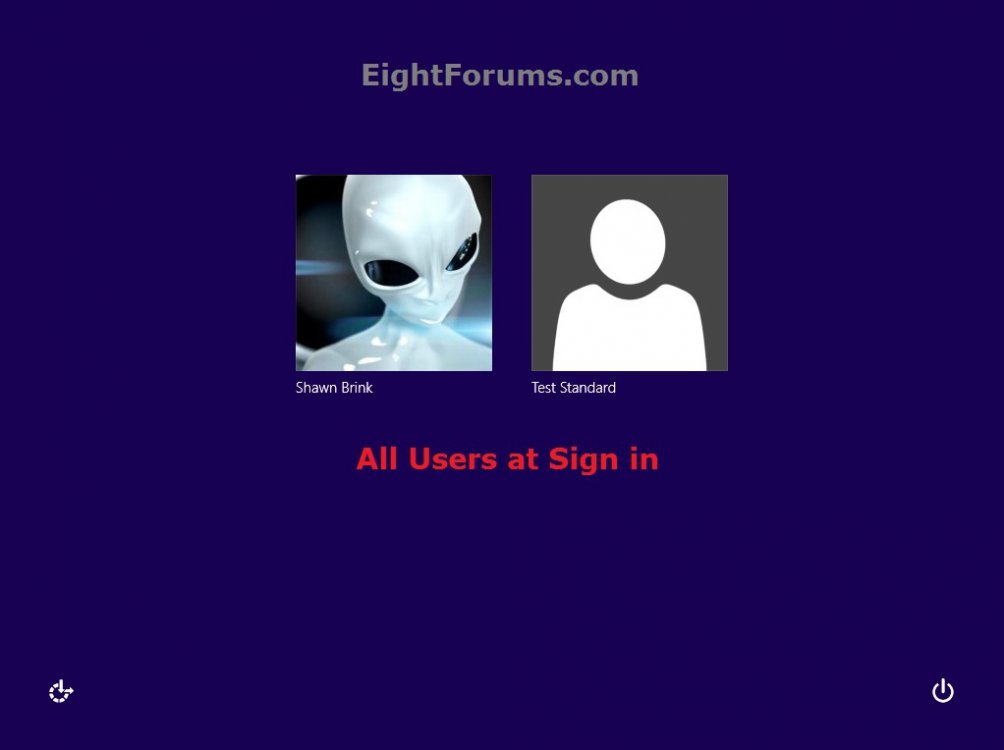
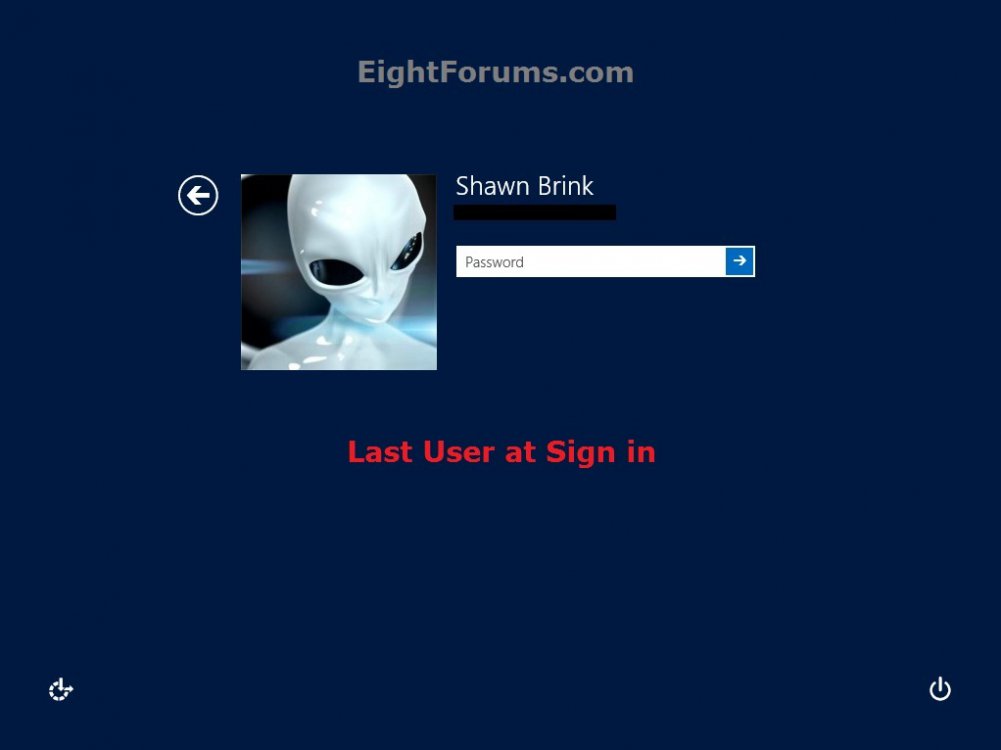
OPTION ONE
Always Show "All Users" or "Last User" using "Winaero User List Enabler"
NoteIf you used any of the other options in this tutorial, then be sure to undo them first before using this option.
1. Click/tap on the download button below to go to the WinAero site, then download the UserListEnabler.zip file to your desktop for the Winaero User List Enabler program.
NOTE: You'll need to click on the gray download button at WinAero's site.

2. Open the downloaded UserListEnabler.zip file, and extract (drag and drop) the Windows 8 x86 (32-bit) or Windows 8 x64 (64-bit) folder for your 32-bit or 64-bit Window 8 to your desktop. (see screenshot below)
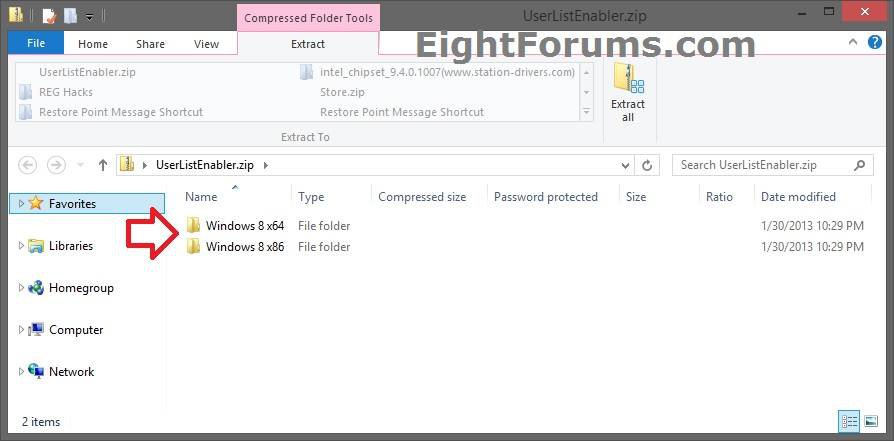
3. Open the extracted Windows 8 x86 (32-bit) or Windows 8 x64 (64-bit) folder, then unblock and run the UserListEnabler.exe file.
4. If prompted by UAC, then click/tap on Yes.
5. Do step 6 or 7 below for what you would like to do.
6. To Always Show All Users in Windows 8 Sign in Screen
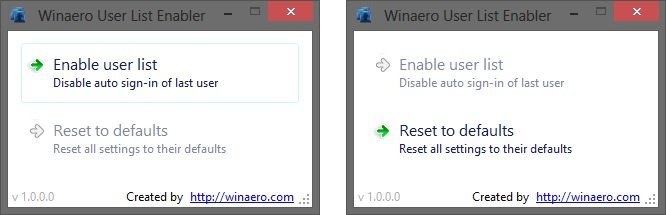
A) Click/tap on the Enable user list option, and close Winaero User List Enabler. (see screenshots below)
NOTE: If the option is grayed out, then it's already set to this.
7. To Always Show Only Last User that Signed Out in Windows 8 Sign in Screen
NOTE: This is the default setting.
A) Click/tap on the Reset to defaults option, and close Winaero User List Enabler. (see screenshots below)
NOTE: If the option is grayed out, then it's already set to this.
OPTION TWO
Always Show "All Users" or "Last User" using Group Policy
NoteIf you used any of the other options in this tutorial, then be sure to undo them first before using this option.
1. Open the Local Group Policy Editor.
2. In the left pane of group policy, click/tap on to expand User Configuration, Windows Settings, and Scripts (Logon/Logoff). (see screenshot below)
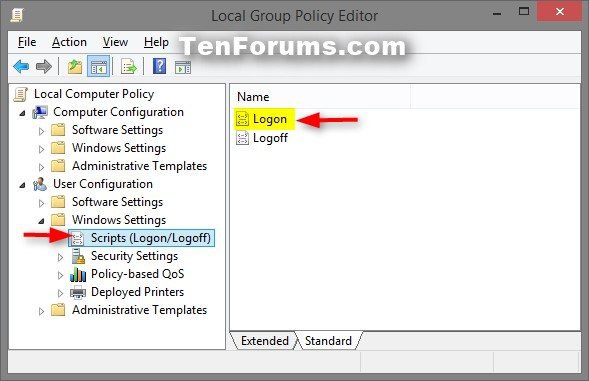
3. In the right pane of Scripts (Logon/Logoff), double/click tap on Logon to edit it. (see screenshot above)
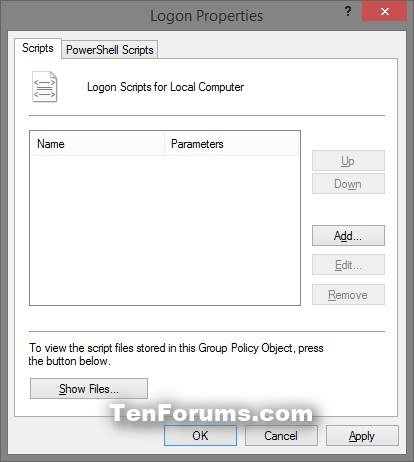
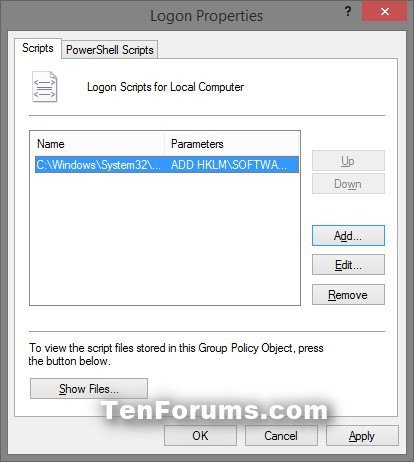
A) In the Scripts tab, click/tap on the Add button. (see screenshot below)
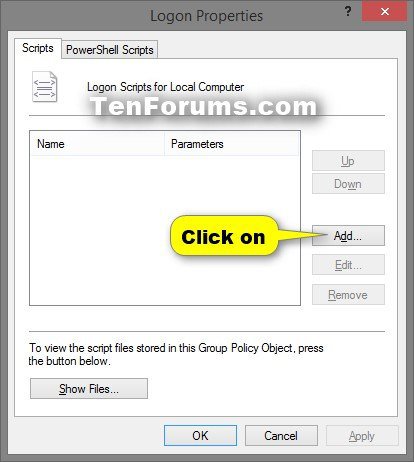
B) In the Script Name field, copy and paste the path below into it. (see screenshot below step 5C)
C:\Windows\System32\reg.exe
C) In the Script Parameters filed, copy and paste the command below into it, and click/tap on OK. (see screenshot below)
Code:
ADD HKLM\SOFTWARE\Microsoft\Windows\CurrentVersion\Authentication\LogonUI\UserSwitch /V Enabled /T REG_dWORD /D 1 /F
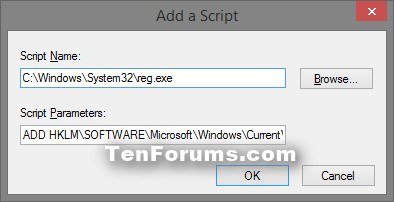
D) Click/tap on OK, and go to step 7 below. (see screenshot below)
NOTE: This is the default setting.
A) In the Scripts tab, click/tap on the Remove button. (see screenshot below)
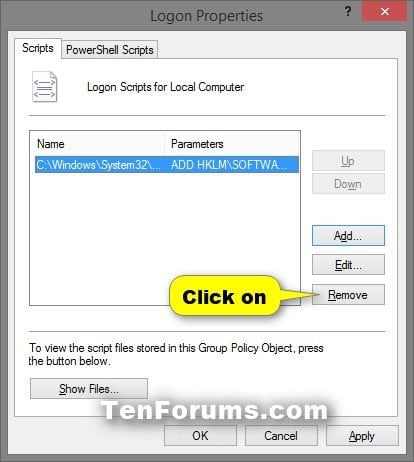
B) Click/tap on OK, and go to step 7 below. (see screenshot below)
OPTION THREE
Always Show "All Users" or "Last User" at Sign in using a Task
NoteIf you used any of the other options in this tutorial, then be sure to undo them first before using this option.
 If you have an issue of standard users not being able to enter an administrators password in a UAC prompt after using step 3 below, then use step 4 below to fix it, and use either OPTION ONE or OPTION TWO above instead.
If you have an issue of standard users not being able to enter an administrators password in a UAC prompt after using step 3 below, then use step 4 below to fix it, and use either OPTION ONE or OPTION TWO above instead.1. Press the :winkey: + R to open the Run dialog, type taskschd.msc, and click/tap on OK.
2. Do step 3 or step 4 below for what you would like to do.
3. To Always Show All Users in Windows 8/8.1 Sign in Screen
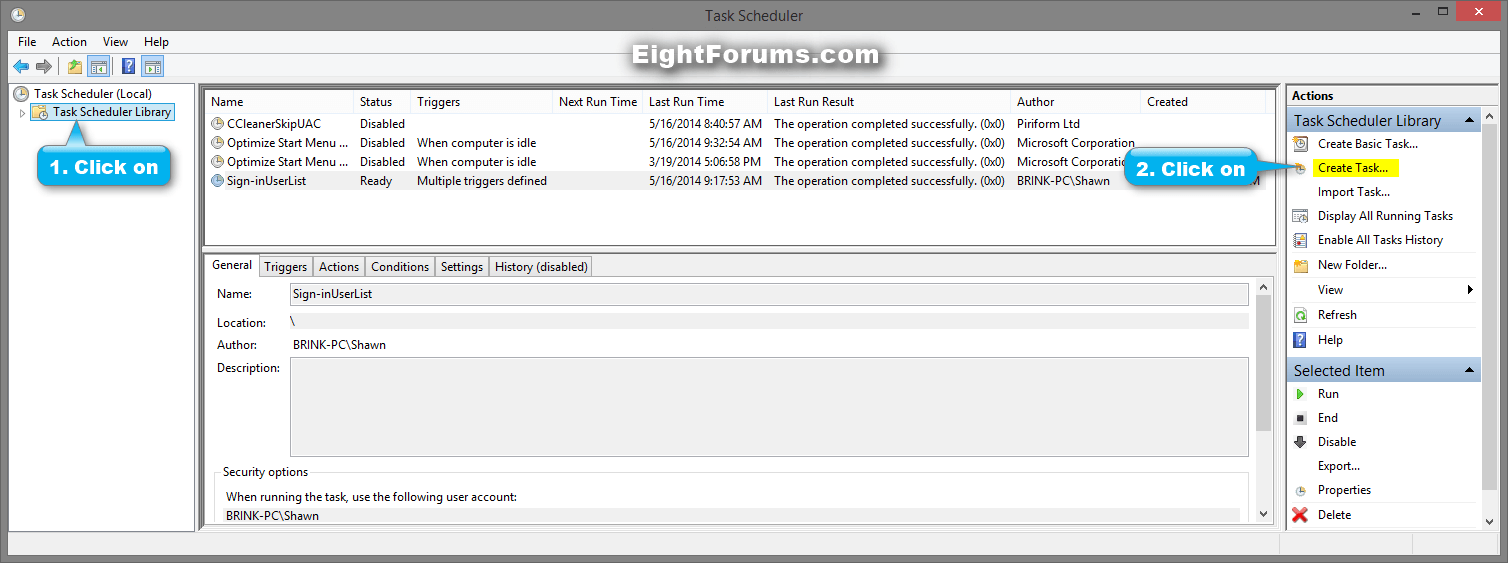
A) In Task Scheduler, click/tap on Task Scheduler Library in the far left pane, and click/tap on Create Task... in the far right "Actions" pane. (see screenshot below)
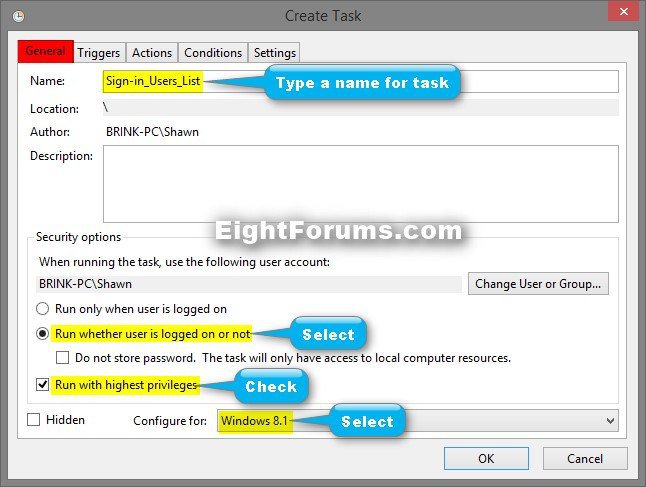
B) In the General tab: (see screenshot below)
[*=1]In the Name field, type in a name (ex: Sign-in,Users_List) you want for this task.
[*=1]Under Security options, select (dot) Run whether user is logged on or not.
[*=1]Under Security options, check the Run with highest privileges box.
[*=1]In the Configure for menu, select your installed Windows (ex: Windows 8.1).
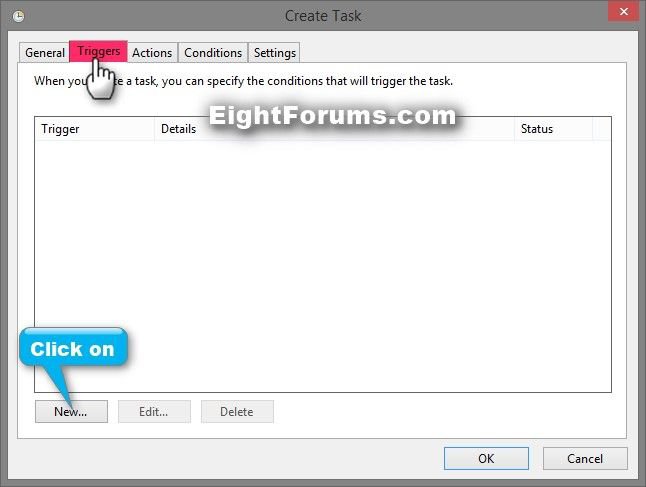
C) Click/tap on the Triggers tab, and click/tap on New. (see screenshot below)
D) In the New Trigger settings: (see screenshot below)
[*=1]In the Begin the task menu, select At log on.
[*=1]Under Settings, select (dot) Any user.
[*=1]Under Advanced settings, check the Enabled box.
[*=1]Click/tap on OK.
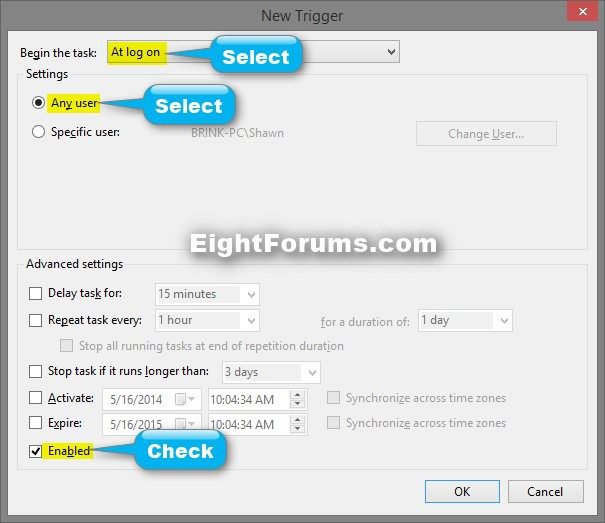
E) In the Triggers tab, and click/tap on New again. (see screenshot below step 3C)
F) In the New Trigger settings: (see screenshot below)
[*=1]In the Begin the task menu, select At startup.
[*=1]Under Advanced settings, check the Enabled box.
[*=1]Click/tap on OK
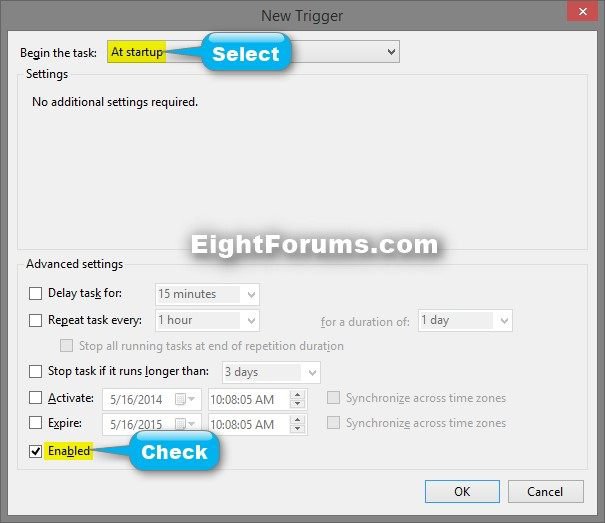
G) In the Triggers tab, and click/tap on New again. (see screenshot below step 3C)
H) In the New Trigger settings: (see screenshot below)
[*=1]In the Begin the task menu, select On workstation unlock.
[*=1]Under Settings, select (dot) Any user.
[*=1]Under Advanced settings, check the Enabled box.
[*=1]Click/tap on OK.
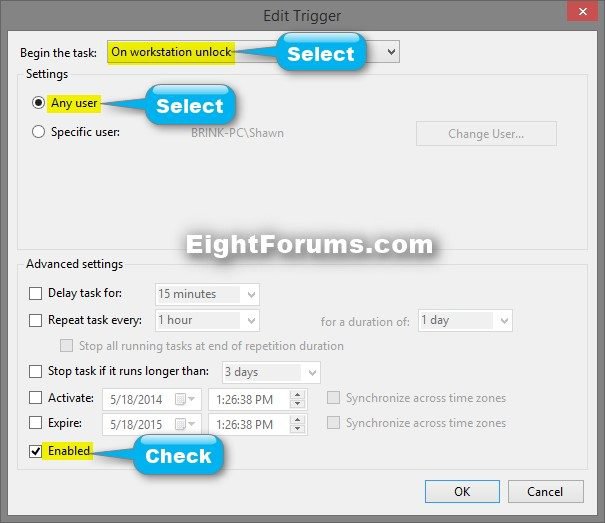
I) Click/tap on the Actions tab, and click/tap on New. (see screenshot below)
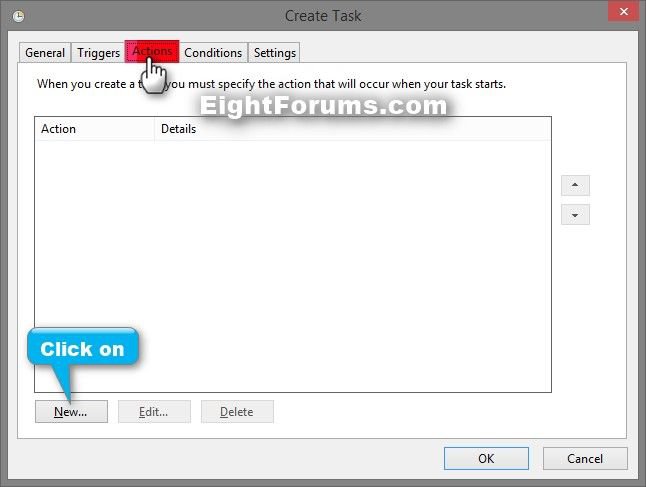
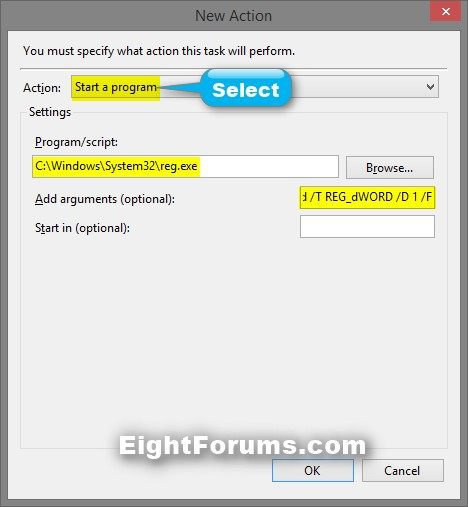
J) In the New Action settings: (see screenshot below)
[*=1]In the Action menu, select Start a program.
[*=1]In the Program/script field, copy and paste C:\Windows\System32\reg.exe.
[*=1]In the Add arguments field, copy and paste this below, and click/tap on OK.
Code:
ADD HKLM\SOFTWARE\Microsoft\Windows\CurrentVersion\Authentication\LogonUI\UserSwitch /V Enabled /T REG_dWORD /D 1 /F
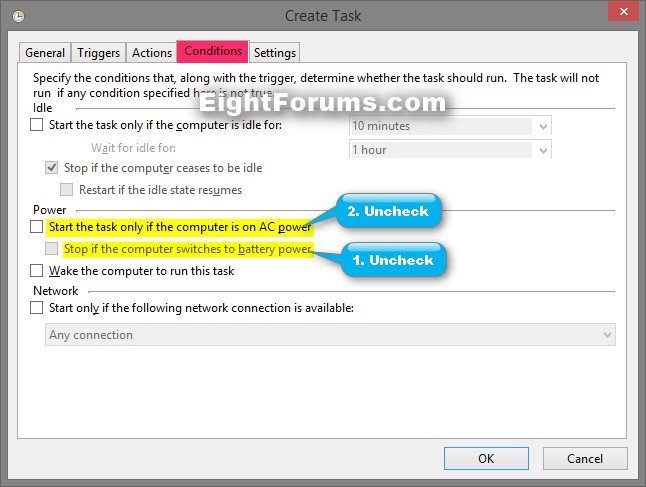
K) Click/tap on the Conditions tab, and: (see screenshot below)
[*=1]Uncheck the lower Stop if the computer switches to battery power check box first.
[*=1]Uncheck the upper Start the task only if the computer is on AC power check box second.
[*=1]Click/tap on OK.
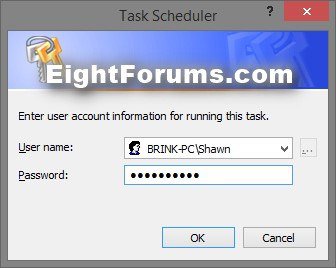
L) Type in the correct password for your user account in Windows, and click/tap on OK. (see screenshot below)
M) Close Task Scheduler.
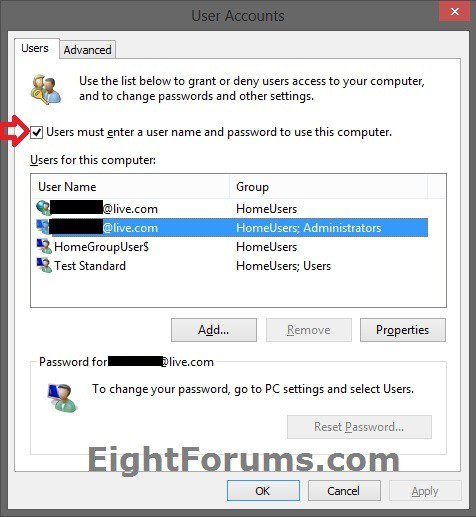
N) Check to make sure that you have checked the Users must enter a user name and password to use this computer check box to not have Windows automatically sign in to a user account at startup. This way you will see all users on the sign in screen instead. (see screenshot below)
O) Click/tap on the Download button below to download the .reg file below, and go to step 5 below.
All_Users_Sign-in.reg
4. To Always Show Only Last User that Signed Out in Windows 8/8.1 Sign in Screen
NOTE: This is the default setting. This is to undo step 3 above.
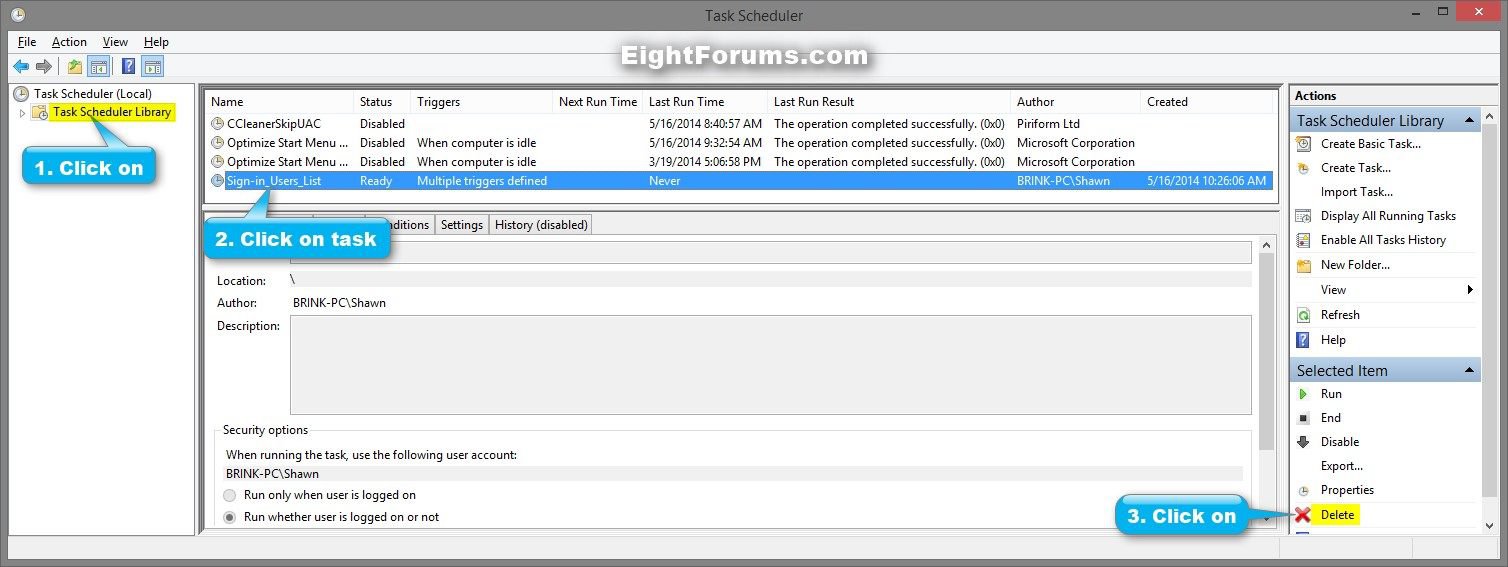
A) In Task Scheduler, click/tap on Task Scheduler Library in the far left pane, click/tap on the task name (ex: Sign-in_Users_List) in the middle pane that you created in step 3 above, and click/tap on Delete in the far right "Actions" pane. (see screenshot below)
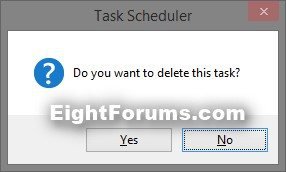
B) Click/tap on Yes to confirm, and close Task Scheduler. (see screenshot below)
C) Click/tap on the Download button below to download the .reg file below, and go to step 5 below.
Last_User_Sign-in.reg
5. Save the .reg file to your Desktop.
6. Double click/tap on the downloaded .reg file to merge it.
7. If prompted, click/tap on Run, Yes (UAC), Yes, and OK to approve the merge.
8. When finished, you can delete the downloaded .reg file if you like.
That's it,
Shawn
Related Tutorials
- How to Sign in to Windows 8 and 8.1
- How to Require Users to Sign in with User Name and Password in Windows 8 and 8.1
- Require Users to Sign in with User Name and Password on Lock Screen in Windows 8 and 8.1
- How to Change Background Color of Default Sign-in Screen in Windows 8 and 8.1
- How to Change Start and Sign in Screen Background and Color in Windows 8 and 8.1
- How to Sign in to a User Account Automatically at Startup in Windows 8 and 8.1
- How to Enable or Disable Password Protection on Wakeup in Windows 8 and 8.1
- How Enable or Disable Secure Sign-in with Ctrl+Alt+Delete in Windows 8 and 8.1
- How to Enable or Disable the Lock Screen in Windows 8 and 8.1
- Enable or Disable Screen Saver Password Protection in Windows 7 and Windows 8
- How to Display Information about Previous Logons during User Sign-in to Windows 8 and 8.1
Attachments

Last edited by a moderator:


