
Minimum resolution for fully working Metro UI is 1024x768. But most current touch devices out there have resolution of 1024x600 or smaller, which means that we could not enjoy testing new metro UI.
Fortunately, Intel added a feature into their drivers that allows you to get bigger resolution on same screen. Of course enabling that means odd looking screen (due to aspect ratio differences) and slightly reduced performance. But I guess It's OK for testing until we get something better. This works only for Intel graphics, so ION or any other non-intel graphics users, you are out of luck. Let's start:
1. Install latest drivers for your graphics. Windows 8 may already have latest drivers installed, but it's better to play safe and install latest drivers. Of course pick Windows 7 ones, since there are no drivers specifically for Windows 8 available yet.
2. Swipe left from right side of the screen to get little menu. Select "Search".
3. In search menu select "Apps" and type "regedit" (without quotes) into search box.
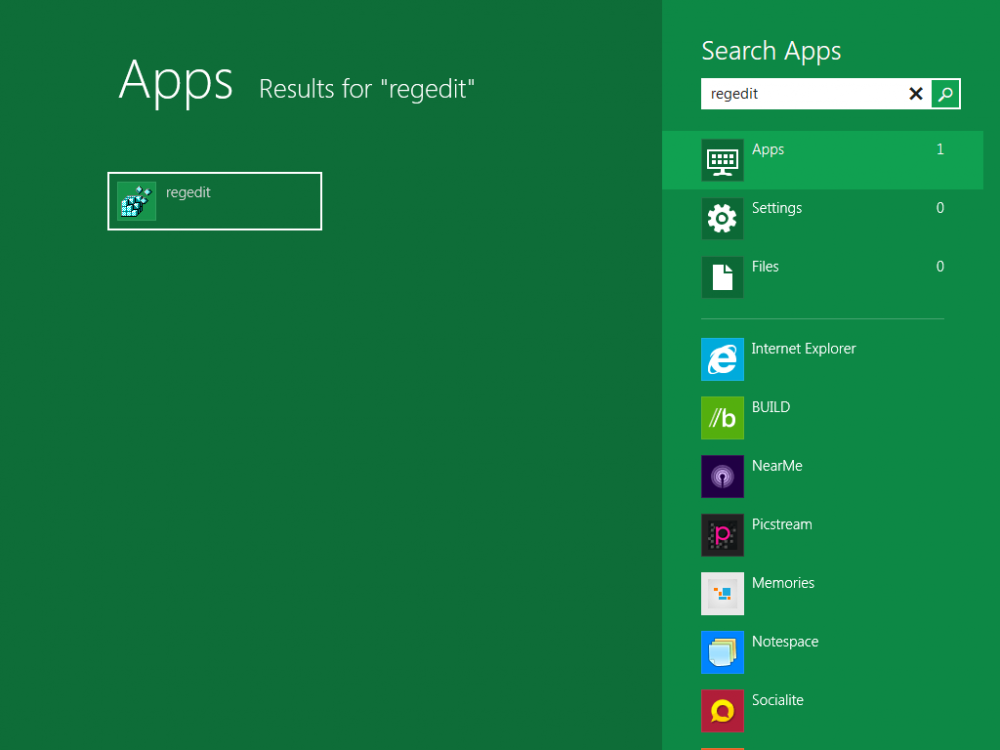
4. On left side you should get one result with text "regedit". Tap on it. If you get any UAC dialogs, accept it.
5. Registry Editor will open. Go to Edit --> Find and enter "Display1_DownScalingSupported" into search box. Make sure that all 3 checkboxes are checked (Keys, Values and Data). Start search.
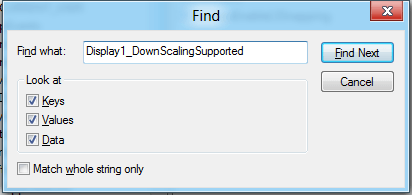
6. After some seconds of searching, it should find an entry. On the right pane, you should see Display1_DownScalingSupported entry. Double tap on it, enter 1 under "Value data" and press OK.
If you are using Consumer Preview, skip points 7-9. It does not work anymore.
7. On the left pane scroll to the top and then find HKEY_CURRENT_USER\Software\Microsoft\Windows\CurrentVersion\ImmersiveShell\AppPositioner (tap on arrow next to HKEY_CURRENT_USER, then on arrow next to Software etc.)
8. If you see "AlwaysEnableLSSnapping" on the right side, double click on it. Otherwise right click on the pane (hold your finger until you see square appear around it) and select New --> DWORD Value. Name the new value "AlwaysEnableLSSnapping" (without quotes) and double click on it.
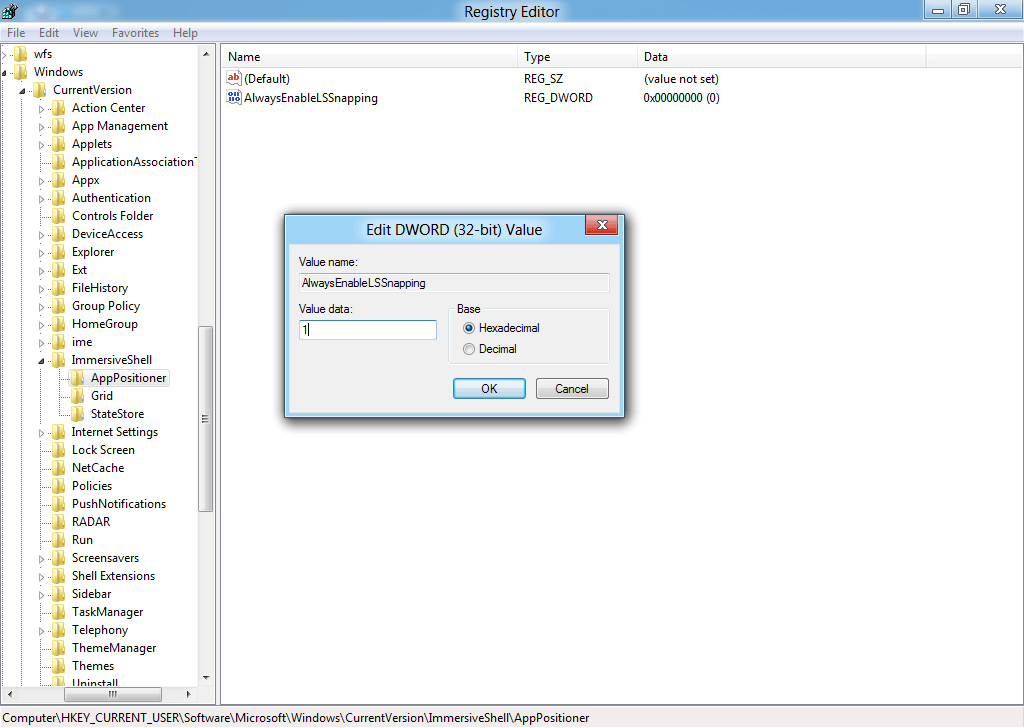
9. Like in step 6, enter 1 under "Value data:" and confirm.
10. Reboot your computer.
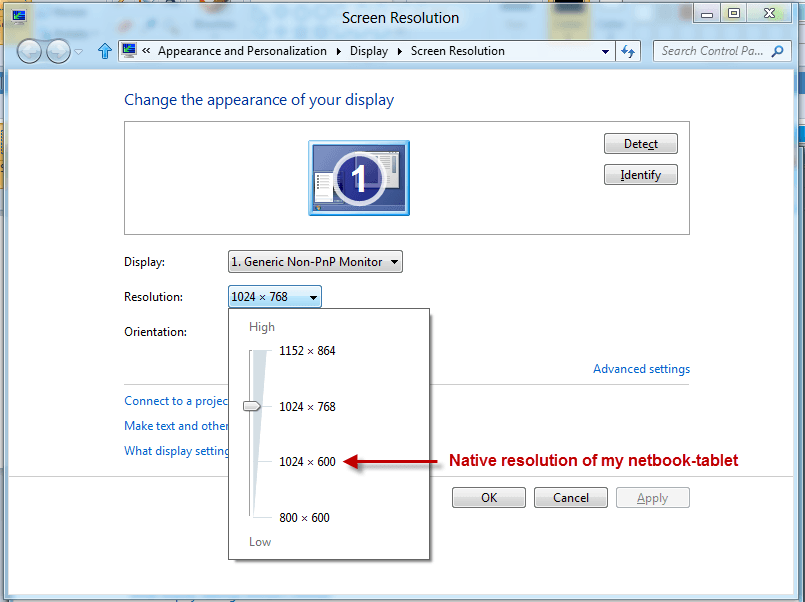
11. Go into display options. You should now see new resolution options. Select any resolution that is 1024x768 or higher and you should get fully working metro UI
Fortunately, Intel added a feature into their drivers that allows you to get bigger resolution on same screen. Of course enabling that means odd looking screen (due to aspect ratio differences) and slightly reduced performance. But I guess It's OK for testing until we get something better. This works only for Intel graphics, so ION or any other non-intel graphics users, you are out of luck. Let's start:
1. Install latest drivers for your graphics. Windows 8 may already have latest drivers installed, but it's better to play safe and install latest drivers. Of course pick Windows 7 ones, since there are no drivers specifically for Windows 8 available yet.
2. Swipe left from right side of the screen to get little menu. Select "Search".
3. In search menu select "Apps" and type "regedit" (without quotes) into search box.
4. On left side you should get one result with text "regedit". Tap on it. If you get any UAC dialogs, accept it.
5. Registry Editor will open. Go to Edit --> Find and enter "Display1_DownScalingSupported" into search box. Make sure that all 3 checkboxes are checked (Keys, Values and Data). Start search.
6. After some seconds of searching, it should find an entry. On the right pane, you should see Display1_DownScalingSupported entry. Double tap on it, enter 1 under "Value data" and press OK.
If you are using Consumer Preview, skip points 7-9. It does not work anymore.
7. On the left pane scroll to the top and then find HKEY_CURRENT_USER\Software\Microsoft\Windows\CurrentVersion\ImmersiveShell\AppPositioner (tap on arrow next to HKEY_CURRENT_USER, then on arrow next to Software etc.)
8. If you see "AlwaysEnableLSSnapping" on the right side, double click on it. Otherwise right click on the pane (hold your finger until you see square appear around it) and select New --> DWORD Value. Name the new value "AlwaysEnableLSSnapping" (without quotes) and double click on it.
9. Like in step 6, enter 1 under "Value data:" and confirm.
10. Reboot your computer.
11. Go into display options. You should now see new resolution options. Select any resolution that is 1024x768 or higher and you should get fully working metro UI
Last edited:
My Computer
System One
-
- OS
- Windows 7


